Select An Org
Toggle or switch between Lightning Experience and Salesforce Classic
Publish Date: Feb 18, 2025
Description
Once an organization has enabled Lightning Experience, Users with the Lightning Experience User permission may toggle or switch back and forth between Lightning Experience and Salesforce Classic at any time using the steps below.
If you do not see the option to switch to Salesforce Classic, this has been turned off by your Salesforce Administrator or you have one of the restricted versions listed in the following notes.
Important Notes:
- Please also consider the information in our 'Turn on Lightning Experience Critical Update FAQ' if you experience any other issues switching UIs.
- The UI switcher can be removed for some of your users by your System Administrator via the 'Make Lightning Experience the Only Experience for Some Users' feature. To have the Salesforce Classic option turned off for all users, see Turn Off Salesforce Classic for Your Org.
- If 'Lightning Experience Transition Assistant' is missing from the Setup page, please contact Salesforce Support.
- Salesforce Starter and Starter Pro Suite are Lightning-only and do not have access to Classic.
- In Salesforce Essentials or after an upgrade from the Essentials Edition to Professional, only System Administrators can switch to Salesforce Classic. For more information, view Switch to Salesforce Classic Not Available After Upgrade from Essentials Edition.
Resolution
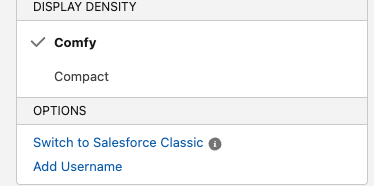
Change the UI from Lightning Experience to Salesforce Classic
- Click your Avatar in the top right-hand side of the screen

2. Click Switch to Salesforce Classic
Change the UI from Salesforce Classic to Lightning Experience
- Click your name
- Select Switch to Lightning Experience
Note: In the Salesforce Classic view, you can also find the Switch to Lightning Experience to the left of your name.

Note: Running Classic and Lightning Experience in different browser tabs or windows is not supported and can cause unexpected behavior in the look and feel of your org and the values returned by the $User.UITheme and $User.UIThemeDisplayed fields. For example, if your org is using Lightning Experience, but you switch to Classic in a different browser tab, these fields return a Classic theme in both tabs.
Video: Switch from Salesforce Classic to Lightning Experience
For a visual guide, see our "How Do I Switch Between Classic and Lightning?" screencast on YouTube.
Additional Resources
'Switch to Salesforce Classic' not available after upgrade from Essentials Edition
Considerations for Switching Between Lightning Experience and Salesforce Classic
Users can't see the option 'Switch to Salesforce Classic'
Salesforce Classic Mobile App Retirement
Knowledge Article Number
000387519
Did this article solve your issue?
Let us know so we can improve!
