You are here:
Troubleshoot Flow Errors with Agentforce (Beta)
Use Agentforce to troubleshoot design-time issues in saved flows and run-time errors in active flows, eliminating the need for manual troubleshooting. The Flow Automation agent diagnoses issues, identifies root causes, and explains remediation steps all in natural language. In some situations, the Flow Automation agent can automatically fix the flow for you.
Required Editions
| Available in: Lightning Experience |
| View supported editions. |
| This feature requires the Foundations or Agentforce 1 editions. To purchase, contact your Salesforce account executive. |

| User Permissions Needed | |
|---|---|
| To debug a flow in Flow Builder: | View All Data |
| To open, edit, create, activate or deactivate a flow using all flow types, elements, and features available in Flow Builder, including Einstein and Agentforce for Flow: | Manage Flow |
Before you debug flows with Agentforce, turn on Generative AI in Setup, and verify that you’ve provisioned and enabled Data 360 in your org.
Set Up Agentforce (First-Time Use)
Before you can use Ask Agentforce to troubleshoot flow errors, complete these one-time setup steps.
- Turn on Einstein Generative AI in Setup.
- Provision and turn on Data 360.
- From Setup, in the Quick Find box, enter Agentforce Agents, and then select Agentforce Agents, and then turn on Agentforce.
-
Open any flow in Flow Builder, click
 , and click Migrate to Agentforce.
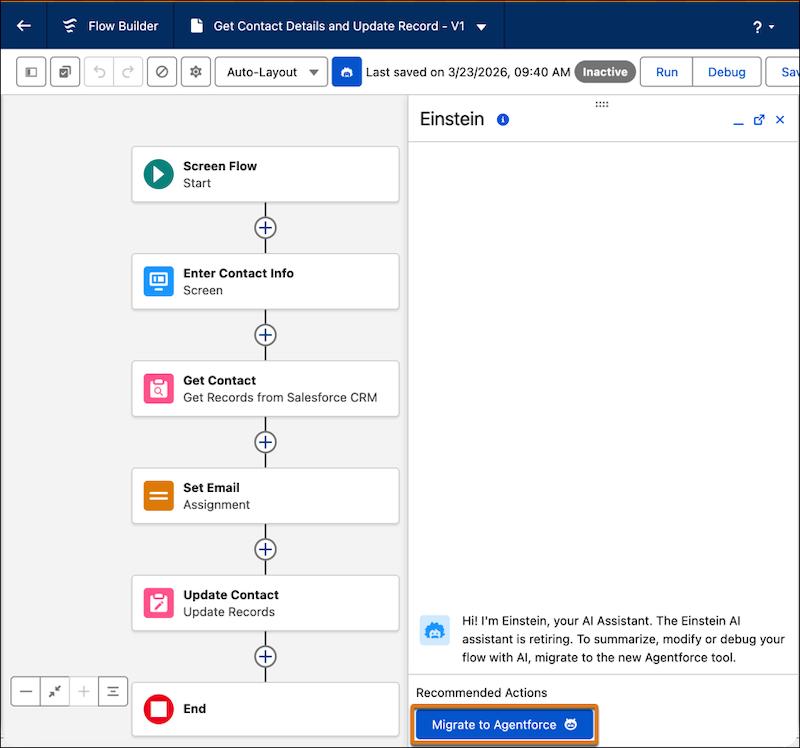
- In the Migrate to Agentforce window, click Migrate.
Migrate to the Updated Flow Automation Agent
If you previously used the Agentforce side panel for flows, deactivate and delete your existing Flow Automation Agent before migrating to the updated version.
-
From the App Launcher, enter Agent, and then select the Agentforce
Studio app.
Agentforce Studio opens with a list of agents.
-
Click the agent's name.
The agent opens in Agentforce Builder.
- Deactivate the agent.
- Go back to the list of agents.
- From the more actions dropdown for the Flow Automation Agent, select Delete (2).
-
Open any flow in Flow Builder, click , and click Migrate to Agentforce
- In the Migrate to Agentforce window, click Migrate.
Diagnose and Fix Flow Errors with Ask Agentforce (Beta)
Use Ask Agentforce (Beta) to identify the root cause of errors in a saved or failed active flow and apply fixes automatically or with guided steps.
-
Open the flow in Flow Builder, and then click Debug.
This option is available for screen flows, prompt flows, and Data Cloud-triggered flows. For autolaunched and record-triggered flows, use Test Mode instead. See Testing Your Flow in Test Mode (Beta).
- Set the debug options, and then click Run.
-
From the debug details panel, click Ask Agentforce (Beta) and turn
it on.
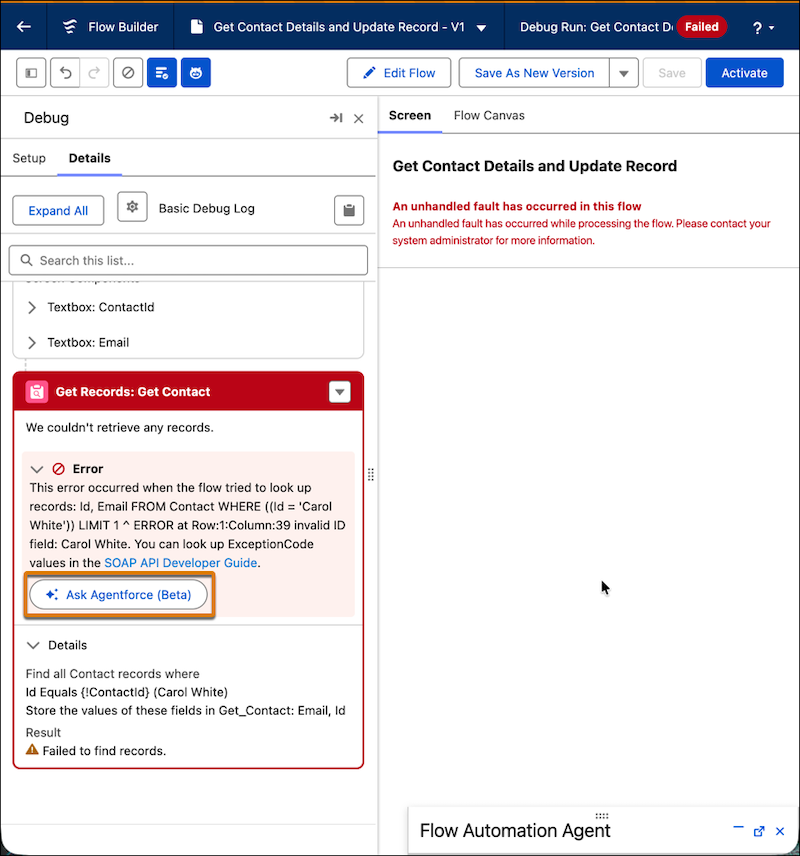
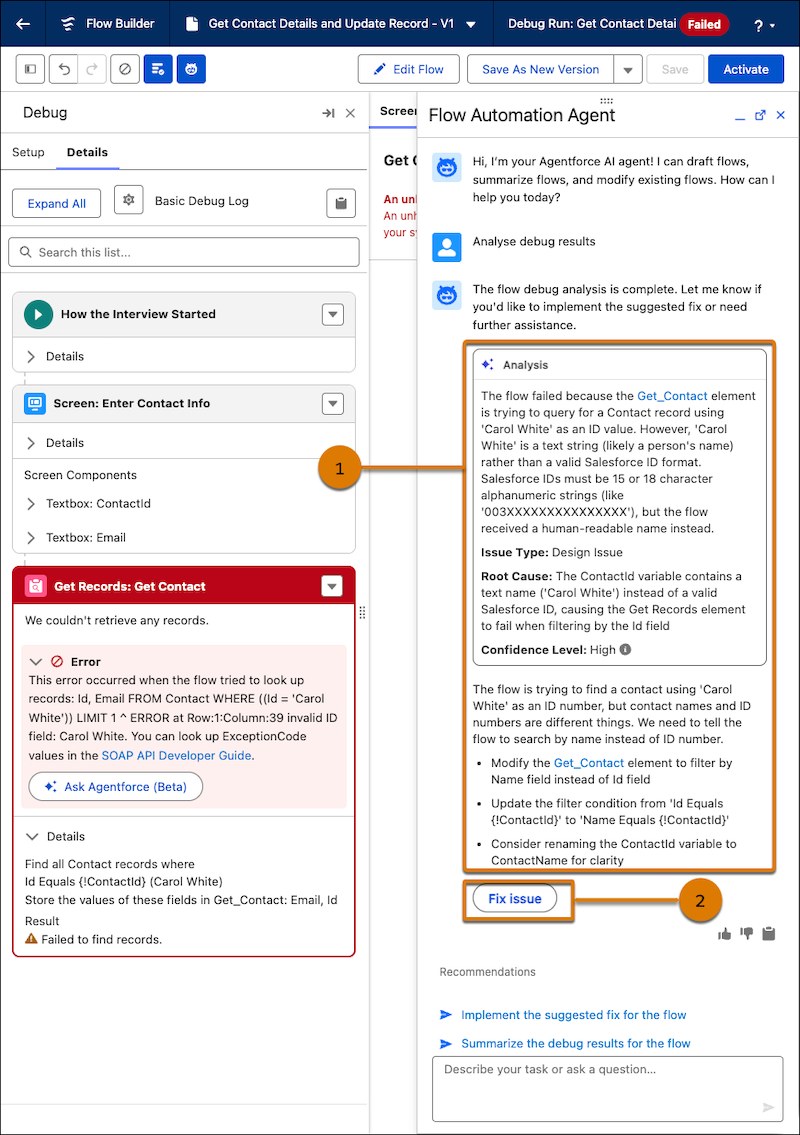
- Review the AI-generated root cause analysis (1).
-
Fix the error by using one of these options:
-
If the agent can automatically fix the flow, click Fix issue (2).
The agent updates the flow on the canvas.
- If the agent can't fix the flow, follow the remediation steps and make the changes manually.
-
If the agent can automatically fix the flow, click Fix issue (2).
The agent updates the flow on the canvas.
- Save the updated flow as a new version.
- To verify the fix, click Debug again.
