組織を選択
Lightning Sync for Google を初めて使う場合はどうすればよいですか?
公開日: Jan 31, 2025
説明
重要 Winter '21 以降、新しい Salesforce ユーザは Lightning Sync を使用できません。Lightning Sync を使用している場合、Lightning Sync 移行アシスタントを使用すると、Einstein 活動キャプチャにシームレスに移行できます。これは、Microsoft® または Google アプリケーションと Salesforce 間で取引先責任者と行動を同期するための長期的なソリューションです。
Lightning Sync for Google 設定手順の概要
※ あらかじめ Gmail のメールアドレスを Salesforce 側のユーザのメールアドレスに設定しておきます。
1. G Suite 側で事前準備を行います。
2. Salesforce 側で Lightning Sync for Google を設定します。
3. Salesforce 側で Lightning Sync 接続テストを実行します。
4. Lightning Sync 設定をユーザに割り当てます。
5. Lightning Sync for Google の同期設定を定義します。
解決策
G Suite 側での事前準備
以下はすべて Google 側で設定します。
デベロッパーコンソールでの設定
デベロッパーコンソールでの設定
1. プロジェクトを作成します。
2. Google カレンダー API を有効化します。
3. Google People API を有効化します。
4. 新しいサービスアカウントを作成します。
5. G Suite ドメイン全体の委任を有効にします。
6. クライアント ID を確認します。
2. Google カレンダー API を有効化します。
3. Google People API を有効化します。
4. 新しいサービスアカウントを作成します。
5. G Suite ドメイン全体の委任を有効にします。
6. クライアント ID を確認します。
管理コンソールでの設定
7. カレンダースコープを入力します。
Lightning Sync で使用する G Suite の準備
1-1. 以下の URL へアクセスして新規に Google プロジェクトを作成します。
Google Cloud
https://console.developers.google.com/

1-2. 任意のプロジェクト名を入力して [作成] をクリックします。

2-1. API とサービスの有効化を選択します。
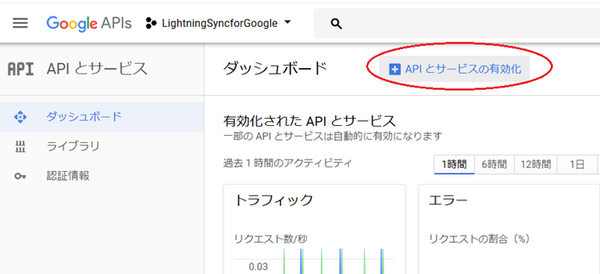
2-2. Google Calendar API を検索して選択します。

2-3. Google Calendar API を有効化します。
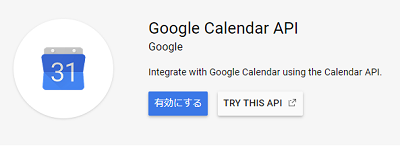
3-1. ダッシュボードの画面より再度 APIとサービスの有効化を選択します。
3-2. Google People API を検索して選択します。
3-3. Google People API を有効化します。
4. 新しいサービスアカウントを作成します。
4-1. [認証情報] を選択します。
4-2. [認証情報を作成] から、[サービス アカウント] を選択します。

4-3. 任意のサービスアカウント名を入力し、[作成] を選択します。
4-4. [ロールを選択] | [Project] | [オーナー] | [続行] | [完了] と順に選択します
Google Cloud
https://console.developers.google.com/
1-2. 任意のプロジェクト名を入力して [作成] をクリックします。
2-1. API とサービスの有効化を選択します。
2-2. Google Calendar API を検索して選択します。
2-3. Google Calendar API を有効化します。
3-1. ダッシュボードの画面より再度 APIとサービスの有効化を選択します。
3-2. Google People API を検索して選択します。
3-3. Google People API を有効化します。
4. 新しいサービスアカウントを作成します。
4-1. [認証情報] を選択します。
4-2. [認証情報を作成] から、[サービス アカウント] を選択します。
4-3. 任意のサービスアカウント名を入力し、[作成] を選択します。
4-4. [ロールを選択] | [Project] | [オーナー] | [続行] | [完了] と順に選択します
5. G Suite ドメイン全体の委任を有効化します。
5-1. [サービス アカウントを管理] を選択します。
5-2. [編集] を選択します。

5-3. [ドメイン全体の委任の表示] から G Suite ドメイン全体の委任を有効にします。
5-1. [サービス アカウントを管理] を選択します。
5-2. [編集] を選択します。
5-3. [ドメイン全体の委任の表示] から G Suite ドメイン全体の委任を有効にします。
5-4. 任意の同意画面のプロダクト名を入力します
5-5. [鍵を追加] から [新しい鍵を作成] を選択し、JSON が指定されていることを確認し [作成] を選択します。JSON ファイルは後の手順で Salesforce へアップロードします。
5-6. 保存します
6. クライアント ID を表示します。

6-1. [クライアント ID を表示] からクライアント ID を確認して控えます。クライアント ID は後の手順で使用します。
7. スコープを入力します。
7-1. 以下の URL へアクセスして、セキュリティをクリックします。

7-2. [API の制御] を選択します。
7-3. [ドメイン全体の委任を管理] を選択します。
7-4. [新しく追加] を選択し、先の手順で確認したクライアント ID を [クライアント ID] に入力し、[OAuth スコープ] に Contact もしくは Calendar の URL を入力し、[承認] を選択します。
- Contact
https://www.googleapis.com/auth/contacts
- Calendar
https://www.googleapis.com/auth/calendar
もし、Contact および Calendar 両方を同期対象とする場合は、以下のように 2 つの URL をカンマ区切りで入力します。
https://www.googleapis.com/auth/contacts,https://www.googleapis.com/auth/calendar
ヘルプ:
Lightning Sync で使用する Google アカウントの準備
https://www.googleapis.com/auth/contacts
- Calendar
https://www.googleapis.com/auth/calendar
もし、Contact および Calendar 両方を同期対象とする場合は、以下のように 2 つの URL をカンマ区切りで入力します。
https://www.googleapis.com/auth/contacts,https://www.googleapis.com/auth/calendar
ヘルプ:
Lightning Sync で使用する Google アカウントの準備
Salesforce 側での Lightning Sync for Google の準備
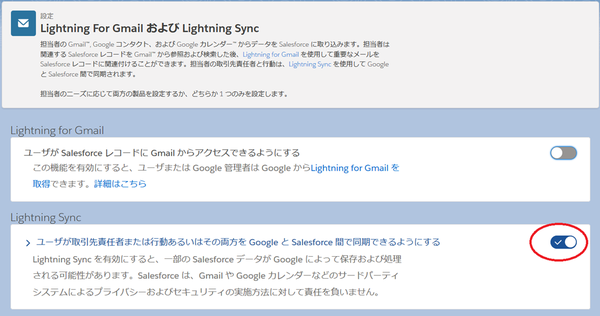
1. Lightning Sync を有効化します。
[設定] | [メール] | [Gmail インテグレーションおよび同期] の設定を選択して [Lightning Sync] の右側のスイッチボタンをオンにします。
2. [1 Google を Salesforce に登録] の [サイトを登録] をクリックします。
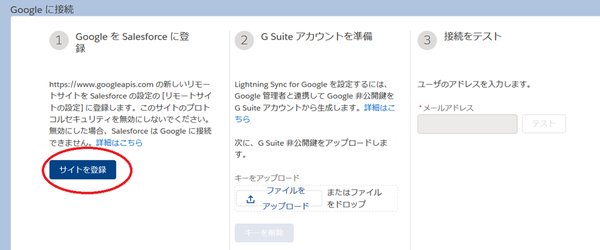
[新規リモートサイト] をクリックします。任意のリモートサイト名を入力して、リモートサイトの URL を以下のとおり入力します。
https://www.googleapis.com
ヘルプ:
Lightning Sync for Google のための Salesforce の準備
3.「2 G Suite アカウントを準備」の「ファイルをアップロード」よりダウンロードした JSON ファイルをアップロードします。
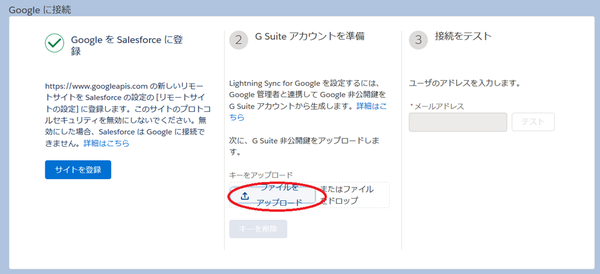
4.「3 接続をテスト」のユーザメールアドレスに有効な Gmail のメールアドレスを入力しテストします。

5. [同期設定を定義] の [設定に移動] ボタンを押下します。

6. [新規 Google 設定] を押下し、任意の名前を入力して、[有効] をオンにします。
7. ユーザもしくはプロファイルに割り当てます。
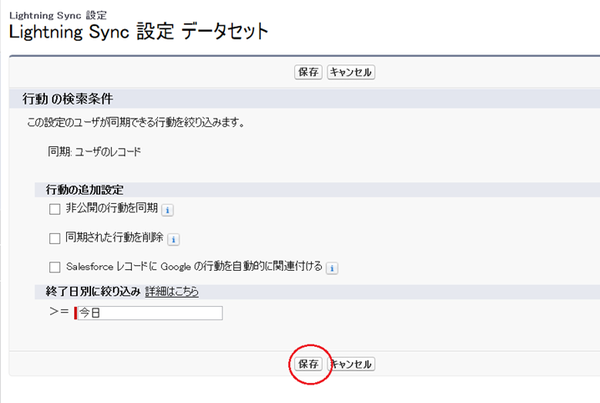
8. データ設定に同期する対象を選択します。保存をクリックします。

9. データ設定の検索条件を設定し、[保存] をクリックします。
ナレッジ記事番号
000382947
この記事で問題は解決されましたか?
ご意見をお待ちしております。
