Sélectionner une organisation
Salesforce Data Loader Error: 'CSV Error: Invalid CSV file format' Caused by UTF-8 BOM Encoding"
Date de publication: Apr 3, 2026
Description
New versions of the Data Loader (version 28+) do not support files encoded using UTF-8 BOM(BYTE ORDER MARK) format and will generate the following error:
"CSV Error: Invalid CSV file format. Please select a different file. Error getting header row from the CSV file"
UTF-8 BOM (Byte Order Mark) is a hidden character sequence (represented as ) that some applications add to the beginning of a UTF-8 encoded file. Data Loader version 28+ does not support files containing a BOM.
Note: Depending on your text editor or Excel settings, you won't be able to see the BOM character.
To determine whether or not your file contains a BOM character, use W3C Internationalization Checker.
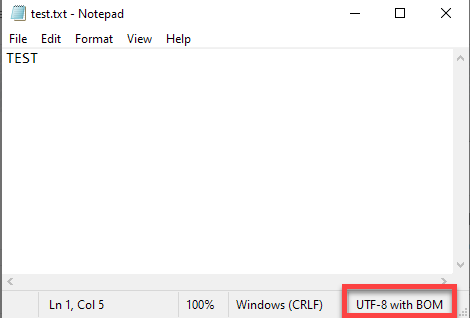
Also, If you open the csv file in Notepad on Windows, you can confirm the encoding used at the bottom right on the status bar.
Résolution
Workaround to load unicode CSV files
Option 1: Remove the BOM manually (re-save the file and keep double-byte characters).
- Open and modify your file in Excel as desired.
- Save your file as "Unicode Text" format.
- Close, then re-open your file.
- Re-save your file with the following attributes:
- Set the file extension to .csv
- Set the "Save As" type to "All Files"
- Set the encoding to "UTF-8"
- After saving the file, don't re-open the file.
- Run the Data Loader action as normal using your newly created .csv file
Option 2: Save the CSV file without the BOM (BYTE ORDER MARK):
- Open your CSV file with any text editor that supports both BOM and NON-BOM.
- Save it again without BOM (for example, in Notepad++ , select Encoding | Encode in UTF-8 and save the file).
Once your CSV file is saved without BOM, you'll be able to load it with Data Loader v28+.
Note: If you're using an external DB or Application, refer to the third party documentation for instructions for how to save a CSV file without BOM.
If you still receive the error after saving the csv file with UTF-8 encoding without BOM, please Contact Salesforce Customer Support .
Additional BOM information
Please see W3C standards for more information. The W3C also provides suggestions on creating perl script to automatically remove BOM.
Custom solutions which automatically remove BOM aren't supported by Salesforce Customer Support.
There are times when converting a csv file using the Unicode method does not work and Users may encounter the error:
"Invalid CSV file format. Please select a different file. Error reading row #: the number of data columns exceeds the number of columns in the header."
To resolve this conversion issue, paste the contents of the CSV file to Google Sheets
- Go to Google Sheets https://www.google.com/sheets/about/ (you must have an existing Google account).
- Copy and paste the contents of your CSV file.
- Save and download the file as .CSV format.
- Upload the file directly to Data Loader (without opening the file so that changes will not be made).
Note: The error usually occurs in European countries, due to PC regional settings where a semicolon is used as a delimiter.
The following characters may appear at the start of a file containing a BOM. If you see any of these at the beginning of your header row, the file contains a BOM and must be re-saved:
- ^
- `
- ~
- ¡
- ¢
- «
- µ
- ¸
- Ä
- Ã
- Ð
- Ò
Ressources supplémentaires
Insert, Update, or Delete Data Using Data Loader
Convert your spreadsheet into CSV format
Replace semicolons with commas in CSV data imports
Numéro d’article de la base de connaissances
000383918
Cet article a-t-il résolu votre problème ?
Dites-nous ce que nous pouvons améliorer !
