組織を選択
Salesforce Error 'API not enabled for this Organization or Partner'
公開日: Jun 10, 2026
説明
The error "API is not enabled for this Organization or Partner" appears when an API call is made to a Salesforce org that does not have API access enabled — either at the org edition level or at the user profile level. This article explains how to identify which restriction is causing the error and how to resolve it.
解決策
Step 1: Check Your Salesforce Edition
API access is enabled by default for Enterprise, Unlimited, Performance, and Developer editions. Group, Essentials, and Professional edition orgs do not have API enabled by default. Professional edition customers can purchase API access as an add-on.
To find your Salesforce edition, follow the steps in: How to Find Your Salesforce Edition
If your org is on an edition that does not support API, contact Salesforce to discuss upgrading your edition or purchasing the API add-on (for Professional).
Step 2: Check the User Profile API Enabled Setting
If your org edition supports API, verify the API Enabled permission is enabled on the user's profile:
- In Lightning Experience: Go to Setup > Users > Profiles. In Classic: Go to Setup > Administration Setup > Manage Users > Profiles.
Alternatively, find the user in the All Users list and select their Profile directly.
Step 2a: Classic Interface (Standard Profile Page)
Select the profile. Scroll down to Administrative Permissions. Enable API Enabled if it is not already checked.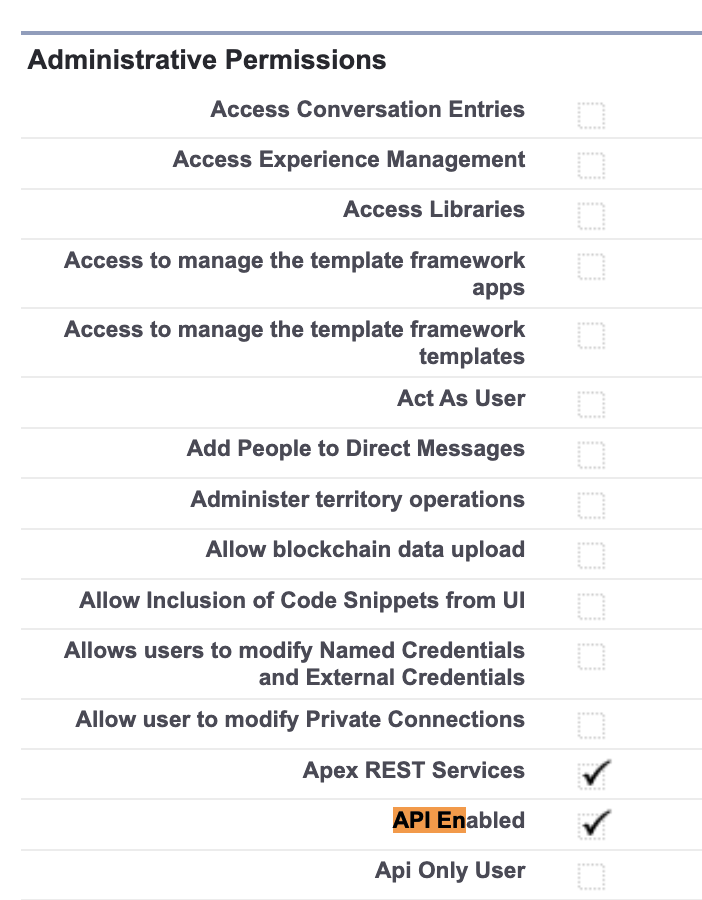
Step 2b: Enhanced User Profile Interface
If using the Enhanced User Profile Interface, select the profile, scroll down, and select System Permissions. Enable API Enabled if it is not already selected.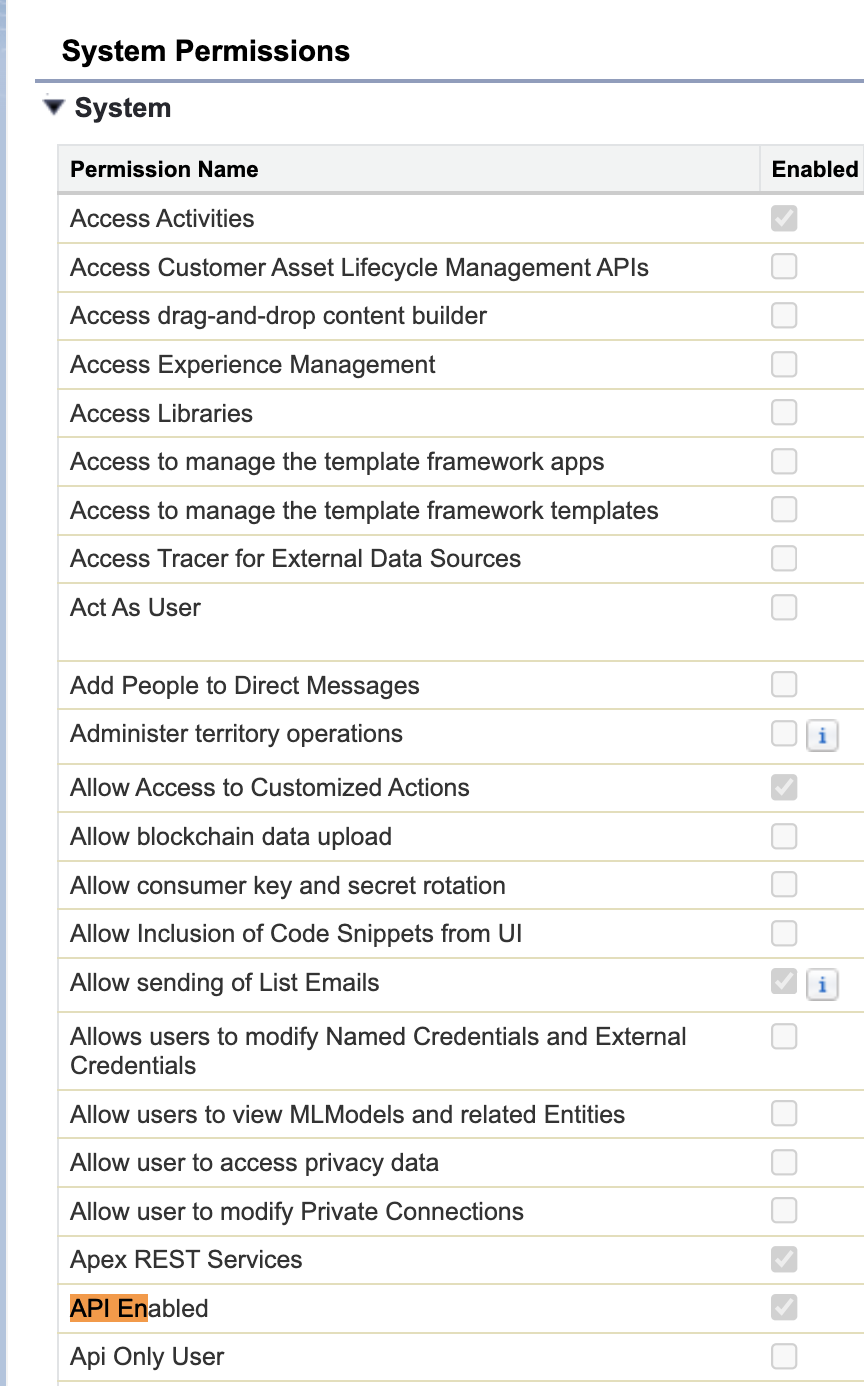
その他のリソース
ナレッジ記事番号
000385535
この記事で問題は解決されましたか?
ご意見をお待ちしております。
