Velg en organisasjon
Quip Emojis, GIFs & Stickers
Publiseringsdato: Feb 9, 2024
Beskrivelse
This article will help you learn how to make your chats, comments and conversations fun and quirky in Quip by using Emojis, GIFs and Stickers.
Løsning
Emoji, GIFs & Stickers
Whether you are in a chat, comment or conversation pane you can add emoji, GIFs and stickers to your message. Click the Emoji picker to open the Emoji, GIFs and Stickers keyboard. Click on the reaction that fits the conversations and Send.You can also use an emoji to react to a message.
Setting Default Skin Tone for Emojis
Set your default skin tone for your emojis and emoji reactions in Quip to better express yourself. Here’s how:
- Open the conversation pane in a Quip document on the desktop or web
- Click on the Emoji picker (hint: it’s the smiley face icon beside the paper clip)
- Click on the 👋 button in the top-right and select the skin tone of your choice
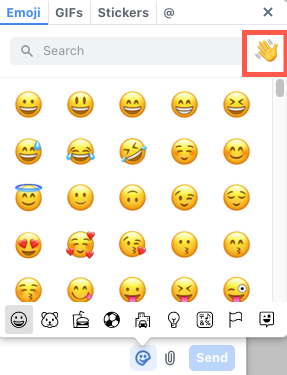
Note: You cannot set a default skin tone on mobile. The Quip Android app will not support default skin tones.
GIFs
At Quip we love having fun with GIFs. Want to reference your favorite TV series? Easy!Click on the Emoji picker, then the GIFs tab and use the search bar to find the perfect GIF.
Stickers
Use stickers to make your conversations more vibrant and quirky! Click the Emoji picker, then the Stickers tab, and use the search bar to find access you a variety of stickers.
Questions/Feedback?
Reach out to our support team and log a case. Learn how to do that here.
Knowledge-artikkelnummer
000393268
Hjalp denne artikkelen med å løse problemet ditt?
La oss få vite det slik at vi kan forbedre!
