Sélectionner une organisation
How to use Anchor Links in Quip
Date de publication: Oct 31, 2024
Résolution
Yes! Quip has anchor links, and they're a fast way to direct people to a very specific part of your document or spreadsheet. You can put anchor links within a document to point readers to other parts of that same document. You can also put an anchor link in an email, chat, or other docs. Here's how they work.
To create an anchor link
Place your cursor at the spot in the document you'd like to link to, then click Copy Anchor Link from Edit menu.
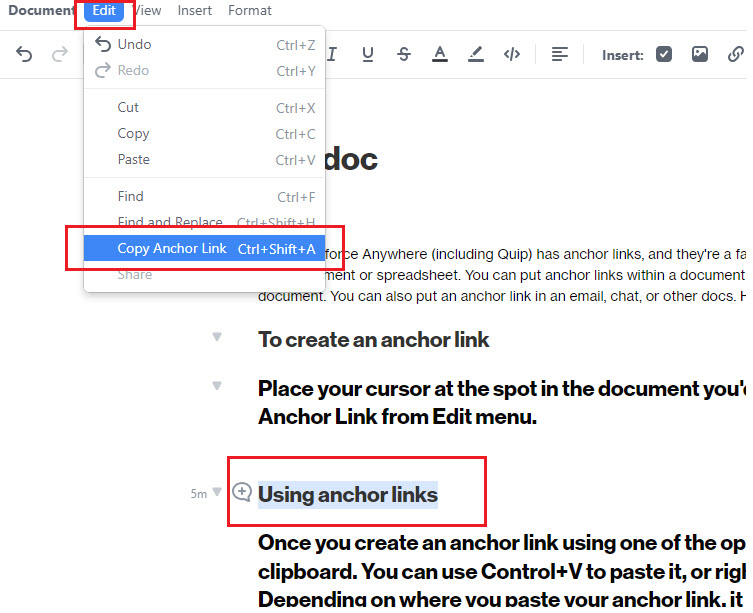
Note: You can also create anchor links in the template.
Using anchor links
Once you create an anchor link using one of the options above, it is copied to your clipboard. You can use Control+V to paste it, or right-click and choose Paste. Depending on where you paste your anchor link, it behaves a little differently.
Anchor linking to other parts of the same doc
If you create an anchor link in one part of your document, you can paste it someplace else in that same document. This is useful if you want to help people navigate a long or complex document. When an anchor link goes to a different part of the same document, it shows up as the section name that you've linked to.
When someone clicks the anchor link, they are taken to the part of the document the anchor link leads to, with an automatic spotlight to help them zero in on what you wanted them to see.
Sending links to people directly
After you've copied an anchor link, you can also send it to someone in a comment or chat. Anchor links that point to a different document show the name of the document as well as the section you're linking to.
When someone clicks your link, it opens the document, and takes them to the exact spot your anchor link is pointing to.
If you're sending the anchor link outside of Quip, the anchor link shows up as a URL. You can put anchor links in an email, a chat application, or even a text message. If someone clicks the link, it takes them to your document in a web browser.
Considerations for Anchor Links
When anchor links are used as a table of contents or for referencing within a Quip Template, and that Template is then used to create a Quip Document, the anchor links will continue to point back to the original template.
Numéro d’article de la base de connaissances
000389930
Cet article a-t-il résolu votre problème ?
Dites-nous ce que nous pouvons améliorer !
