Vælg en organisation
Troubleshoot Price Rule Issues in Salesforce CPQ
Udgivelsesdato: Apr 29, 2026
Beskrivelse
Troubleshooting Tips:
- When debugging a price rule, one of the best ways to narrow down which price condition is causing an issue is to delete each condition individually and validate testing after each conditional removal (Note: the deleted conditions can be recovered from the recycle bin).
- When debugging a price rule, if the conditions are met but still the Target Field in the price action is not being populated, check to see if the price action is using a formula. Change the price action from a formula to a value. This validates that the price rule is in fact running and the root cause is related to the formula used in the price action.
- If there are multiple price rules that have the same target action, an easy way to sort which price rules are targeting this field is by creating a list view in Salesforce Classic, which looks at price actions targeting the field in question. This can be done by going to any price action, and only leaving the last 15 characters in the Salesforce ID of the URL. Only leaving the first characters 3 characters in the Salesforce ID. Creating a list view of all the object, which can then be edited to add particular fields such as target fields.
- The same can be done as above if you wanted to create a list view for price conditions, to evaluate if there are multiple conditions running at the same time.
- If a price rule is not running, check to see if changing the Calculator Evaluation Event is having an impact.
- Check against the Conditions Met on the price rule, validate if the custom condition is causing an issue versus if the Conditions Met was set to All.
- If a price rule is using a lookup query and the price rule is not running, check to see if the Tested Field used in the lookup query has a value, which is used to check against the lookup field. If the lookup field does not exist in the lookup object, then this could be a reason the price rule is not running.
- If a price action is using a formula value and is not working as expected, check if the fields used in the formula are being populated with a corresponding value. It could be that the fields used in the formula are being populated via another price rule.
- Comma-delimited values used in price conditions may not evaluate as expected. Expected behaviors are detailed in this Knowledge Article.
- Price action will not be executed if we are using a Price Condition that targets a custom formula field referring to Record Type fields such as "RecordType.Name" because RecordType cannot be evaluated by Price Rules or Product Rules in Salesforce CPQ. See Also: Known Issue
Price Rule Setup
- Validate that the API names in both the price action Target Field and the price condition Field are using the correct API name.
- If the price rules were recently migrated, it is worth re-executing the Post Install Scripts to refresh the Calculator Referenced Fields within the Org, especially if data was migrated with Triggers Disabled.
- Check in the installed packages list to access the CPQ package settings for the Org’s Calculator settings in the Pricing and Calculation tab:
- Price rules do not fire if Enable Quick Calculate is TRUE.
- Price rules have limited functionality if 'Use Legacy Calculator' is TRUE (Note: no current implementations should be using the Legacy Calculator).
- Check Additional Settings to validate Triggers Disabled is FALSE. If TRUE, change to FALSE and re-execute Post Install Scripts.
- If a price rule is using a lookup object, validate that the Tested Field in the lookup query has the correct API name.
- When testing price rules, adding the price condition fields to the Quote/Quote Line Editor Field Set could help resolve the issue. This is because when the field is added to the Line Editor, the value is available during the calculation.
- Verify Summary Variable Filter Information. If your Price Rules rely on Summary Variables to determine eligibility or pricing, please make sure to verify the filter criteria matches as expected to calculate the summary variables.
Price Rule Examples:
Below are two detailed examples of price rules not properly working and how to fix them.
- Faulty Scenario 1
- In this example, the users are seeing incorrect pricing on the first "Calculate' but correct pricing on the second 'Calculate' for their price rules.
- Faulty Scenario 2
- In this example, there is a chain of price rules that updates a checkbox to indicate whether or not a quote requires approval.
Løsning
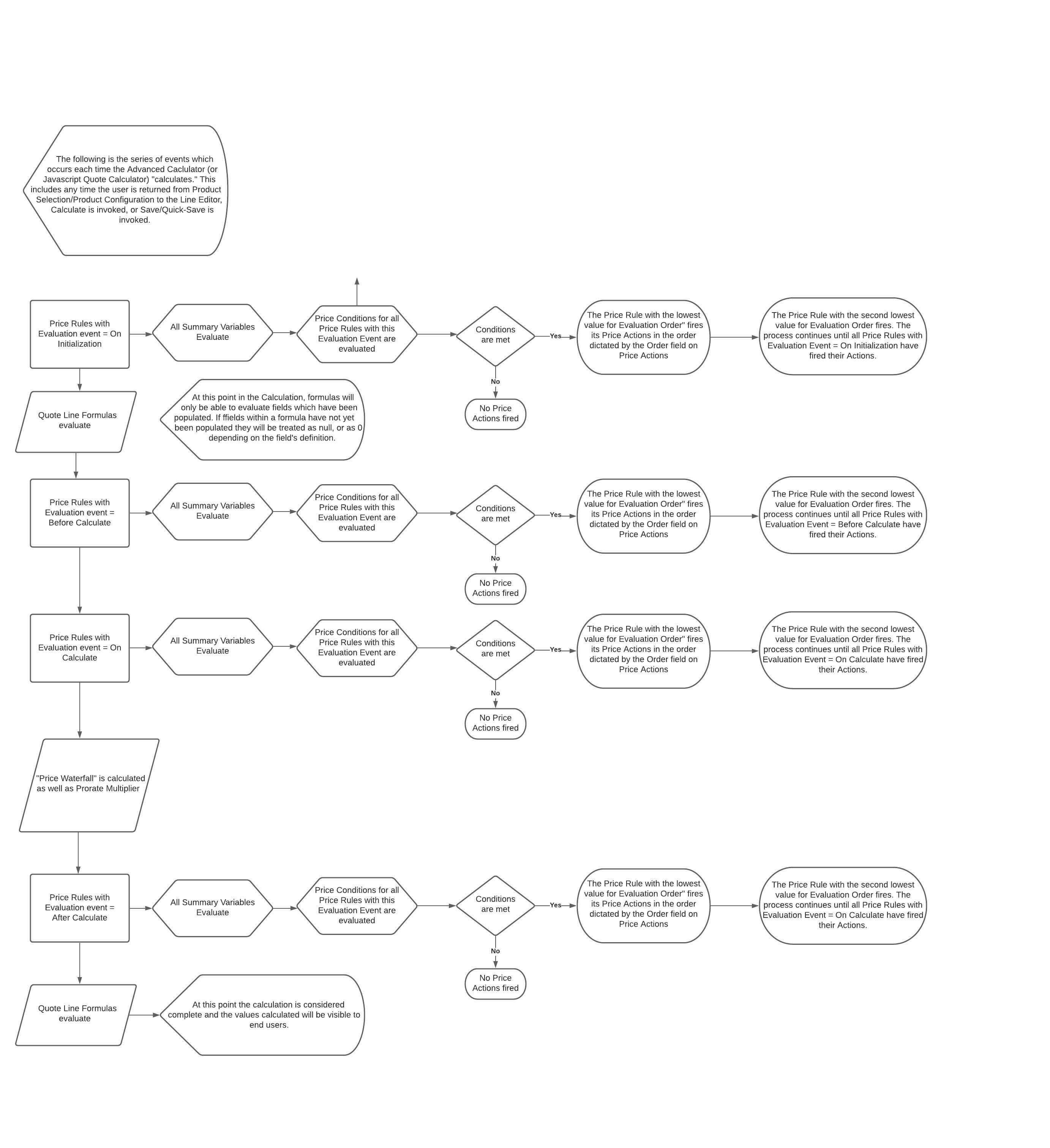
Price Rule Flow
The diagram below outlines the price rule flow on how a price rule is triggered.
Yderligere ressourcer
SEE ALSO
Vidensartikelnummer
000393328
Løste denne artikel dit problem?
Giv os besked, så vi kan forbedre os!
