Velg en organisasjon
Salesforce Data Loader Desktop Shortcut Not Created After Windows Installation
Publiseringsdato: Jul 10, 2026
Beskrivelse
When installing Salesforce Data Loader on Windows, the installer may display a prompt asking whether to create a Start menu shortcut or desktop icon. In some cases, the installer quits before the shortcut is created, resulting in no desktop icon even though the Data Loader application itself is installed successfully. The installation completes without error — only the shortcut creation fails.
Løsning
For Dataloader version 61.0 or newer
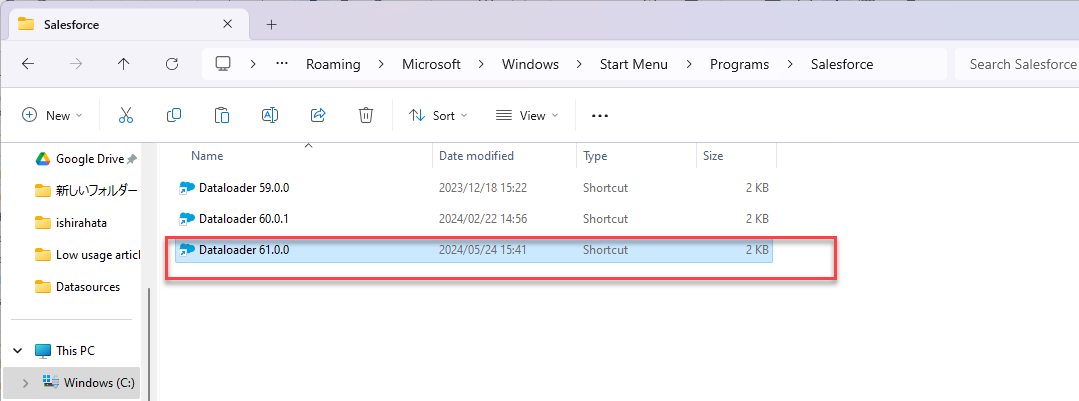
After the installation completes, the shortcut can be manually copied from the Windows Start menu to the desktop.
- Open the Windows Start menu.
- Locate Data Loader in the application list.
- Right-click the Data Loader entry and select Open file location.
- Copy the shortcut file.
- Paste it onto the desktop.
For Older Versions of Data Loader - Manually Create a Shortcut
For Data Loader versions older than 61.0, the installer may create a corrupt or invalid shortcut icon. Follow these steps to manually create a valid shortcut:
- Navigate to the extracted dataloader_win.zip file and open the Data Loader folder.
- Right-click dataloader.bat and select Create Shortcut.
- Right-click the new Dataloader - Shortcut and select Properties.
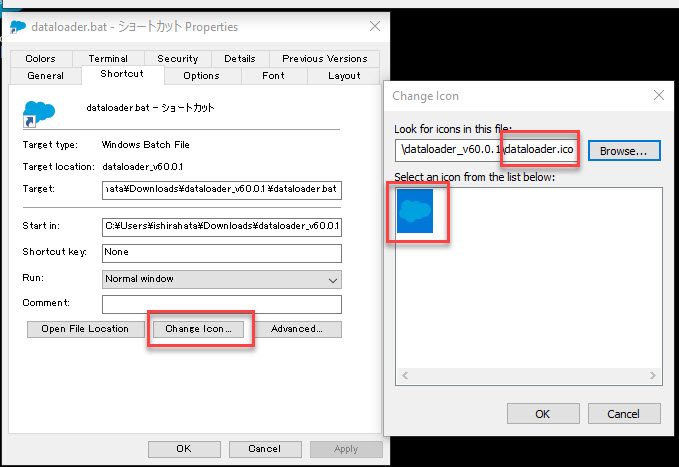
- Under the Shortcut tab, click Change Icon.
- When prompted with "Choose an icon from the list or specify a different file," click OK.
- Browse to the Data Loader folder from the extracted zip file.
- Select dataloader.ico and click Open, then click OK twice.
- Rename the shortcut if desired.
- Move the shortcut to your desktop.
Flere ressurser
Knowledge-artikkelnummer
000380116
Hjalp denne artikkelen med å løse problemet ditt?
La oss få vite det slik at vi kan forbedre!
