Organisation auswählen
Non-spatial events in the Maps Resource view
Veröffentlichungsdatum: Aug 25, 2026
Beschreibung
If you open up the Resource View in Salesforce Maps, you may expect Non-spatial events to be colored the same way as in the Day View — grey.
This article explains why an event excluded from optimization is not colored the same in the Resource View as it is in the Day View.
Lösung
This article explains why an event you exclude from optimization in the Day View is not colored the same way in the Resource View, and confirms that this is expected behavior.
Excluding an Event from Optimization
When adding an event to your schedule in the Day View, you have the option to exclude it from optimization. To do so:
- Click the three dots on the specific event you want to exclude.
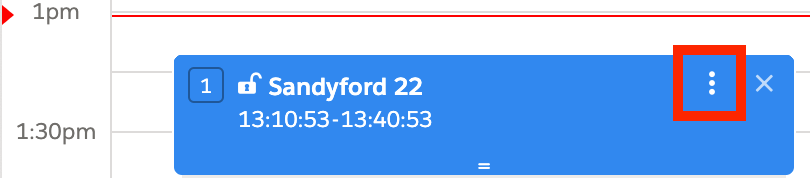
- Select Exclude from Optimization.
Note: An excluded event will be colored differently in the Day View.
Why the Event Color Differs in the Resource View
If you open the Resource View, you may expect this same event to be colored the way it is in the Day View. However, you'll find that the event is not the same color in the Resource View.
This is working as expected. Excluding events from optimization is a feature of the Day View only. It's helpful for scheduling around appointments you may not physically visit, such as a call you might make on the road. Excluding an event from optimization is only a temporary state used for planning, and does not carry over to how the Resource View colors events.
Zusätzliche Ressourcen
Nummer des Knowledge-Artikels
000380332
Konnten Sie Ihr Problem mithilfe dieses Artikels lösen?
Geben Sie uns Feedback, damit wir uns verbessern können.
