Select An Org
Salesforce For Outlook Side Panel keeps on spinning and never connects
Publish Date: Sep 3, 2025
Description
Main Issue
Salesforce for Outlook Side Panel loads in Outlook but does not connect. It keeps on spinning and gets stuck in a loop and does not display anything nor allows you to search.
Possible Root Cause
This issue can be caused by the Microsoft Office 365 version not being up to date. The Microsoft Office version list below is known to cause the spinning behavior. All the affected users have been upgrading their Office to a version or build later than the builds listed below:
Version 1807 (Build 10325.20118)
Version 1808 (Build 10730.20088)
Version 1808 (Build 10730.20102)
Version 1809 (Build 10827.20138)
Version 1809 (Build 10827.20150)
Version 1911
Version 1912
Version 2001 (Build 12430.20184)
Version 1808 (Build 10730.20088)
Version 1808 (Build 10730.20102)
Version 1809 (Build 10827.20138)
Version 1809 (Build 10827.20150)
Version 1911
Version 1912
Version 2001 (Build 12430.20184)
Other possible related issues that could be resolved by these steps:
1- Rendering Issues with the Side Panel
2- Side Panel blank
Resolution
This issue could be caused by one or all of the following. To address this issue please review the steps and apply them one by one:
1- Internet Explorer Compatibility Mode
2- Browser Emulation keys in the Registry
3- The BrowserEmulationModeConfig key and its value in the registry
4- Internet Explorer
5- Possible duplicate library key in the registry
6- If you have SFO version 3.4.5 installed
2- Browser Emulation keys in the Registry
3- The BrowserEmulationModeConfig key and its value in the registry
4- Internet Explorer
5- Possible duplicate library key in the registry
6- If you have SFO version 3.4.5 installed
Internet Explorer Compatibility Mode
Depending on the URL that you use to connect to Salesforce, either the default login.Salesforce.com or any Single sign-on or Custom Domain. You may need to make sure IE 11 browser is not configured to use any of these URLs in the compatibility modeRefer to the Microsoft document here for more information
One good test to see what browser emulation Side Panel is using, is to load the Side Panel URL in the IE browser and check the Document Mode value drop down in the Emulation tab
To run this test,
1- Open IE11 and press the F12 key on your keyboard to open up the F12 Developer Tool.
2- On the Developer tool click on the Emulation tab
3- In the browser Address bar, type in your Salesforce login URL (whatever URL you use to login to Salesforce)
4- Append clients/sidepanel/sidepanelcontainer.apexp? to the end of .....salesforce.com
(Please refer to Load the 'Salesforce for Outlook' panel in a browser window Knowledge article)
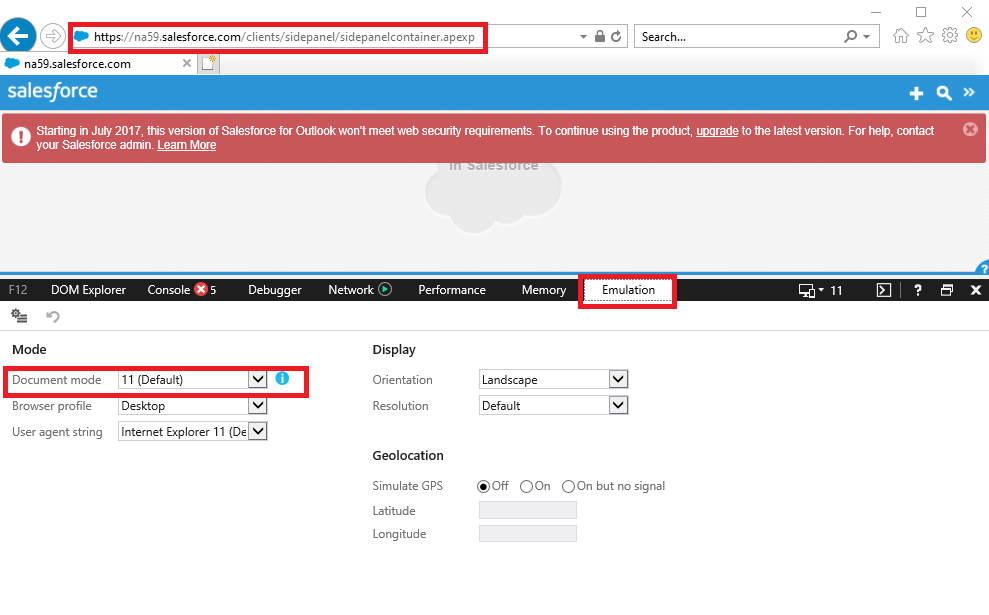
5- Once the page loads, check the Document Mode value and make sure it shows 11(Default). Any other value other than 11 means your browser Emulation value in the registry is not correct.
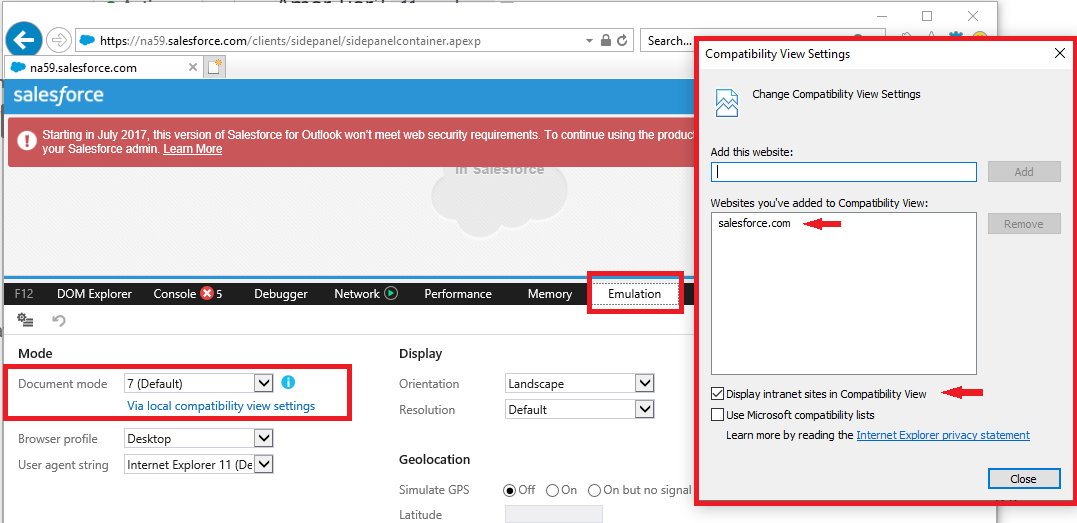
If the Document mode value shows 7 perfrom the following steps

This is an example of what you should see if Side Panel is working correctly and issue is not related to Browser Emulation or Internet Explorer
And this is an example if IE11 running in Compatibility Mode
2- On the Developer tool click on the Emulation tab
3- In the browser Address bar, type in your Salesforce login URL (whatever URL you use to login to Salesforce)
4- Append clients/sidepanel/sidepanelcontainer.apexp? to the end of .....salesforce.com
(Please refer to Load the 'Salesforce for Outlook' panel in a browser window Knowledge article)
5- Once the page loads, check the Document Mode value and make sure it shows 11(Default). Any other value other than 11 means your browser Emulation value in the registry is not correct.
If the Document mode value shows 7 perfrom the following steps
1- Open Internet Explorer, select the Tools button , and then select Compatibility View settings.
2- Uncheck both boxes for Display Intranet sites in Compatibility View (this is needed specially if you have a custom domain or SSO that is hosted on your intranet/internal network) and the Use Microsoft Compatibility lists
3- Click on Close
4- Try again and test the IE with F12 again
4- Try again and test the IE with F12 again
This is an example of what you should see if Side Panel is working correctly and issue is not related to Browser Emulation or Internet Explorer
And this is an example if IE11 running in Compatibility Mode
Browser Emulation keys in the Registry
In order for SFO Side Panel to connect successfully and allow you to search and display content the Internet Explorer browser emulation values in the registry must be set to IE11 even if you use Chrome or Firefox as your default browser.
First
Check your installed version of Internet Explorer and make sure that you have the latest version installed.
If you do not have the latest IE installed, reach out to your IT Help Desk to upgrade it
If you do not have the latest IE installed, reach out to your IT Help Desk to upgrade it
To perform the following step, you must have local administrative rights on your computer
1 - Click on the Start button in Windows and type in Regedit and press Enter to open the Windows Registry Editor.
2- Navigate to the following key:
2- Navigate to the following key:
HKEY_LOCAL_MACHINE\SOFTWARE\Microsoft\Internet Explorer\MAIN\FeatureControl\FEATURE_BROWSER_EMULATION
3- Click on the FEATURE_BROWSER_EMULATION on the left pane
4- Check the right pane and look for OUTLOOK.EXE and SfdcMsOl.exe value to make sure they exist and their values are set to 11000 or 11001
5- If the Outlook.exe value does not exist, it could mean either the SFO installation has failed or the user does not have the permission to this section of the registry. This key is checked and updated upon opening Microsoft Outlook. Same as the SfdcMsOl.exe
You or your admin (running the registry under their credentials) can create these 2 keys if necessary using these steps:
1- Close all your programs, you would need to right click on the SFO system tray icon and click on Exit to close SFO. Also make sure Outlook is not running in the background, using the Task Manager | Details tab and look for the Outlook.exe process
2- Assuming you already clicked on the FEATURE_BROWSER_EMULATION key on the left then right click on a blank area on the right side then click NEW | DWORD(32bit)
3- Type in OUTLOOK.EXE for the value and press Enter
4- Double click on the newly created value and select Decimal and enter 11000 or 11001 for the Value Data
5- Click on Ok
6- Next do the same and create the SfdcMsOl.exe if needed
* Sometimes there are applications on your machine that need a different value for this key and after you change it to 11000 or 11001 every thing may work but after you restart Outlook or your machine, the value may be set back to its old value and you may experience these issues again. If that is the case, please check these registry values after you restart to make sure they don't change. If they do, reach out to your internal Help Desk for more information
Now perform thesame steps 1-5 for the following registry keys
HKEY_CURRENT_USER\Software\Microsoft\Internet Explorer\Main\FeatureControl\FEATURE_BROWSER_EMULATION
HKEY_CURRENT_USER\Software\Wow6432Node\Microsoft\Internet Explorer\Main\FeatureControl\FEATURE_BROWSER_EMULATION (If it exist) -
HKEY_LOCAL_MACHINE\SOFTWARE\Wow6432Node\Microsoft\Internet Explorer\MAIN\FeatureControl\FEATURE_BROWSER_EMULATION
HKEY_CURRENT_USER\Software\Wow6432Node\Microsoft\Internet Explorer\Main\FeatureControl\FEATURE_BROWSER_EMULATION (If it exist) -
HKEY_LOCAL_MACHINE\SOFTWARE\Wow6432Node\Microsoft\Internet Explorer\MAIN\FeatureControl\FEATURE_BROWSER_EMULATION
The BrowserEmultionModeConfig key and its value in the Registry
Microsoft has a knowledge Article here explaining this but as a summary, you need to add this registry value [HKEY_CURRENT_USER\Software\Microsoft\Office\16.0\Outlook\Options] and set its value to 3
"BrowserEmulationModeConfig"=dword:00000003
To apply this solution, follow the steps below:
1- Close all your Outlook application and then exit SFO from the System tray icon
2- Open Registry Editor by holding down the the Windows key on your keyboard and pressing R to bring up the Run command and then enter REGEDIT. You can also click on the Windows search, enter REGEDIT
3- In the Registry Editor, navigate to
HKEY_CURRENT_USER\Software\Microsoft\Office\16.0\Outlook\Options]
4- Click on the folder called Options on the left (click on it once) and then right click on it and click on New | DWORD (32-bit) value) you can also click on the right pane, anywhere in the white space after you select the Options folder on the left and right click and click on New | DWORD (32-bit)
5- For the Name, copy and paste this value: BrowserEmulationModeConfig
In case the pop up disappears, right click on the New Value #1 key and click on Rename and paste the value in the Name field and press Enter.
6- Double click on the newly created BrowserEmulationModeConfig value and select the Decimal radio button and enter 3.
7- Click OK, close everything and try to reproduce the issue.
8. If the BrowserEmulationModeConfig already exist, make sure its value its set to 3 not 1 or any other value
Internet Explorer Settings
You need Configure your Internet Explorer settings using the following steps. Make sure that you have closed all Internet Explorer windows and all running programs on your machine.
First bring up the Internet Explorer Settings, to do this click and hold the Windows key ON on your keyboard and then press the R key to open the Run command and then type in Inetcpl.cpl and click OK.
Step 1: Select the Advanced tab, then click Restore Advanced Settings, then click Reset. Reset Internet Explorer Settings opens. Select Delete Personal Settings, then click Reset. Click Close.
Step 2: On the General tab, click Delete... under Browsing History section. Delete Browsing History opens. Make the following selections, then click Delete:
- Deselect the box for Preserve Favorites website data
- Select the box for Temporary Internet files and website files
- Select the box for Cookies and website data
Step 3: On the General tab, click Settings. Under Temporary Internet Files and History Settings select Every time I visit the webpage and enter a value between 50-250 in the Disk space to use field.
Note: You may also need to review and remove cache limits set by a group policy under the Caches and Databases tab if any exist.
Step 4: On the Security tab, click Trusted Sites, then click Sites. In the Trusted sites window, enter the following sites in the Add this website to the zone field.:
Add your custom domain, Single sign-on URL too, any URLs you use to login to Salesforce org. Next, click Add, then click Close.
Step 5: On the Security tab, select Trusted sites and click on the Custom level... button
Under the Security Settings - Trusted Sites Zone, complete the following actions:
-
In the Reset to: field, select Low, then click Reset. Click Yes on the warning dialog box.
-
Select the Enable radio button for the following settings:
-
Websites in less privileged web content zone can navigate into this zone under Miscellaneous
-
Display mixed content under Miscellaneous
-
Initialize and script ActiveX controls not marked as safe for scripting under ActiveX controls and plug-ins
Step 5: Restart your computer and review your Internet Explorer settings and confirm that your new settings remain applied.
Note: Depending on your permissions, changes may revert. If this occurs, contact your system administrator.
Step 6: In Internet Explorer Settings, click the Privacy tab then click Advanced, then select:
- Accept under First-party cookies
- Accept under Third-party cookies
- Always allow session cookies
Then click OK.
Note: Depending on your version of Internet Explorer, you may need to select Override automatic cookie handling to complete this step.
Step 7: Click the Advanced tab and make sure you have the following settings configured
- Checked: Use TLS 1.1 and Use TLS1.2
- Unchecked: Check for server certificate revocation*
- Unchecked: Do not save encrypted pages to disk
- Unchecked: Empty Temporary Internet Files folder when browser is closed
Step 8: Click the Connections tab, then click LAN settings. Ensure that none of the boxes are selected.
Note: If your network uses a proxy server, consult your IT help desk or system administrator. By default, the first box, Automatically detect settings is selected. If there are no proxy servers on your network, deselect this option and click OK.
Step 9: Close the Internet Explorer Settings window, then reopen Internet Explorer. This completes the Internet Explorer settings configuration process.
Duplicate library key in the registry
While in the Registry Editor navigate to HKEY_CLASSES_ROOT\TypeLib\{00062FFF-0000-0000-C000-000000000046} and under this key you should only have one key since each key references to the version of Microsoft Outlook installed on your computer.
Keys for corresponding version of Microsoft Outlook installed on your computer
9.2 for Office 2003
9.3 for Office 2007
9.4 for Office 2010
9.5 for Office 2013
9.6 for Office 2016
9.7 for Office 2019
For example, if you had Office 2007 on your computer and then upgraded or installed Outlook or Office 2010 a second key will get created here. Then, you change your mind and you uninstall the Office 2010 version and continued using the Outlook 2007. Sometimes the uninstaller does not remove the corresponding key. So you would end up with 2 keys one for Outlook 2007 and another for 2010. You would need to keep the 9.3 key and remove the 9.4 key.
Example 1: If a user has only Outlook 2007 installed they will see only the 9.3 key
Example 2: If user has Outlook 2010, and there are two entries 9.3 and 9.4, you need to right click on the 9.3 key (that refers to Outlook 2007) and click on Delete
SFO version 3.4.5
This version of the installer may add this registry key BrowserEmulationModeConfig manually and set its value to 2 in the registry under [HKEY_CURRENT_USER\Software\Microsoft\Office\16.0\Outlook\Options]
You should remove this key and upgrade your SFO to the latest and if needed, add it back and set its value to 3. Refer to Step 3 above
Additional Resources
Outlook Integration Implementation Guide
Knowledge Article Number
000380529
Did this article solve your issue?
Let us know so we can improve!
