Vælg en organisation
Enable or disable the Calendar tab in Salesforce Lightning Experience
Udgivelsesdato: Jun 16, 2026
Beskrivelse
The Calendar tab in Salesforce Lightning Experience is controlled at the User Profile level. Administrators can make the Calendar tab visible or hidden for specific user profiles by adjusting the Tab Settings.
Before making changes, the Enhanced Profile User Interface must be temporarily disabled to access the Calendar tab setting in the profile editor.
Løsning
To enable or disable the Calendar tab in Salesforce Lightning Experience, follow the two-part process below: first disable the Enhanced Profile User Interface, then edit the Tab Settings on the relevant user profile.

Step 1: Disable Enhanced Profile User Interface
- From Setup, enter User Management Settings in the Quick Find box.
- Select User Management Settings.
- On the User Management Settings page, disable the Enhanced Profile User Interface.
Once the Enhanced Profile User Interface is disabled, we can now proceed to enabling or disabling the Calendar tab on the specific profiles.
Step 2: Configure Calendar Tab Visibility on the Profile
- From Setup, enter Profiles in the Quick Find box.
- Select Profiles.
- Edit the profile you want to adjust.
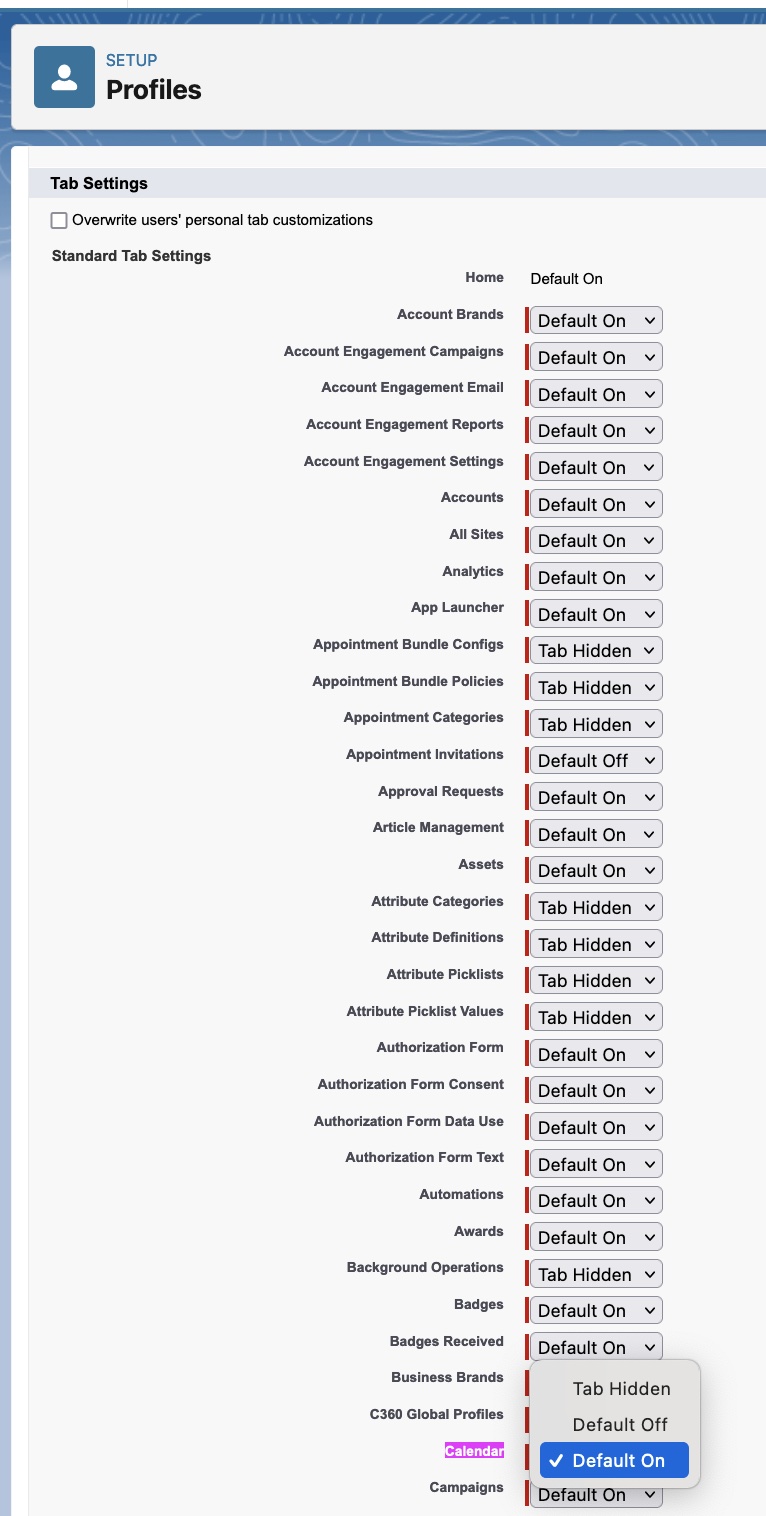
- Scroll down to the Tab Setting section where we can see the Calendar setting.
- We may then set the Calendar Tab to either 'Default On' or 'Tab Hidden' as the value, then click Save.
Vidensartikelnummer
000380680
Løste denne artikel dit problem?
Giv os besked, så vi kan forbedre os!
