Seleccionar una organización
Content Builder Application Internal Server Error upon navigation
Fecha de publicación: Nov 23, 2025
Descripción
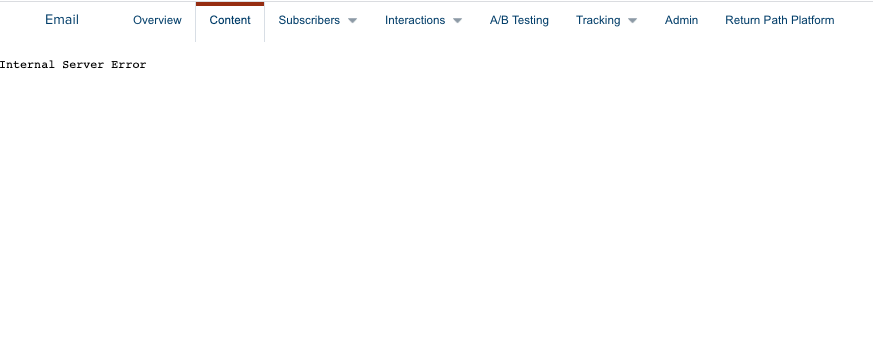
In some specific user cases when navigating the Content Builder/Contact Builder or any other Builder/Studio in Marketing Cloud, an "Internal Server Error" message is generated as shown in the below screenshot.
This happens specifically when attempting to login through the following click-path in the app-switcher:
Salesforce Marketing Cloud > Email > Content
Solución
Should this error message be received, browser settings will likely be the culprit. A specific indicator that the problem is specific to the browser settings will be shown in the URL bar:
Once this has been confirmed, the problem can be remedied through browser settings (settings included apply for Google Chrome but other browsers will have similar options):

-
- Navigate to Preferences (Settings)
- Scroll down to Privacy and Security then click into Site Settings.
- Below Permissions click into Cookies and site data.
- Disable the option Block third-party cookies.
- Navigate to Content Builder through
Salesforce Marketing Cloud > Email > Content and confirm that you are now able to successfully open the Content Builder application.
The other reasons that might cause this issue are as below:
- Cookies and Cache: Clear your browser’s cookies and cache, then try accessing the application again.
- Network or device: Try accessing the application using a different network or device.
- Ongoing Incident/Issue: Check the trust status site to see if there are any active incidents affecting the stack or database.
- IP Allowlist: Ensure that the Marketing Cloud IP addresses are properly allowlisted, and add them if they are not already included.
Número del artículo de conocimiento
000380689
¿Resolvió este artículo su problema?
¡Háganos saber cómo podemos mejorar!
