Seleccionar una organización
How to Enable the Query All Files Permission for Users in Salesforce Using a Permission Set
Fecha de publicación: Jun 11, 2026
Descripción
With the Query All Files permission, View All Data users can query ContentDocument and ContentVersion and retrieve all files in the org, including files in non-member libraries and files in unlisted group.
Note: This change applies to Lightning Experience and Salesforce Classic in Professional, Enterprise, Performance, and Unlimited editions. This permission does not grant access to History objects ContentDocumentHistory and ContentVersionHistory.
Important: Query All Files is designed as an add-on permission for system administrator users. Assigning it to a non-system administrator also grants that user system-level data access permissions.
Solución
How to Enable the Query All Files Permission
Steps to enable the permission for users:
1. Set Up > Permission Sets > New.
2. Enter your permission set information.
3. Click Save.
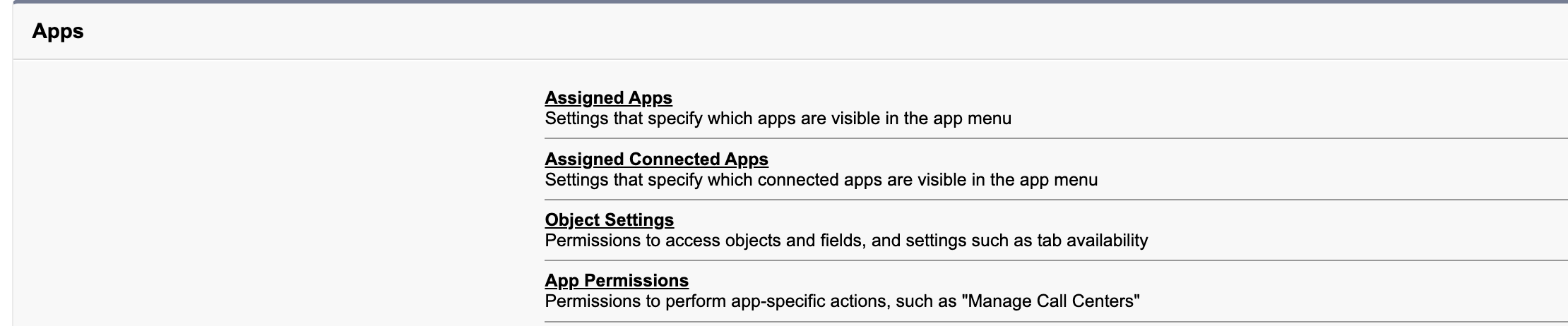
4. Select App Permissions.
2. Enter your permission set information.
3. Click Save.
4. Select App Permissions.
Screenshot showing the App Permissions page with the Query All Files checkbox in the Content section
5. Select Edit.
5. Select Edit.
6. Navigate to "Query All Files" under the Content section.
7. Check the "Query All Files" checkbox.
8. Select Save.
9. After that, click Manage Assignments from the top menu bar.
Screenshot showing the Manage Assignments button at the top of the Permission Set detail page

10. Select Add Assignment.
11. Check all Users you want to add, then click Assign.
10. Select Add Assignment.
11. Check all Users you want to add, then click Assign.
Recursos adicionales
Query or Export Content Documents or Files with Data Loader
Número del artículo de conocimiento
000381258
¿Resolvió este artículo su problema?
¡Háganos saber cómo podemos mejorar!
