Seleziona un'organizzazione
Salesforce CRM Analytics: Fix Missing Event Log Analytics Data in Adoption App
Data pubblicazione: Mar 31, 2026
Descrizione
Note: The steps in this process cannot be performed by Salesforce Support. These steps need to be performed by an org admin with CRM Analytics admin permissions.
- CRM Analytics (formerly Einstein Analytics/Wave):
- A cloud-based business intelligence platform by Salesforce.
- Connects data from multiple sources, creates interactive views, and shares insights in apps.
- Helps business users understand and act on changing information with actionable insights and predictions.
-
Event Log Analytics :
- Tracks CRM Analytics usage events.
- Provides insights into usage and performance through prebuilt dashboards.
-
Analytics Adoption App:
- A prebuilt dashboard showing CRM Analytics usage metrics.
- Corresponds to event types like Wave Change, Wave Interaction, and Wave Performance.
- Helps monitor and improve adoption of CRM Analytics.
The Adoption Analytics app includes two dashboards that visualize how your team uses Analytics apps, dashboards, and lenses. It also includes two lenses that show deleted assets and users previously assigned CRM Analytics permission set licenses (PSLs).
If, for any reason, your Analytics Adoption App dataflow does not run on a given day and you do not have the good fortune of noticing this and taking action that day, you will be missing data for the day before, and there is no expedient way to remedy this within the app.
There is, however, a process that you can follow to get the missing data by installing a temporary, second instance of the Analytics Adoption App, with the caveat that you can only get data within the past 30 days or, if less than 30 days, the date on which you installed your primary Analytics Adoption App. Here is how:
1. Install Analytics Adoption App under a different name (for example: ‘Analytics Adoption App Fix’)
○ If you are experiencing the issue covered here, then you probably already know how to install another instance of the app, but, just in case:
- Log into Analytics Studio > Select Create > App
- Select ‘Adoption Analytics’
- Select ‘Create a brand new app’
- Keep as many days as you need to cover the date where you have a gap, with 1-2 days margin to be sure.
○ You DO NOT need to install a new instance of the Analytics Adoption Metadata package
2. After the installation is complete, you need to patch the related folder
- Log in to https://workbench.developerforce.com/login.php
- Select ‘Utilities’ > ‘REST Explorer’
- Select ‘Execute’ to get the base list of services
- Select the ‘Wave’ URL
- Select the ‘Folders’ URL
- Expand the top-level Folders icon to see all folders
- Given the recent installation, the ‘Analytics Adoption App Fix’ (Temporary App) should be the first one
- Expand the ‘fix’ app’s folder
- Select the URL for the folder, which should look something like this:
- /services/data/v52.0/wave/folders/##################
- In the resulting page, select ‘Show Raw Response’
- You will see the HTTP header JSON body, but you can search for the ‘templateOptions’, ‘templateSourceId’ and ‘templateValues’ blocks, which should look something like this:
"templateOptions":{
   "appAction":"create",
   "appActionDate":"2018-08-21T21:13:28.650Z",
   "appActionUser":{
      "id":"00516000006ceZ2AAI"
   }
},
"templateSourceId":"sfdc_internal__AnalyticsAdoption",
"templateValues":{
   "enableWaveChange":"Yes",
   "numDaysWaveChange":1,
   "enableReport":"No",
   "keepDaysWaveChangeEA":14
},
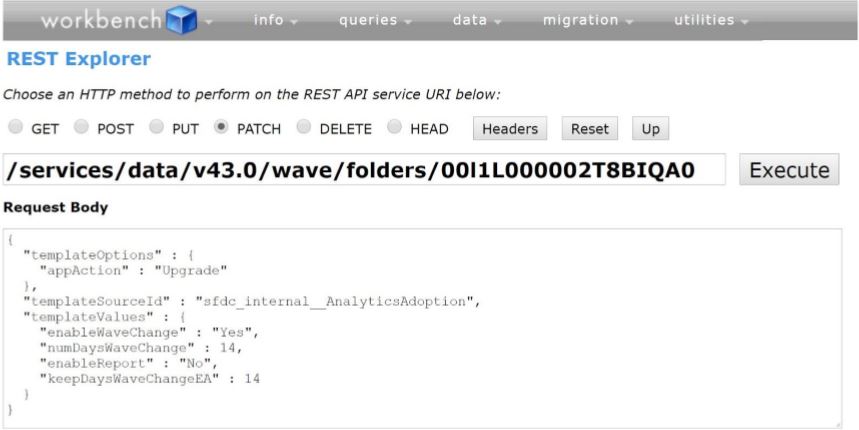
- You want to update the JSON as follows, and then http-patch the JSON using the ‘PATCH’ option in workbench. Modify your JSON according to the template below (i.e remove select JSON and then add or update select JSON, in bold-blue) and then copy-paste the modified JSON into the input field that workbench provides when you select ‘PATCH’. Note that you want to set the ‘numDaysWaveChange’ and ‘keepDaysWaveChangeEA’ values to be large enough numbers to encompass your missing data (day), in keeping with Step 1 above.
- Note: no need to update full JSON, just use these two blocks in PATCH.
{
"templateOptions":{
"appAction": "Upgrade"
},
"templateSourceId":"sfdc_internal__AnalyticsAdoption",
"templateValues":{
"enableWaveChange":"Yes",
"numDaysWaveChange":30,
"enableReport":"No",
"keepDaysWaveChangeEA":30
}
}
Here is a screenshot to help:
3. Wait for the ‘Analytics Adoption App Fix’ app to initialize.
4. We need to update the Dataflow.
- Set the population of usage data into WaveChangeEA1 to just your missing day by updating the 'yesterday' computed field in tagYesterdayWaveInteraction Compute Expression step.
- FROM: (case when date('TIMESTAMP_DERIVED_Year', 'TIMESTAMP_DERIVED_Month', 'TIMESTAMP_DERIVED_Day') in ["1 day ago".."current day"] then "yes" else "no" end)
- TO: (case when date('TIMESTAMP_DERIVED_Year', 'TIMESTAMP_DERIVED_Month', 'TIMESTAMP_DERIVED_Day') in ["N days ago".."current day"] then "yes" else "no" end)
- Where N is the number of days you need to go back to get to your missing day (data). i.e N=30
5. Save the Dataflow and Run. Once it will be completed then you will be having WaveChangeEA1 dataset with 'N' (N=30) days of data including your missing dates as well.
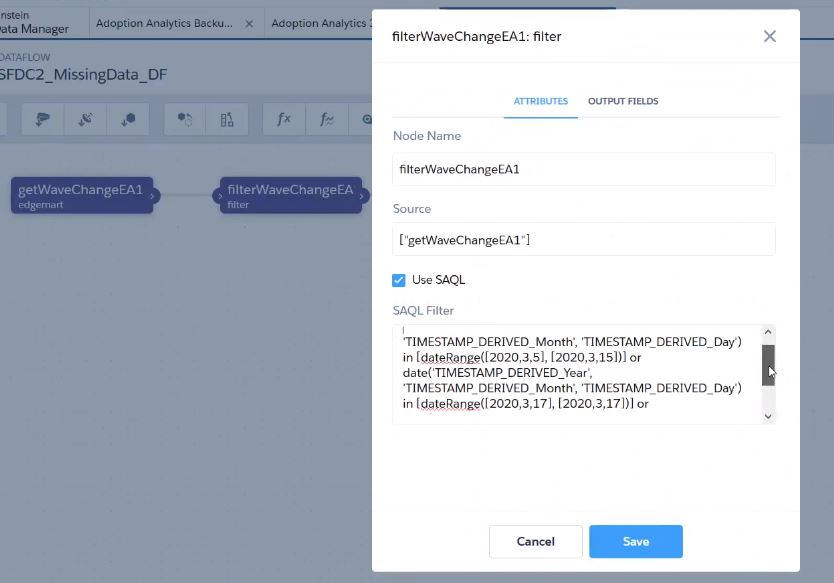
6. Now according to your missing data dates we need to filter our WaveChangeEA1 dataset using a Test_Dataflow_1. and Register a new dataset, give Alias/name as MissingDataWaveChangeEA1.
for example: missing dates were 5th to 15th Mar, 17th and 19th to 22nd Mar 2020.
7. Keep the backup of original WaveChangeEA.
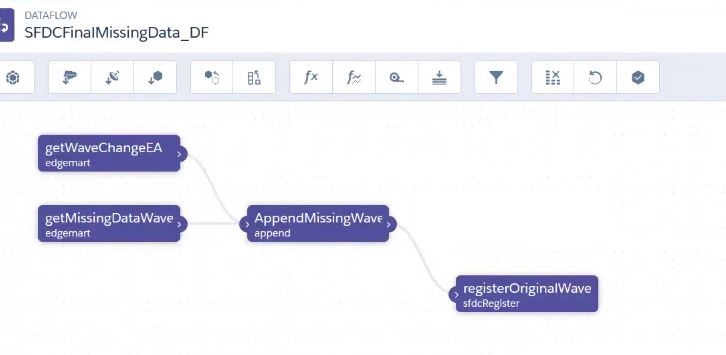
8. Again Create a Test_Dataflow_2 for Appending the two datasets i.e
- MissingDataWaveChangeEA1 created from temporary app WaveChangeEA1
- WaveChangeEA from the Original App.
9. Append both the edgemarts and register a dataset, give same alias as "WaveChangeEA" (Original Dataset).
- Create edgemart 1 : WaveChangeEA from the Original Adoption App.
- Create edgemart 2 : MissingDataWaveChangeEA1 created using filters according to the missing dates from temporary app WaveChangeEA1 (having 30 days of data)
- use Append transformation and use both the edgemarts as sources.
- register to dataset using the same Alias i.e WaveChangeEA (API Name) from original adoption app.
10. Review the Dataset by create a Lens with Bar on any date field like CreatedDate with value as Year-Month-Day. We can see the missing dates data is also present in the Original Dataset now.
11. Once the data has been verified in the main app, delete the Analytics Adoption App Fix app.
Numero articolo Knowledge
000381339
Questo articolo ha risolto il problema?
Facci sapere, così possiamo migliorare!
