Välj en organisation
Use the Maps Draw on Map tool
Publiceringsdatum: Sep 24, 2026
Beskrivning
Lösning
This article explains how to use the Draw on Map tool in Salesforce Maps to quickly build and fine-tune Shape Layer selections.
Drawing Shapes
To use the Draw on Map tool, go to the Shape Layer builder and start by selecting a Country and the appropriate shape type. Select the Draw on Map button to start drawing.
Note that Salesforce Maps adds the shape type to the sidebar.
Fine-Tuning Your Selection
At this point, you have several different options for adding and removing territories from your selection. You can click any shape on the Shape Selection screen to add/remove it.
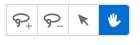
In addition to the Shape Selection list, you can use the four shape layer tools on the top right of the screen to modify your selection.
Add Shapes: Use this tool to add shapes to your selection.

Remove Shapes: Use this tool to remove shapes from your selection.

Toggle Shapes: Use this tool to toggle individual shapes on and off. Select this tool and select individual shapes on the map to add or remove them from the current selection.

Default Map Cursor: You can select the default map cursor to pan the map while you're toggling between shapes.
Ytterligare resurser
Knowledge-artikelnummer
000381351
Löste denna artikel ditt problem?
Berätta för oss vad vi kan förbättra!
