Vælg en organisation
Data Loader installation procedure
Udgivelsesdato: Jun 2, 2025
Beskrivelse
This article describes the step-by-step procedure to install Salesforce Data Loader (version 64) on Windows and macOS. Installation requires downloading and installing Zulu OpenJDK version 17 or later, followed by downloading and running the Data Loader installer.
Løsning
* Before installing Data Loader, refer to Considerations for Installing Data Loader and check the system requirements and access rights to the download site.
Steps
The following steps describes the installation procedure of Data Loader version 64. Depending on the terminal settings, display languages may differ or a warning message may not be displayed. Observe your device's behavior to complete installation properly.
1. Downloading and installing OpenJDK version 17
<Windows>
Java Runtime Environment (JRE) version 17 or later (Zulu OpenJDK version 17 or later, etc.)
This video walks through the complete Data Loader (version 64) installation on Windows, including downloading and installing Zulu OpenJDK version 17 from the Azul website, downloading Data Loader from the Salesforce Developer site, extracting the zip file, and running install.bat from the command prompt to complete the installation.
<macOS>
Java Runtime Environment (JRE) version 17 or later (Zulu OpenJDK version 17 or later, etc.)
This video walks through the complete Data Loader (version 64) installation on macOS, including downloading and installing Zulu OpenJDK version 17 using the DMG installer, downloading Data Loader from the Salesforce Developer site, extracting the zip file, and running install.command to complete the installation.
Installing Zulu JDK
For Windows
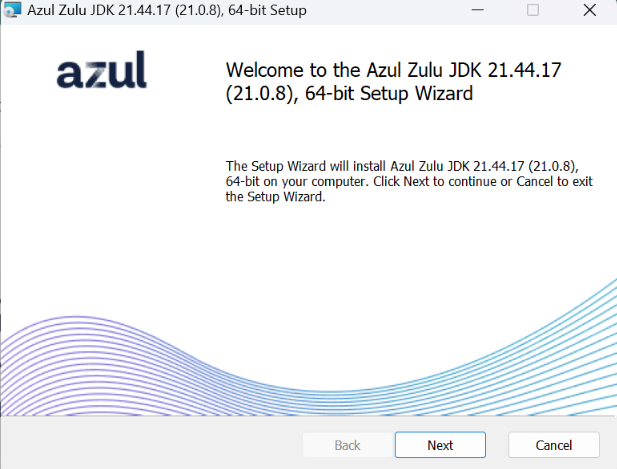
1. Double-click the msi file you downloaded, and click [Run].
2. Click [Next].
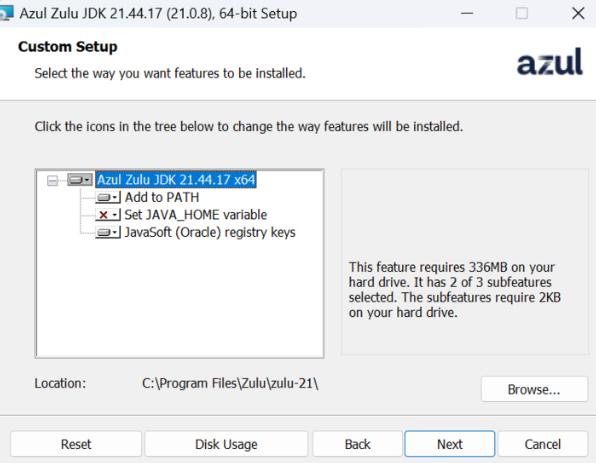
3. Click [Next].
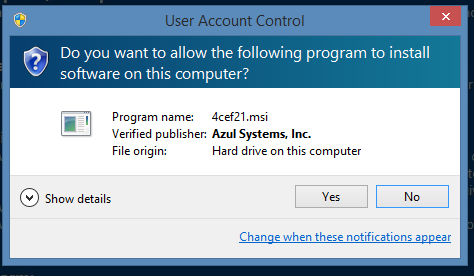
4. When a warning message is displayed, click [Yes].
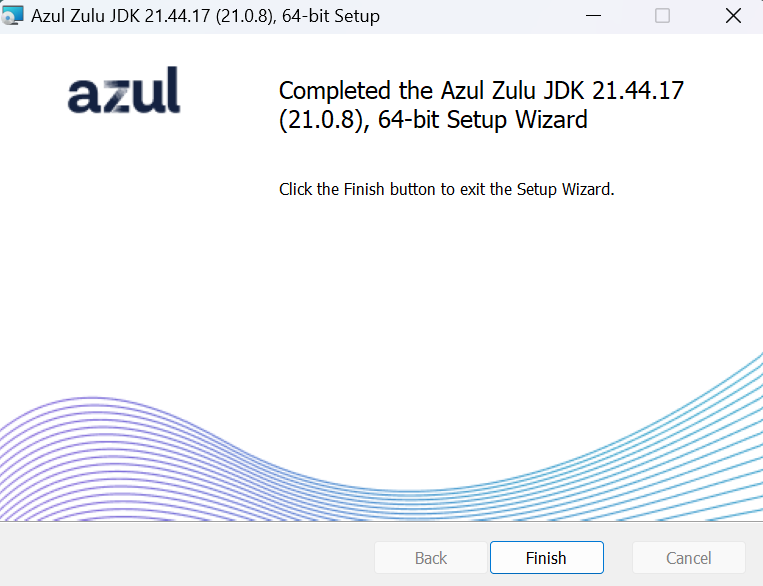
5. Click [Finish].
For Mac
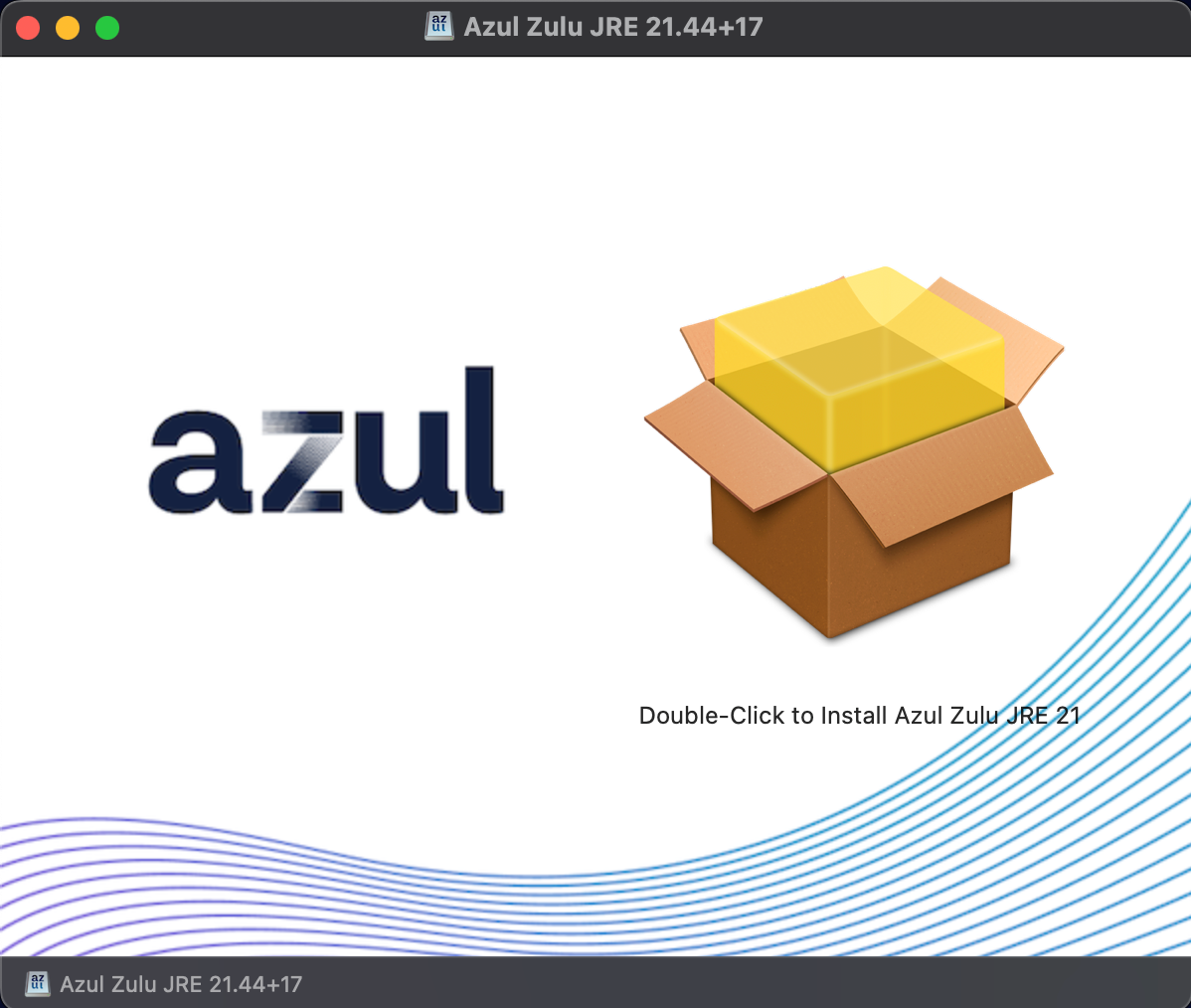
1. Double-click the .dmg file you downloaded.
2. Double-click the box image in the displayed screen to initiate the installation process.
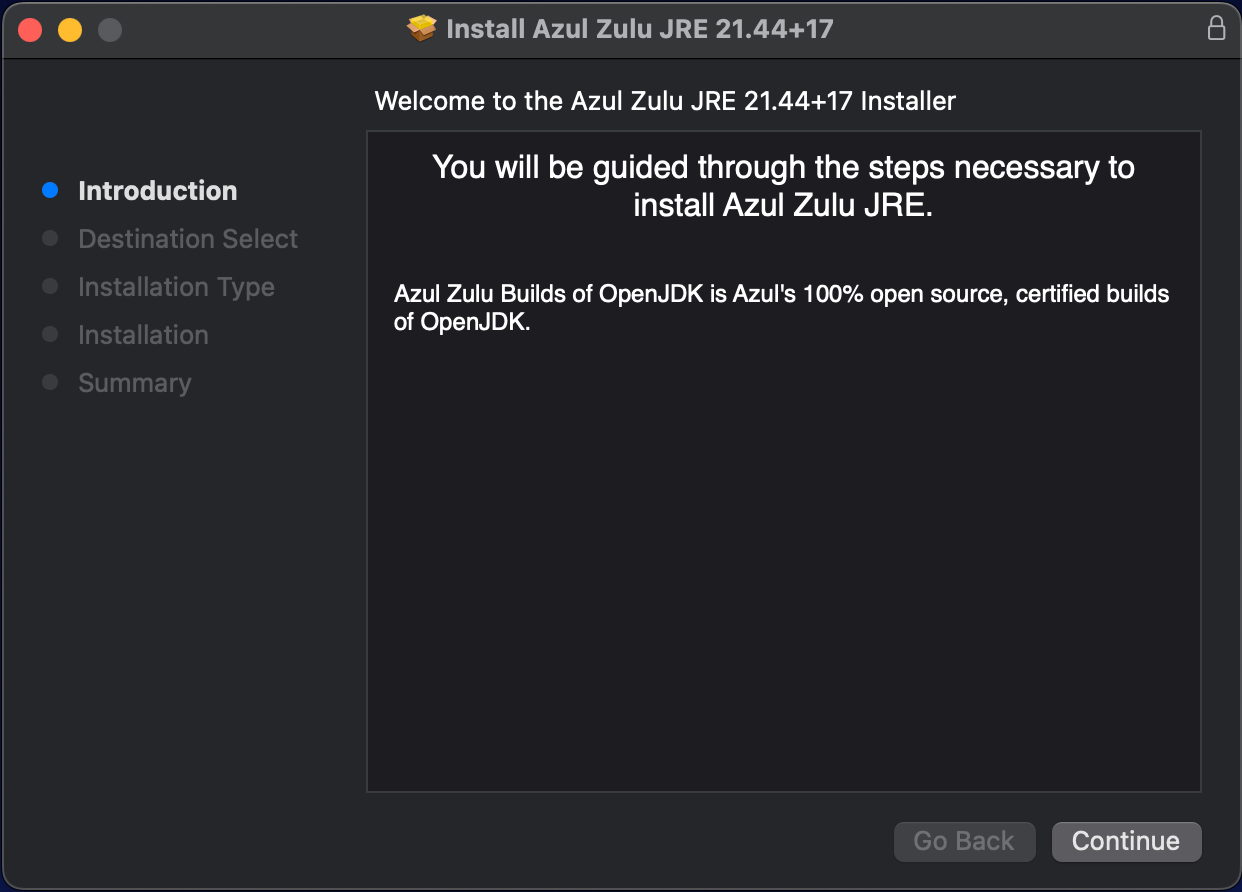
3. Click [Continue].
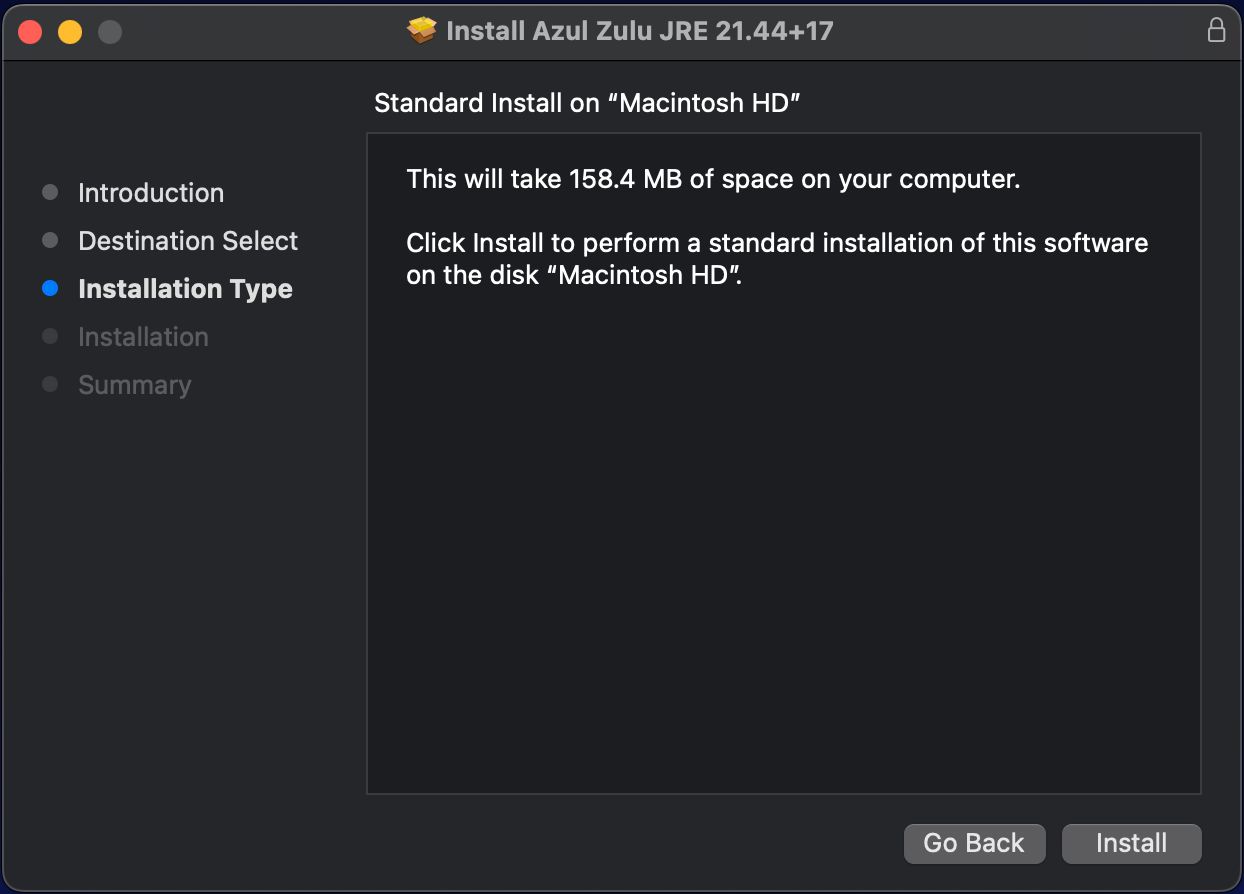
4. Click [Install].
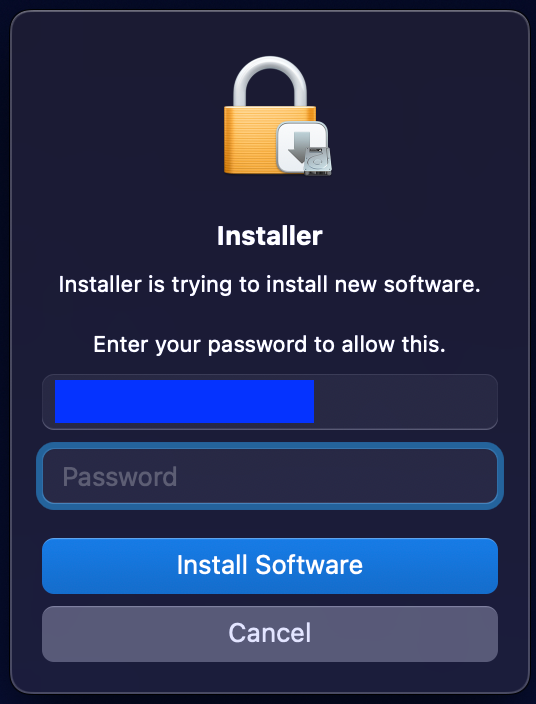
5. When a dialog is displayed asking for the username and password, enter the username and password and click [Install Software].
2. Downloading Data Loader
Download the Data Loader from the Developers site.
3. Install Data Loader.
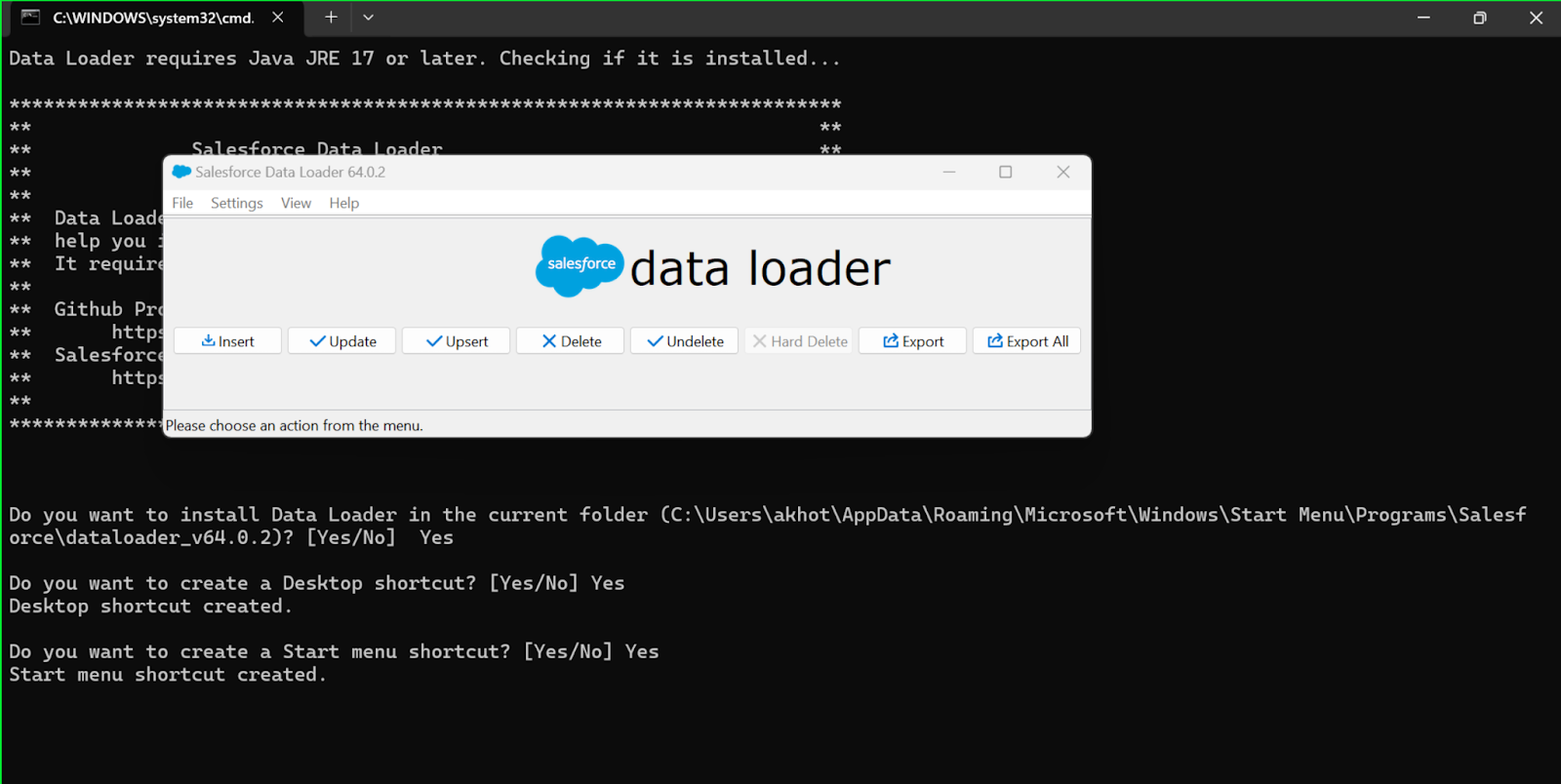
For Windows
1. Right-click the .zip file and select [Extract All].
2. Double-click install.bat in the extracted file.
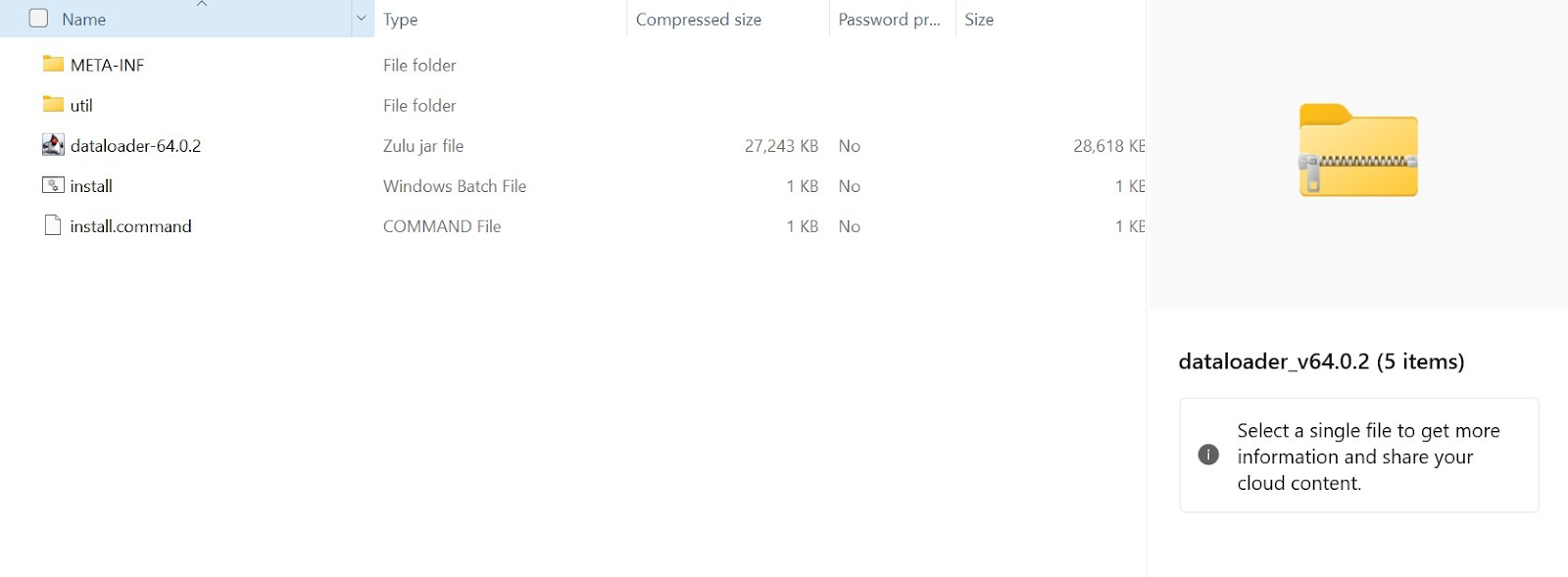
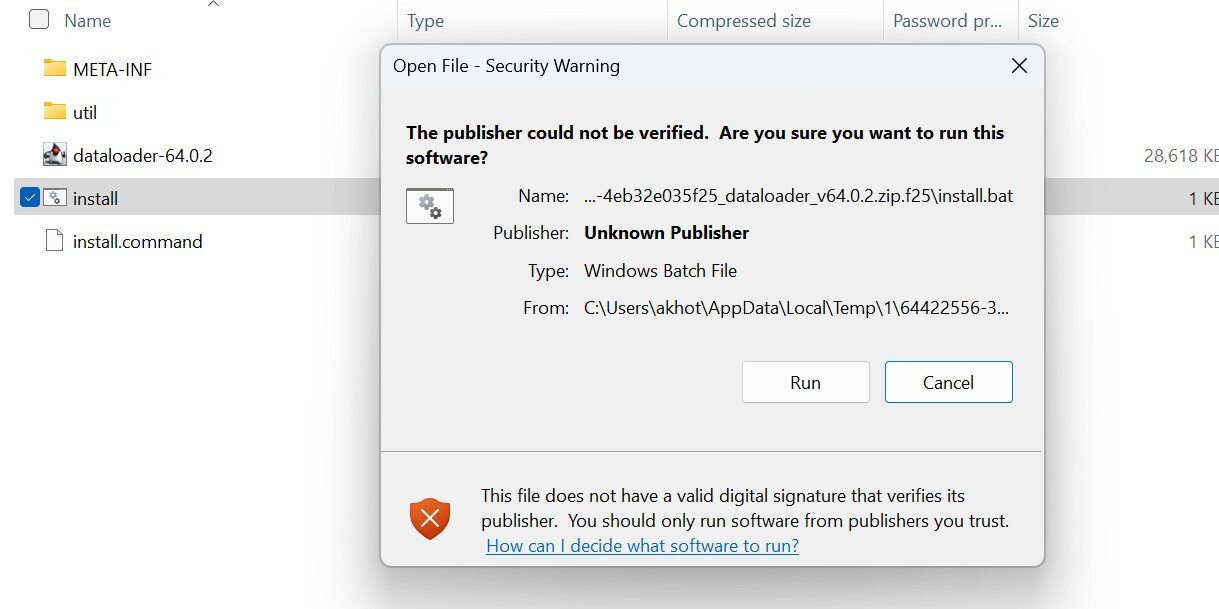
3. When a warning message is displayed, click [More info], then [Run anyway].
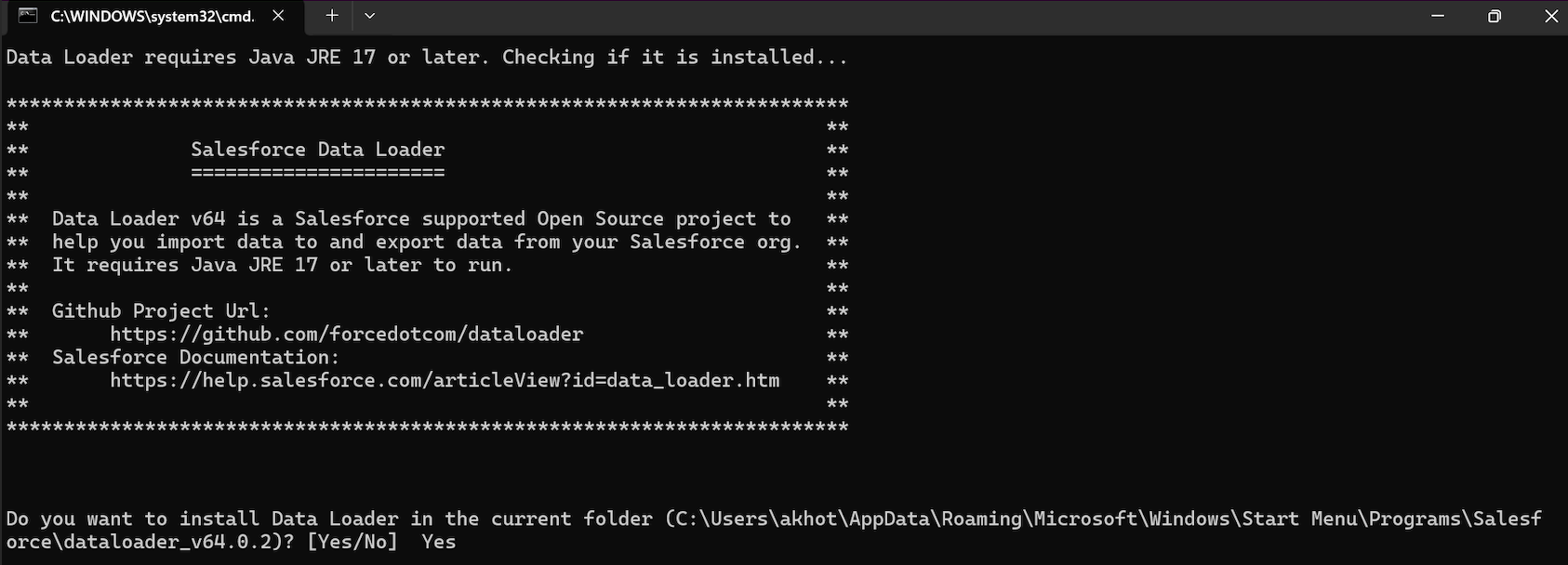
4. Enter YES in the command prompt window.
5. Enter Yes, and press the Enter key.
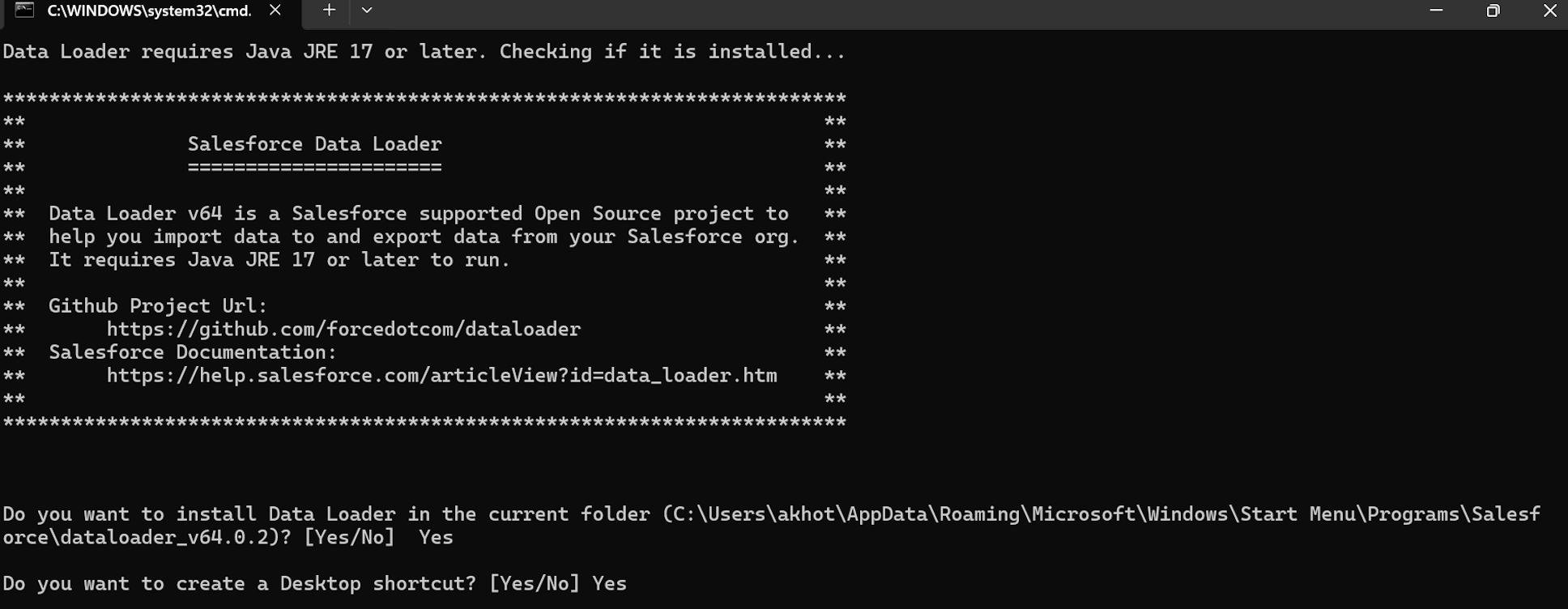
6. Enter Yes, and press the Enter key.
For Mac
1. Extract the .zip file you downloaded, and double-click the install.command file.

2. When an error message is displayed, click [DONE].
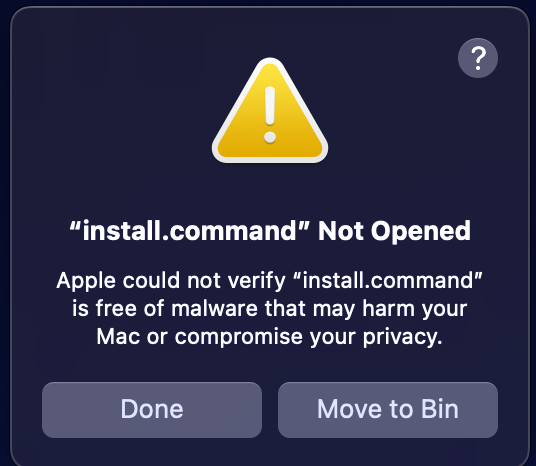
- On MacOS 15 or later, if there's an error that install.command can't be opened, open the macOS Privacy & Security panel. Scroll to the Security section, then click Open Anyway next to "install.command" was blocked to protect your Mac". Click Open Anyway on the Open "install.command"? window.
- On MacOS earlier than version 15, an error is shown when you first double-click install.command after extracting zip file content. Ignore the error and click OK.
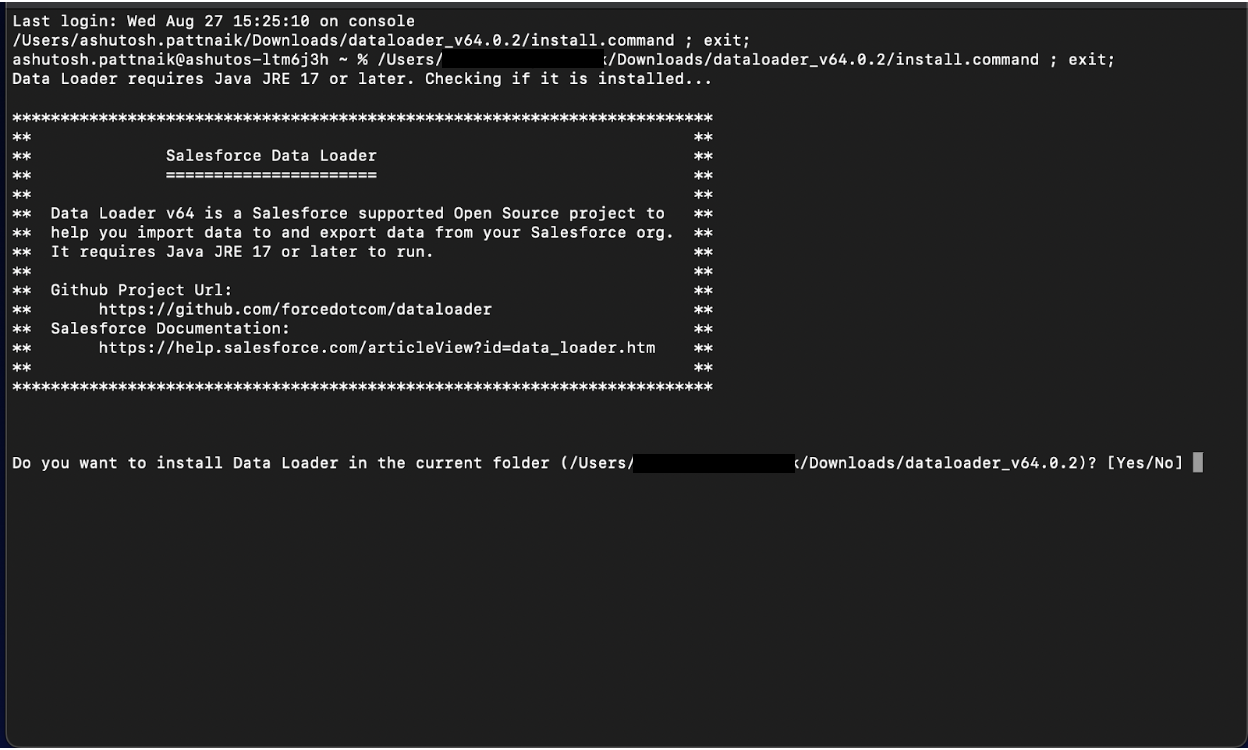
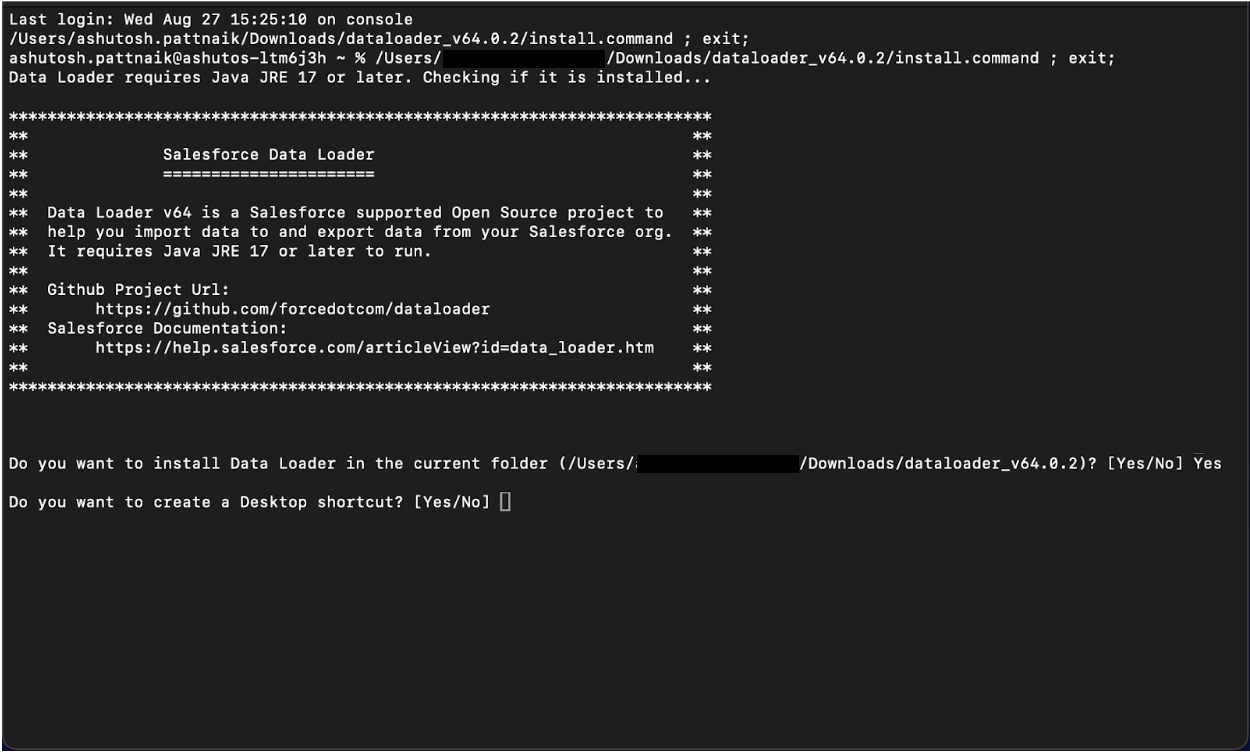
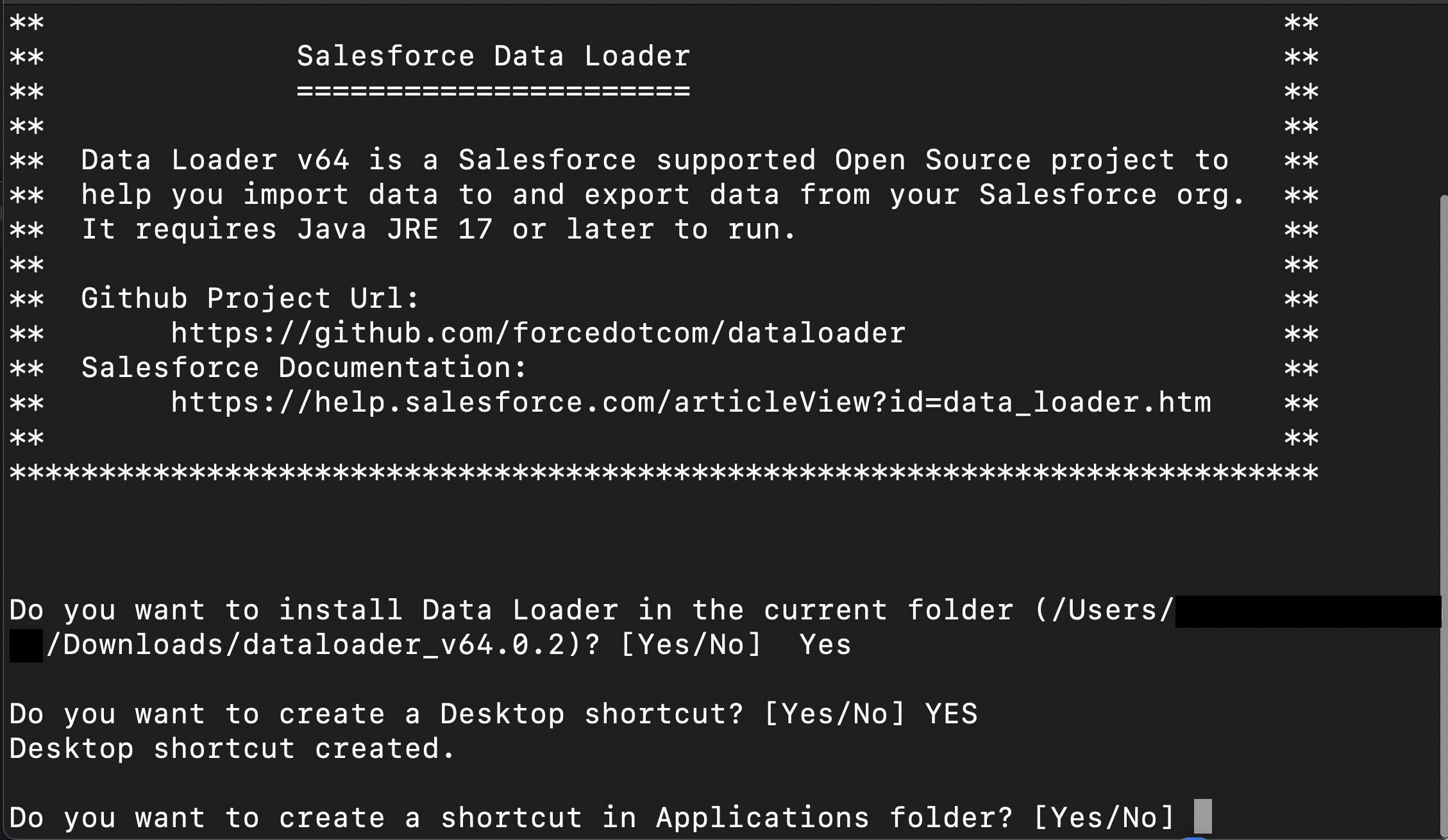
3. Enter YES in the command prompt window.
4. Enter Yes.
5. Enter Yes. 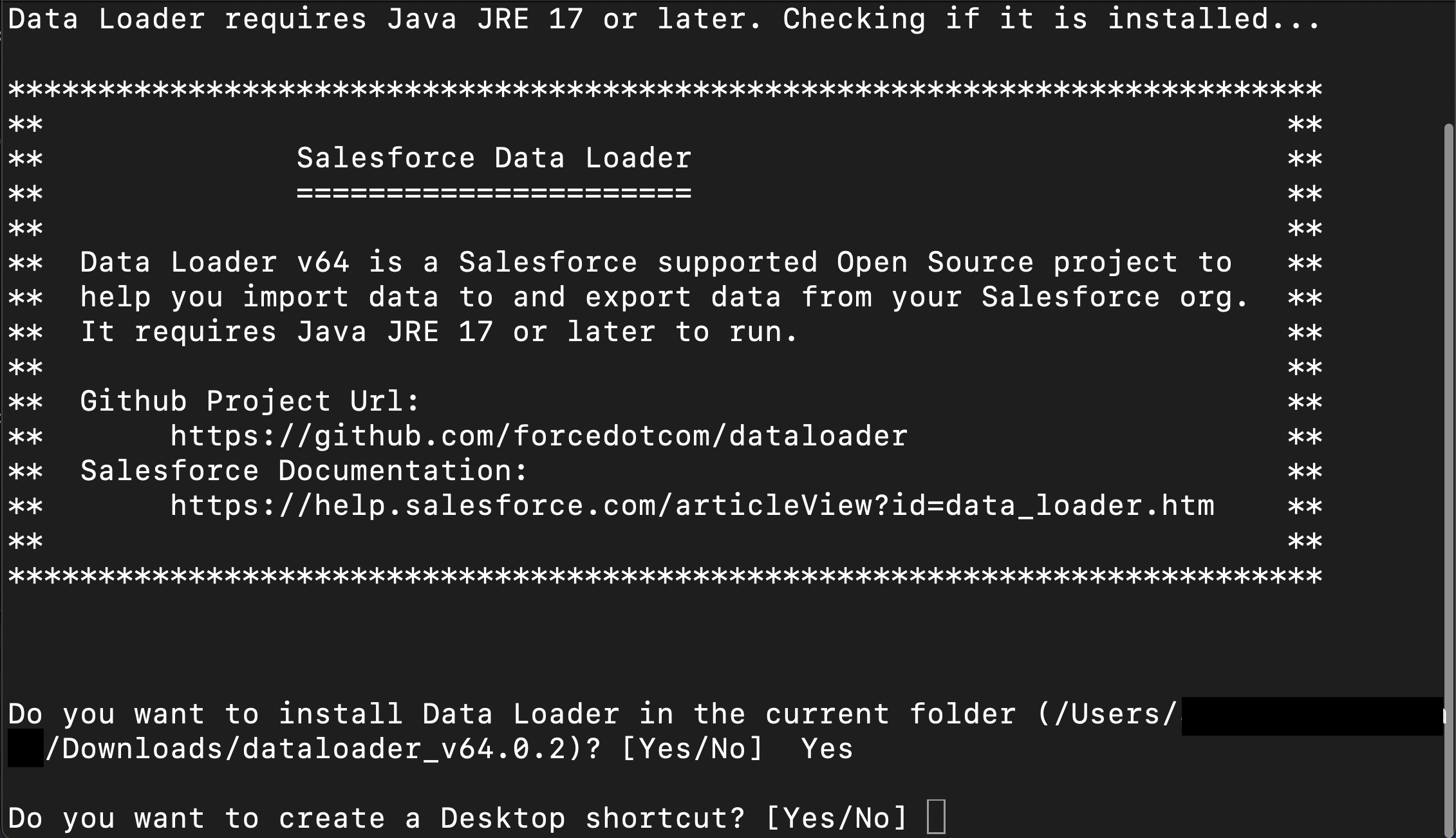
6. Now the installation procedure completes.
Yderligere ressourcer
005132367: Data Loader OAuth 2.0 Device Flow RemovalData Loader Overview — Salesforce Help
Vidensartikelnummer
000383107
Løste denne artikel dit problem?
Giv os besked, så vi kan forbedre os!
