选择组织
Data Loader 安装过程
发布日期: Jun 2, 2025
解决方案
视频
观看演示此 Knowledge 文章中所列的以下步骤的视频:
步骤
以下步骤描述了 Data Loader 45 版本的安装过程。根据终端设置,显示语言可能有所不同,或者可能不会显示警告消息。观察您的设备的行为,以正确完成安装。
1.下载并安装 OpenJDK 11 版本
<Windows>
Java Runtime Environment (JRE) 11 或更高版本(Zulu OpenJDK 11 或更高版本等)
<macOS>
Java Runtime Environment (JRE) 11 或更高版本(Zulu OpenJDK 11 或更高版本等)
安装 Zulu JDK
对于 Windows
1.双击下载的 msi 文件,然后单击[下一步]。
2.单击[下一步]。
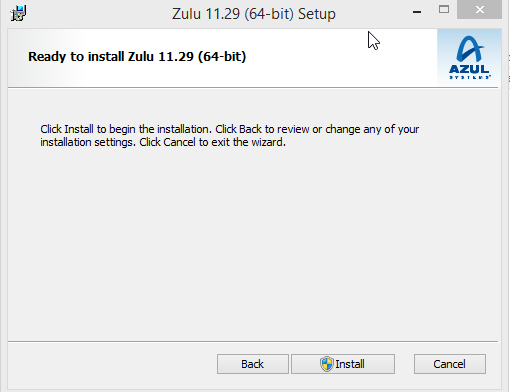
3.单击[安装]。
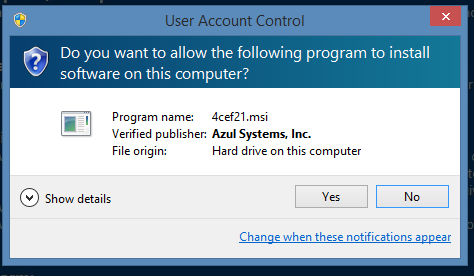
4.当显示警告消息时,单击[是]。
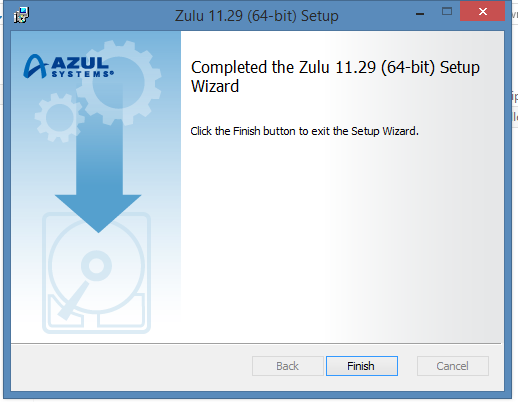
5.单击[完成]。
对于 Mac
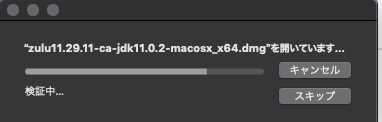
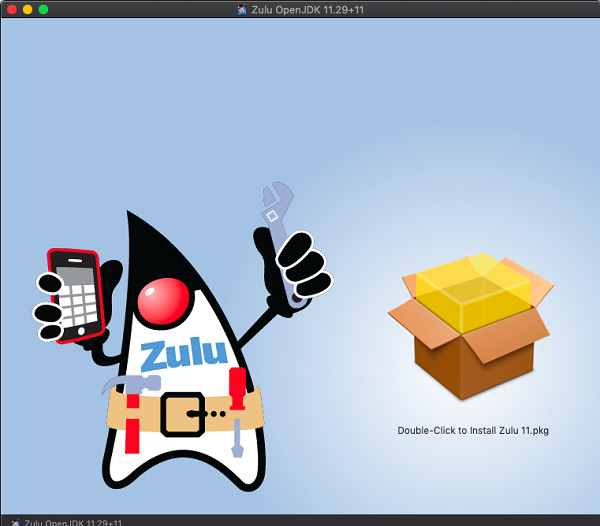
1.双击下载的 dmg 文件。
2.双击显示的屏幕中的盒子图像,启动安装流程。
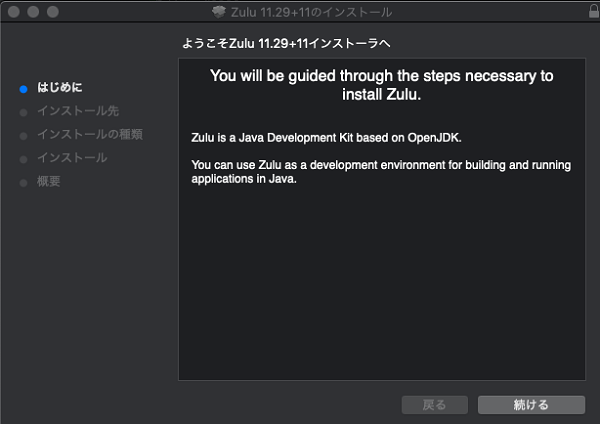
3.单击[继续]。
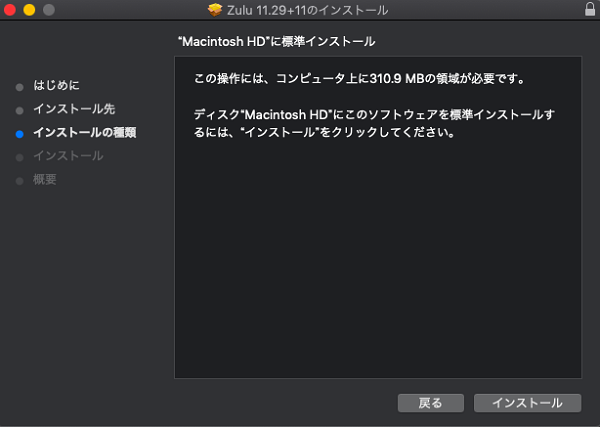
4.单击[安装]。
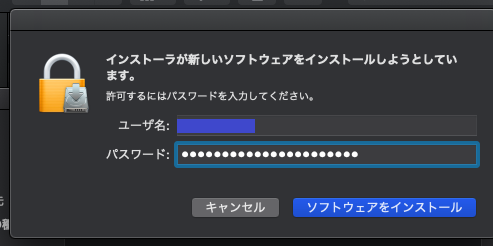
5.当显示要求输入用户名和密码的对话时,输入用户名和密码,然后单击[安装软件]。


2.下载 Data Loader
1.在屏幕右上角的齿轮图标上,单击[设置。
2.在[快速查找]中,输入 [Data Loader]。在搜索结果中,单击 [Data Loader]。
3.单击[下载]链接(会重定向到外部站点)。
4.选择 Windows 或 MacOS,然后单击最新版本进行下载。
3.安装 Data Loader。
对于 Windows

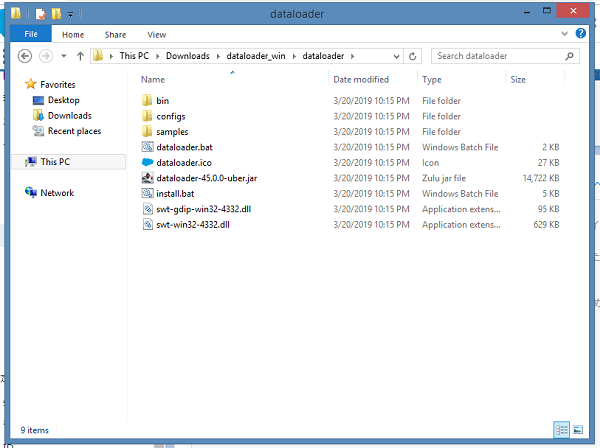
1.右键单击 .zip 文件,然后选择[全部提取]。
2.双击提取文件中的 install.bat。
3.当显示警告消息时,单击[更多信息],然后单击[继续运行]。
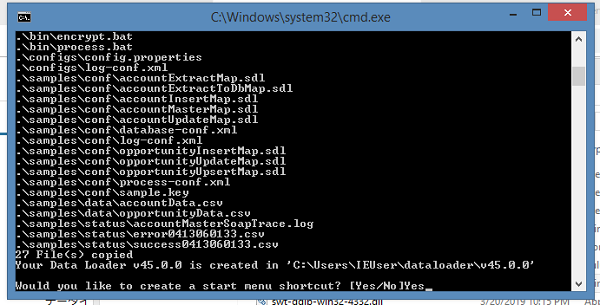
4.输入“dataloader”,然后按 Enter 键。
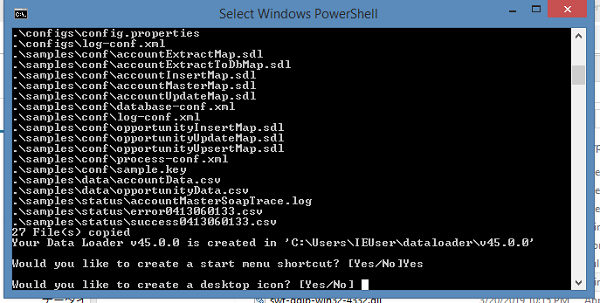
5.输入“Yes”,然后按 Enter 键。
6.输入“Yes”,然后按 Enter 键。
7.按 Enter 键以关闭窗口。
对于 Mac
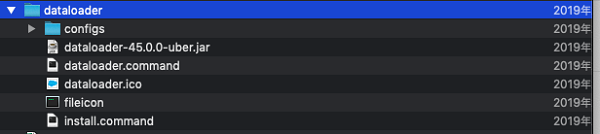
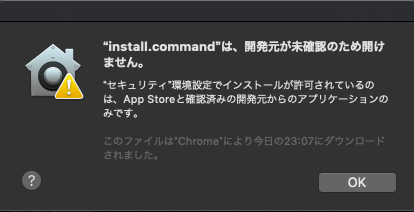
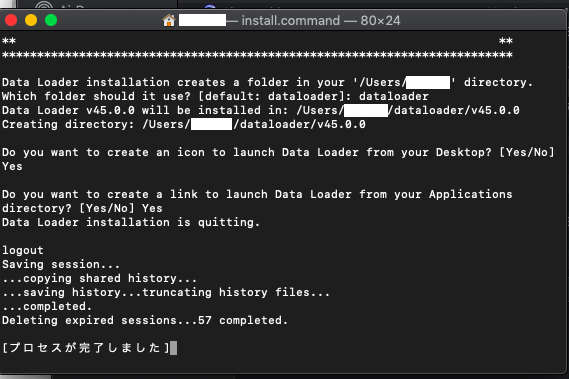
1.提取下载的 .zip 文件,然后双击 install.command 文件。
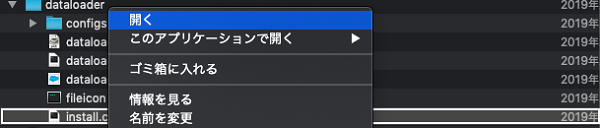
2.当显示错误消息时,单击[确定]。然后,按 Control 键,单击[打开]。
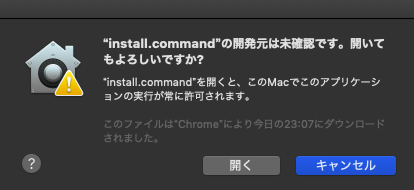
3.单击[打开]。
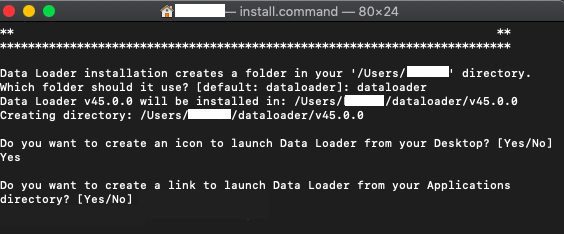
4.在命令提示窗口中输入 dataloader。
5.输入“Yes”。
6.输入“Yes”。
7.安装过程现已完成。





知识文章编号
000383107
本文章是否解决您的问题?
请与我们共享您的想法,以便我们进行改进!
