Velg en organisasjon
Create a Salesforce Report on Notes
Publiseringsdato: May 14, 2026
Beskrivelse
This article explains how to create a report on Notes in Salesforce using the File and Content Report type. Notes in Salesforce are created using the Notes tool (available in Lightning Experience), and they can be reported on with specific considerations that differ from other report types.
Important: Salesforce Notes are distinct from the "Notes & Attachments" related list. Only Notes created through the standalone Notes tool can be included in this type of report.
Key Considerations Before Creating the Report:
- Notes must be enabled in your organization. See Enable Notes for instructions.
- You can only report on Notes created through the Notes tool. Notes created via the Notes & Attachments related list cannot be included in this report type.
- You can only view Notes that are owned by you or directly shared with you. This applies to System Administrators as well.
- To share Notes with other users, the creator (or a System Administrator) can follow the steps in Share Notes in Salesforce Classic or Share Notes in Lightning Experience.
- It is not currently possible to create a Custom Report Type for Files and Content. As a result, you cannot report on Notes related to a specific object.
- In Lightning Experience, reports on this type return 0 results until the report has been saved at least once.
Løsning
- Steps to Create a Notes Report
- Navigate to the Reports tab and click New Report.
- For "Report Type," search for and select File and Content Report, then click Start Report.
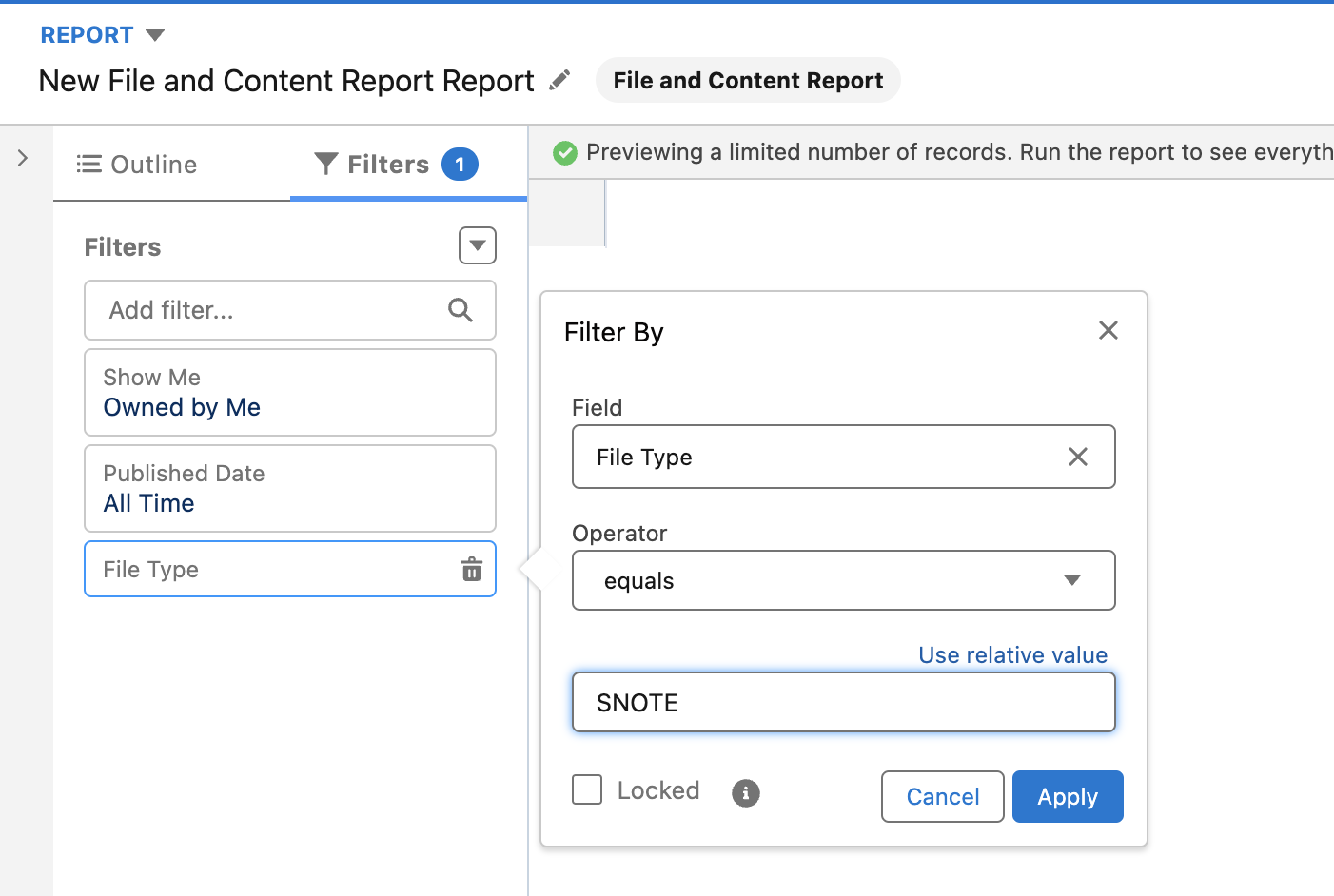
- Add the following filter to isolate Notes: File Type equals SNOTE — this ensures only Notes are returned. Click Apply.
- In the Outline tab under Columns, add the following fields:
- File Name
- Published Date
- Created By
- Last Revised Date
- Last Revised By
- File Type
- Click Save.
- Click Run.
- Report Data Considerations
- The report only includes Notes owned by you or directly shared with you.
- Report data does not include the body/contents of Notes.
- Notes you have access to but that are not owned by or directly shared with you will not appear.
Including any of the following columns in the report causes it to return no results. Do not add these columns:- Downloaded By
- Download Date
- Download User Type
- Link Name
- Link Created Date
- Link Expiration Date
- Password Protected Link
- Link Last Accessed Date
- Total Link Accesses
Flere ressurser
Vote and Comment on the ability to Report on Notes and Attachments in the Salesforce Ideas Exchange
Vote and Comment on the ability for New Notes: Increase Reporting Capability, which includes providing a report that has some lines of text from the body of the note.
File and Content Reports - Salesforce Help
Enable Notes
Share Notes in Salesforce Classic
Share Notes in Lightning Experience
Knowledge-artikkelnummer
000383957
Hjalp denne artikkelen med å løse problemet ditt?
La oss få vite det slik at vi kan forbedre!
