Select An Org
Error 'Probably Limit Exceeded or 0 recipients' in a Flow with a Send Email or Email Alert Action
Publish Date: Apr 30, 2026
Description
This error message occurs if you have a Flow with a Send Email action or Email Alert action. After triggering the Flow, you will receive a Flow Error with 'Error Occurred: Probably Limit Exceeded or 0 recipients.'
Resolution
If the Flow has an Email Alert action, open the Email Alert under Setup > Process Automation > Workflow Actions > Email Alerts and go directly to the Selected Recipients List. Check which email field is defined as a recipient. Then, on the record that triggered the Flow, check if that email field has a value.
If the Flow has a Send Email action, open the Action element and review the values entered in the Recipient ID, Recipient Address Collection, Recipient Address List, CC Recipient Address List, and BCC Recipient Address List fields. If the action has a Recipient ID value, check if the Email field on the record that triggered the Flow has a value. If the Flow has values in the Recipient Address Collection, Recipient Address List, CC Recipient Address List, or BCC Recipient Address List fields, make sure that the variables in those fields contain an email value.
This error message results from having an email field that doesn’t contain an email address specified as a recipient. Also, if the recipient is an inactive user, you may get this error.
To resolve this error, you can do 3 things:
- Create a validation rule to require that the email field has value.
- Make the email field required on the field's detail page or in applicable page layouts
- Update your Flow so that the Send Email or Email Alert action should only fire when the email variable, or the triggering record’s Email field, has a value.
To look for the Email Alert being used:
1. Go to Setup.
- In Lightning, click on the Gear icon in the upper right corner, then select Setup.
- In Classic, click Setup in the upper right corner.
2. In the Quick Find box, type in 'Flows'.
3. Under Process Automation, select Flows.
4. Select the flow that triggered the error.
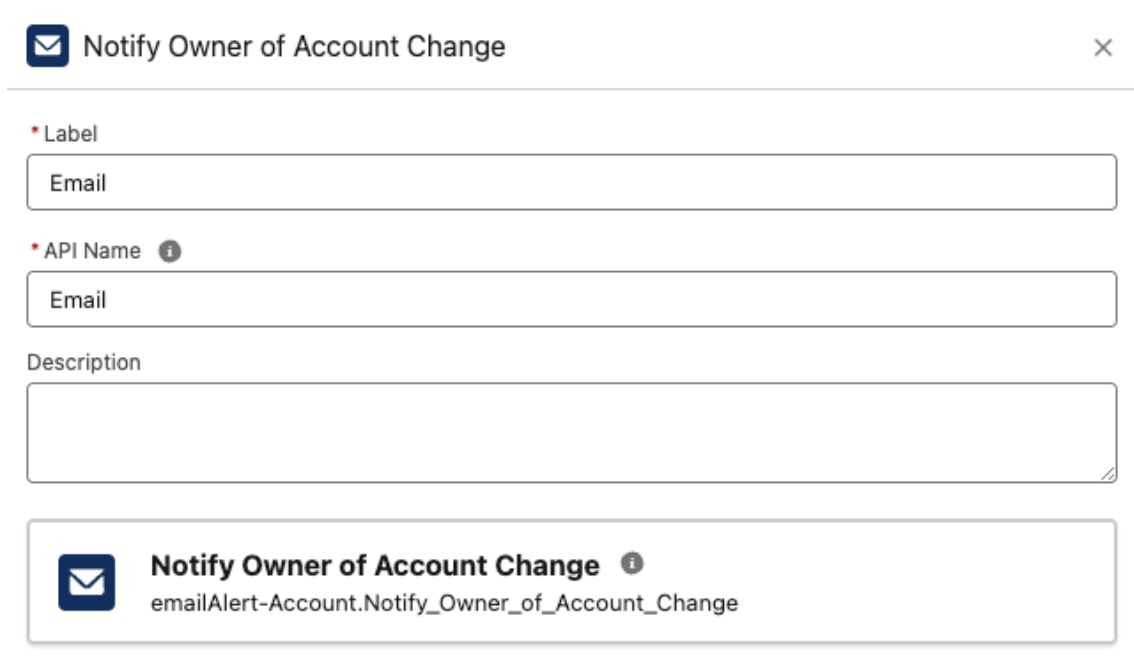
5. Double-click the Email Alert element last mentioned in the error email.
6. The Element’s configuration panel should contain the name of the Email Alert being used. It’s located in two places: in the title of the panel, and in a box in the middle of the panel.
To open the Email Alert:
1. Go to Setup.
- In Lightning, click on the Gear icon in the upper right corner, then select Setup.
- In Classic, click Setup in the upper right corner.
2. In the Quick Find box, type in 'Alerts'.
3. Under Process Automation > Workflow Actions, select Email Alerts.
4. Locate the email alert that’s referenced in the flow. In that email alert’s line, click Edit.
Additional Resources
Email Alert Actions
Make a custom field required
General Email Limits
Daily Workflow Email Limit
Send Email Action
Knowledge Article Number
000384002
Did this article solve your issue?
Let us know so we can improve!
