Выбрать организацию
Learn about connecting Inbox to a Microsoft Exchange account
Дата публикации: Jun 11, 2026
Описание
This article explains how to connect Salesforce Inbox to a Microsoft Exchange account, including supported Exchange versions, the information required for connection, and step-by-step instructions for finding Exchange server details in Outlook for Mac, Apple Mail, and Outlook for Windows.
Решение
This article covers the following topics to help you connect Salesforce Inbox to your Microsoft Exchange account:
- Supported Exchange versions
- Required and optional information for connecting
- How to find your Exchange server details on Mac and Windows
Supported Versions of Exchange
Salesforce Inbox supports the following Microsoft Exchange versions:
- Microsoft Exchange 2013
- Microsoft Exchange 2016
- Office 365
If you are unsure which Exchange version your organization uses, contact your IT department.
Required and Optional Connection Information
Required:
- Your Exchange email address
- Your Exchange account password
May be needed depending on your organization:
- Your domain and/or username (for example,
europe\johndoewhereeuropeis the domain andjohndoeis the username). Try connecting without these first — they may not be required. - Your EWS (Exchange Web Services) server address — the URL used by Inbox to communicate with Exchange. This address must begin with
<REDACTED> and end in/ews/exchange.asmx. Example:<REDACTED> Your IT department can provide this if needed.
Find Your Exchange Server Information in Outlook for Mac
- In Outlook, click the Outlook menu and select Preferences.
- Click Accounts, then click Advanced.
- Click the Server tab. The Server field under Microsoft Exchange shows your Exchange server address.
Find Your Exchange Server Information in Apple Mail for Mac
- At the top of Apple Mail, click Mail and select Preferences.
- Click Accounts.
- The External Server field shows your Exchange server address. Enter this into the Server Address field in Inbox.
Find Your Exchange Server Information in Outlook for Windows
- Open Outlook and click File.
- Click Info, then click Account Settings > Account Settings.
- Select the email account you want to connect to Inbox.
- Click Change. Under Server Settings, the Server field shows your Exchange server address.
Find Your Domain and Username
Your domain and username may be formatted in one of two ways:
domain\username— for example,europe\johndoe- Just the username — for example,
\johndoe
A common method: use the text between @ and .com (or .org, .net) as the domain, and the text before @ as the username. Example: john@abccompany.com = abccompany\john.
If you cannot sign in, contact your IT department and ask:
- Is auto-discovery enabled?
- Are self-signed certificates required? If so, check Allow Self-Signed Certificates in the More Options settings and try again.
Test Your Exchange Account Information
You can verify your EWS server address and credentials without Salesforce:
- Open a browser and enter your EWS server address.
- Enter your username and password when prompted.
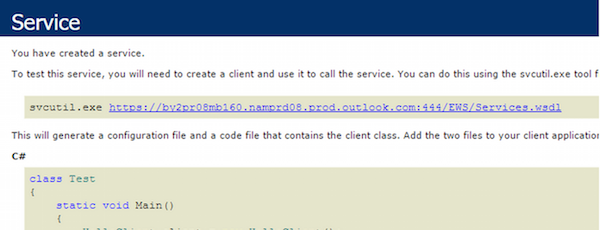
- If the login succeeds, you will see XML output or a confirmation screen, depending on your Exchange version. This confirms your EWS address and credentials are correct.
- If the login fails or the screen appears blank, your information may be incorrect. Contact your IT department for assistance.
Note: A successful EWS test response typically shows structured XML data or an empty response page — both indicate a working EWS endpoint.
Read this article to learn about the following:
Need help finding your Exchange account information?
- Find your Exchange Server information in Outlook for Mac
- Find your Exchange Server information in Apple Mail for Mac
- Find your Exchange Server information in Outlook for Windows
- Find your domain name and username
- Test your Account information
See Also:
Legacy Inbox Retirement
Legacy Inbox Retirement
Номер статьи базы знаний
000384221
Эта статья решила вашу проблему?
Оставьте свой отзыв, чтобы мы могли стать лучше!
