Velg en organisasjon
Change the Currency Displayed in a Report from the Default Currency
Publiseringsdato: May 5, 2026
Beskrivelse
When a User creates a report, the currency listed in the default field: (Converted) Currency, is used to control the currency displayed in the report details.
If your organization has Multiple Currencies enabled, you can change the report's displayed currency.
Løsning
If your organization operates across multiple countries, you may want to view report totals in a specific currency rather than your org's default. This is useful for regional sales managers who want to see pipeline values in their local currency.
Steps to update the displayed currency within Salesforce Classic:
- Select Reports and find the report that you wish to update.
- Next to the report, click Customize under Action.
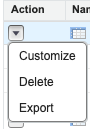
3. Click Show.
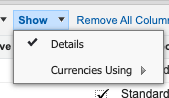
4. Click on Currencies Using.
5. Select the alternate currency from the drop-down list in which you want to display on the report from the default currency.
6. Click Run Report.
Steps to update the displayed currency within Lightning Experience:
- Open a report for which you want to change the currency from the default currency.
- Click Edit.
- Click Currency (right side at the bottom).
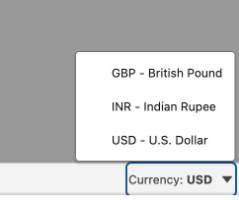
4. Select the currency from the drop-down list in which you want to display on the report from the default currencies.
5. Click Run.
Note: The currency you select in the report will also apply to any dashboard component based on the report.
Flere ressurser
Vote on the Salesforce Idea to Deactivate multi-currency management.
Knowledge-artikkelnummer
000384322
Hjalp denne artikkelen med å løse problemet ditt?
La oss få vite det slik at vi kan forbedre!
