選擇組織
How to Add Fields to a Custom Report Type
發佈日期: Apr 30, 2026
描述
If a report based on a Custom Report Type does not contain all of the expected fields to add, you must edit the layout of the report type in question.
For example, an 'Accounts with Opportunities' report type is missing fields from the 'Select Columns' step of the Report Builder.
解決方案
The following steps help you add missing fields to your report:
- From Setup, enter Report Types in the Quick Find box, then select Report Types.
- Select the name of the Report Type you're using.
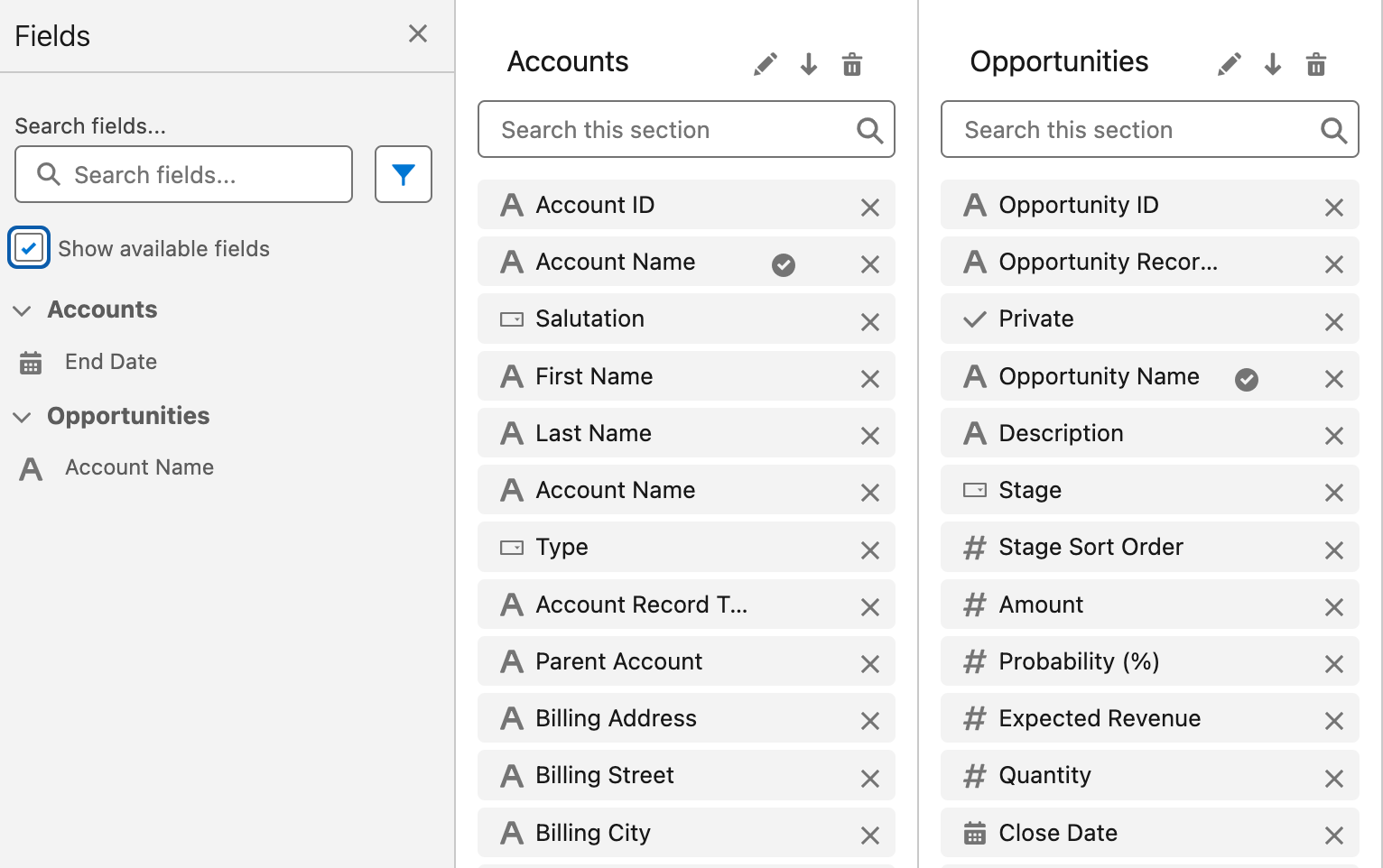
- Click Edit Layout. To find additional fields, search for fields in the search bar or you can also select option to show available fields.
- Drag and drop the missing fields from the Fields section, then click Save.
- You can also add additional fields via lookup on your primary or secondary object by clicking + Lookup Fields.
Note: If previewing the layout, all fields and objects are displayed, including fields and objects that you don't have permission to access. You can access only the data that is stored in the fields or objects that you have permission to access.
When you go back to the report, you will find that the fields are now available to be added to the report.
Create a Custom Report Type
其他資源
For additional helpful tips, see the Salesforce Help page - Design the Field Layout for Reports Created From Your Custom Report
Idea Exchange - Let us customize which fields appear on standard report types
知識文章編號
000384387
此文章是否解決您的問題?
請讓我們知道,以便我們改進!
