Velg en organisasjon
Multi-Select Picklist Value ordering behavior
Publiseringsdato: Jun 10, 2026
Beskrivelse
Multi-select picklist fields in Salesforce allow you to select multiple values on a record. In Setup, you can define and re-order these values at any time. However, the order in which values are displayed in the Salesforce UI (Records and Reports) differs from the order returned by SOQL queries, Apex code, and the Salesforce API.
This article explains this difference in ordering behavior and provides a step-by-step approach to reorder multi-select picklist values so they appear in the correct order in SOQL results.
Behavior in the Salesforce UI
In the Salesforce UI — including Record detail pages and Reports — multi-select picklist values are displayed in the order currently defined in Setup. When you re-order values in Setup, the change is immediately reflected in the UI display order for all records.
Example: If shanep__Multi_Picklist1__c initially has values defined as option1; option2; option3, the UI displays them in that order. If you re-order them to option3; option1; option2 in Setup, the UI immediately reflects this new order.
Behavior in SOQL, Apex, and the API
When querying multi-select picklist values using SOQL (for example, in Workbench or via the Developer Console), Apex code, or the Salesforce API, values are always returned in their original creation order — the order in which they were defined when the field was first created or deployed. Re-ordering values in Setup does NOT change the SOQL return order.
Example: After re-ordering shanep__Multi_Picklist1__c values to option3; option1; option2 in Setup, the UI shows the new order, but a SOQL query still returns option1; option2; option3 — the original creation order.
Note: As per the Salesforce documentation, "sorting is defined by the picklist sort determined during setup" when using ORDER BY in SOQL for picklist fields.
To demonstrate the difference refer to these two examples:
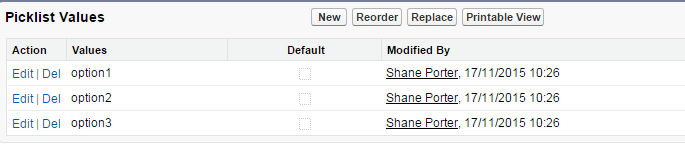
- We start with Two Multi-Select Picklist fields with values:
- shanep__Multi_Picklist1__c - option1; option2; option3
- shanep__Multi_Picklist2__c - option3; option2: option1
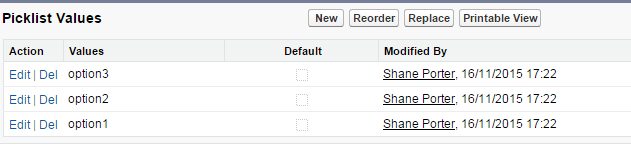
- Maintaining that order during initial creation. The order of the values is now set in the UI and for SOQL
Report (UI)
Record (UI)
Workbench (SOQL)



- If we now change the order of the values for shanep__Multi_Picklist1__c to option3; option1; option2;

- We can see that the change is reflected in the UI but not in SOQL
Report (UI)
Record (UI)
Workbench (SOQL)
NOTE: It is not recommended to go ahead and delete picklist values in use without first replacing them however replacing them directly without planning may result in the same un-ordered situation.


Løsning
How to Reorder Multi-Select Picklist Values for SOQL Results
Important: Test all steps below in a Sandbox with sample data first. Ensure you have backups of your record data and metadata before making any changes in production.
To fix the SOQL ordering, you must add new replacement values in the correct desired order, then use the Salesforce Replace feature to replace old values with the new ones:
Step 1 — Add new replacement values in the desired order: Go to Setup > Object Manager > [Your Object] > Fields & Relationships > [Your Multi-Select Picklist Field] > Edit. Add the full set of new values in the exact order you want them to appear in SOQL. For example, add NewOption3; NewOption1; NewOption2 — note they are added in the new desired order. New values always appear at the end of the list, so adding them in your target order is critical.
Step 2 — Replace old values with the new values one at a time: Use the Salesforce "Replace" functionality to replace each old value with its corresponding new value (e.g., replace option1 with NewOption1, replace option2 with NewOption2, etc.). Wait for each background replacement job to fully complete before starting the next replacement, as these jobs update all existing records and can take time. It is recommended to perform this during off-peak hours or when users are not actively using the system.
Step 3 — Verify the results: Use a test record to confirm that the values now appear in the correct order in the UI and in SOQL queries (e.g., via Workbench or the Developer Console).
Additional note: Renaming picklist values only changes the selection options for users — it does not change the values stored on existing records. If you need to rename values, use the Replace feature to also update existing record data.
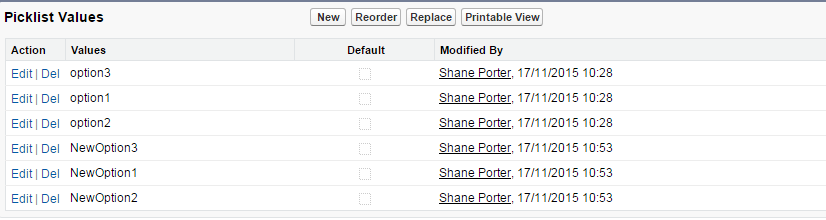

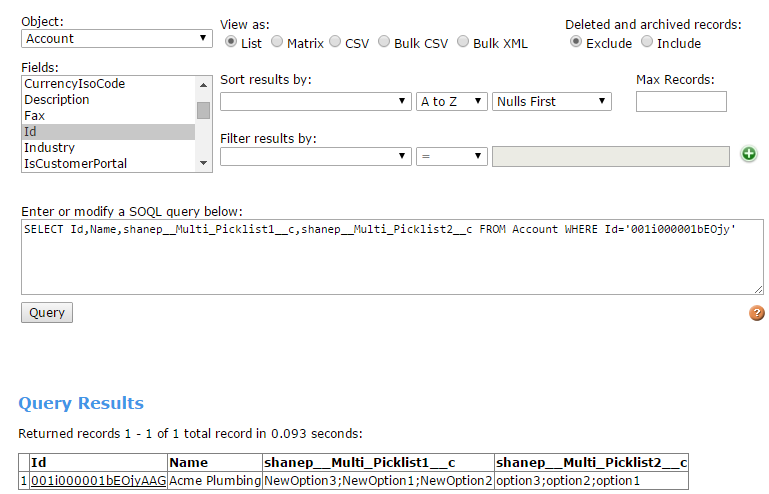
- Once all 3 values are replaced you may use a test record to confirm the values have in fact been changed and can confirm via SOQL the values are also in the required order.
Workbench (SOQL)
Report (UI)
Record (UI)


Flere ressurser
Knowledge-artikkelnummer
000384484
Hjalp denne artikkelen med å løse problemet ditt?
La oss få vite det slik at vi kan forbedre!
