Vælg en organisation
How to Use Salesforce Gmail Integration (Lightning for Gmail) for the First Time
Udgivelsesdato: Feb 26, 2025
Beskrivelse
This section describes common steps to enable Gmail Integration (Lightning for Gmail) for the first time in Salesforce.
Gmail Integration (Lightning for Gmail) requires G Suite, a paid service offered by Google.
This information is based on the information as of Spring '21 (February 19, 2021).
Løsning
This article walks through the steps to enable and start using Gmail Integration (Lightning for Gmail) with Salesforce for the first time.
1. Enabling Gmail Integration (Lightning for Gmail)
1-1. In the quick search in the settings screen, enter "Gmail integration and sync". Under [Gmail Integration and Lightning Sync], open [Settings] and enable [Allow users to access Salesforce record from Gmail].
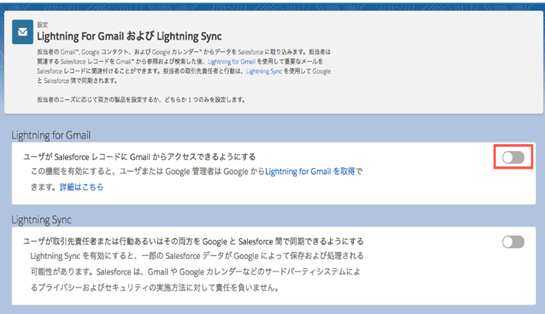
1-2. When this option is enabled, the display changes as shown below:
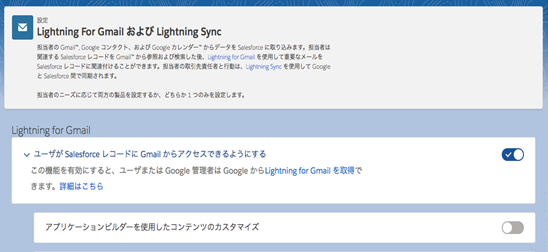
1-3. To allow users to associate their emails to Salesforce records, enable Enhanced Email.
For details about Enhanced Email in Gmail Integration (Lightning for Gmail), refer to the help topic below:
Use Enhanced Email for More Email Functionality
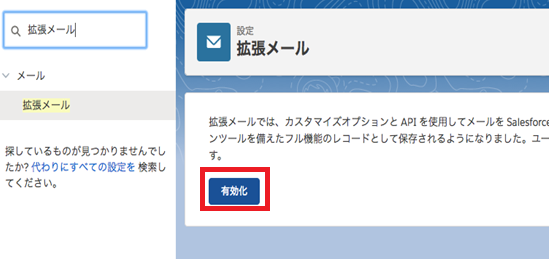
In the quick search in the settings screen, enter "enhanced email." Then, select [Enhanced Email] and click [Enable].
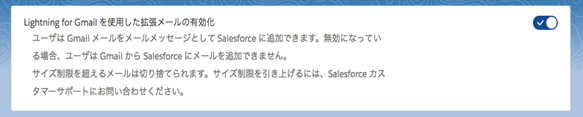
1-4. When Enhanced Email is enabled, the display changes as shown below:
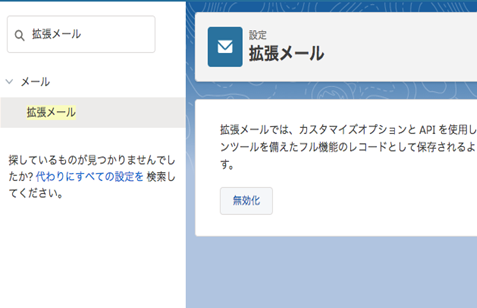
Open the Gmail Integration (Lightning for Gmail) settings screen and confirm that the [Enabling Enhanced Email using Gmail Integration] menu is added.
2. Adding the Gmail Integration (Lightning for Gmail) Extension to Google Chrome
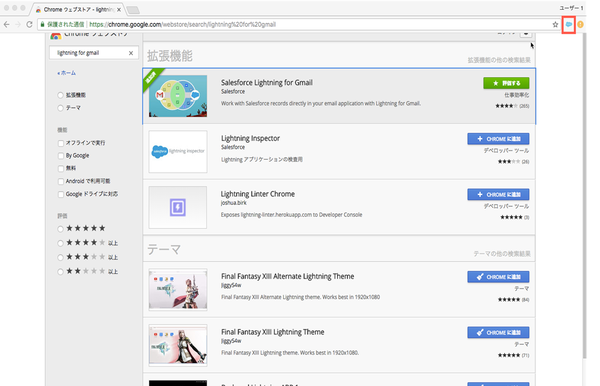
2-1. Access the Chrome Web Store.
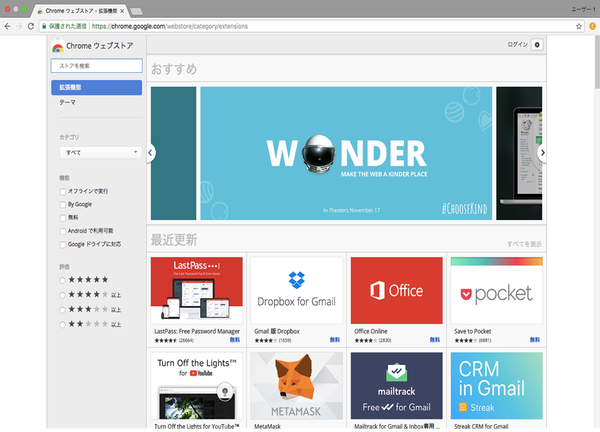
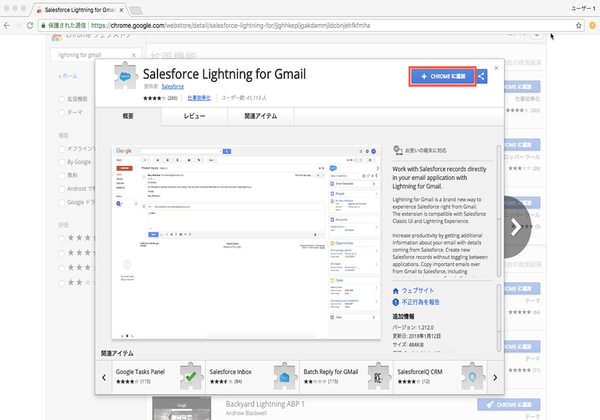
2-2. In the [Search the store] box, enter "Salesforce". Select the Salesforce extension, and click [Add to Chrome].
2-3. Click [Add extension].
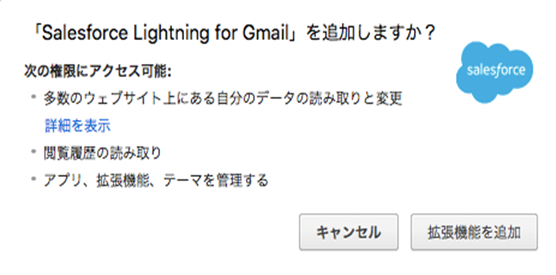
2-4. The Gmail Integration (Lightning for Gmail) extension is now added to Google Chrome.
3. Logging in to Gmail Integration (Lightning for Gmail)
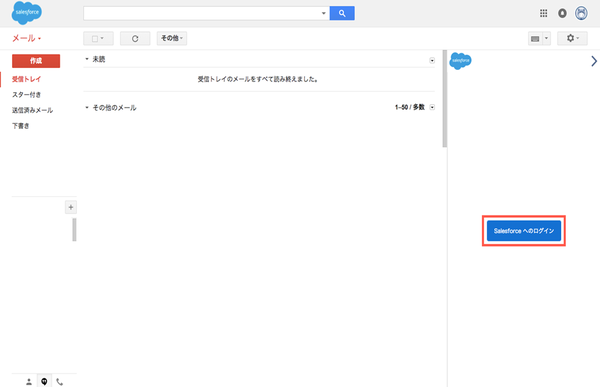
3-1. Log in to Gmail and click [Login to Salesforce].
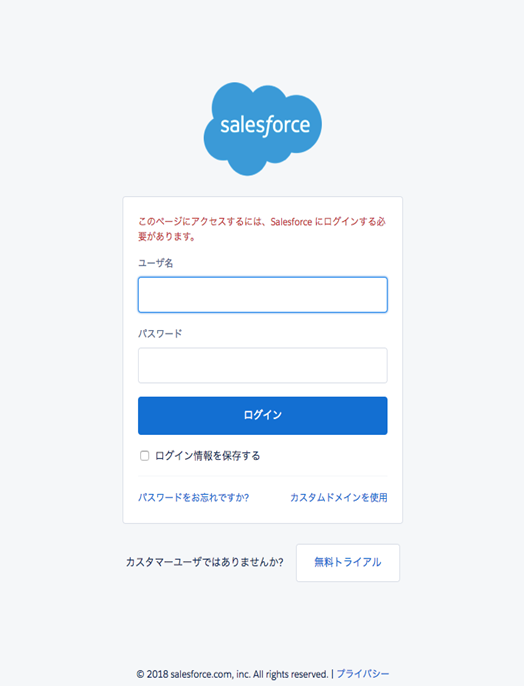
3-2. Enter the username and password, and log in to Salesforce.
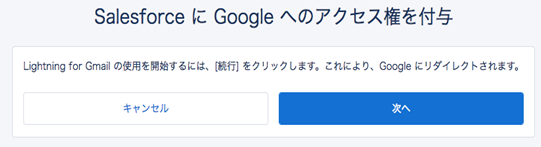
3-3. Click [Next].
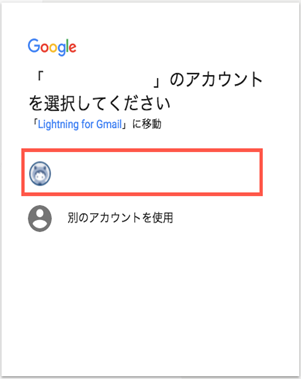
3-4. Select the Gmail account to use.
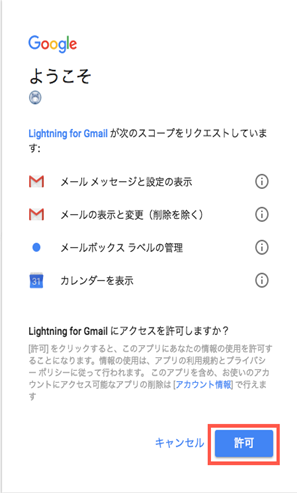
3-5. Click [Allow].
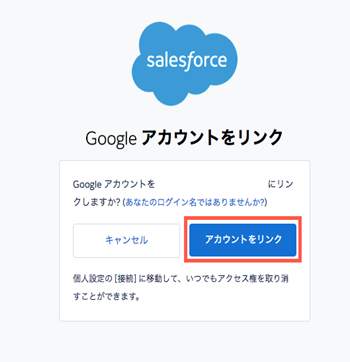
3-6. Click [Link account].
3-7. Click [Go to Salesforce].
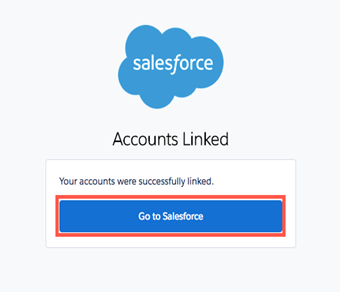
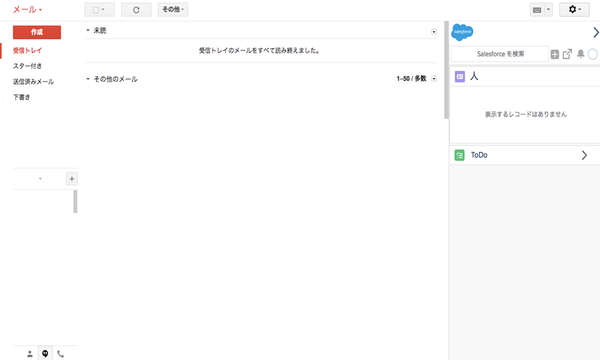
3-8. You are now logged in to Gmail Integration (Lightning for Gmail).
Additional Resources for Enhanced Email
For details about using Enhanced Email in Gmail Integration (Lightning for Gmail), refer to the video and article below:
Connecting to Salesforce in Gmail (translated closed caption available)
Yderligere ressourcer
Vidensartikelnummer
000384623
Løste denne artikel dit problem?
Giv os besked, så vi kan forbedre os!
