Välj en organisation
Attaching a File to a Salesforce Email Template in Classic and Lightning Experience
Publiceringsdatum: Jun 2, 2026
Beskrivning
Overview
Salesforce Email Templates support file attachments, allowing you to automatically include documents, PDFs, or other files whenever the template is used to send an email. This is useful for scenarios such as automatically attaching a product brochure, terms and conditions, or onboarding materials to a templated email sent to customers.
The process for attaching a file to an email template differs between Salesforce Classic and Lightning Experience:
- In Salesforce Classic: Attachments are added directly from the Email Template record in Setup.
- In Lightning Experience (Email Composer): Files can be attached when inserting a template into the email composer, and optionally saved back to the template for future use.
- In Lightning Experience (Email Templates app): Files can be permanently attached to a Lightning Email Template via the Related list on the Email Template record, accessible from App Launcher.
Lösning
Attach a file to a Salesforce email template
In Salesforce Classic
- Go to Setup.
- Under Administer, click Communication Templates | Classic Email Templates or Administer, click Communication Templates | Email Templates
- Click the name of the email template that you would like to attach a file to.
- Click the Attach File button.
- Complete the three steps and click the Done button.
In Lightning Experience
- Go to any object that has an Email publisher available.
- Go to the Email tab.
- Select the Email template that you wish to add an attachment to by clicking the Insert, create or update Template button.
- Select Insert Template.
- Click the Attach file button and select the file you wish to attach to the template.
- If you would like to save this template with the attachment for future use, click Insert, create, or update Template and select Save Template.
At this point, the file will be attached to the email template, and can be used the next time you wish to send an email with that attachment. To learn more, please review Email Templates in Salesforce Classic.
To automatically attach a file to Lightning email templates upon inserting the template:
- Go to Email Templates (accessible via App Launcher).
- Open any Email Template record.
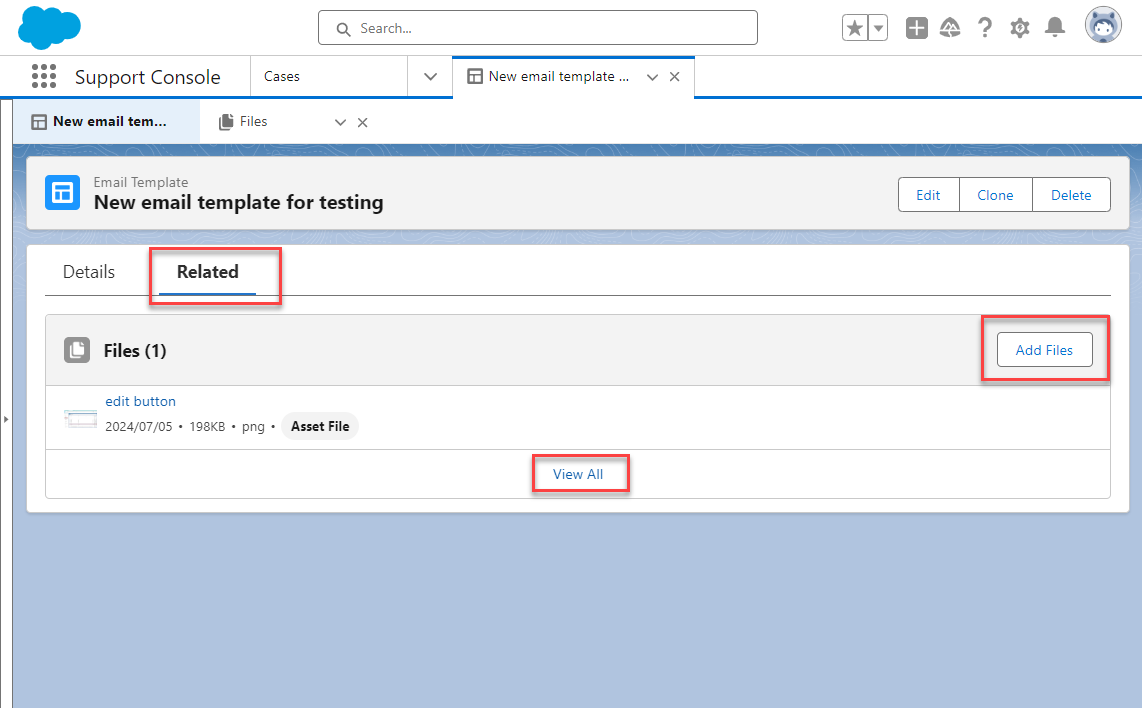
- Go to Related list.
- Under Files, click Add Files to attach files to the email template.
This allows you to attach files already uploaded to your Salesforce organization. Click Upload Files if there is a need to upload the attachments.
Please note the following restrictions when using attachments on email templates:
- If you were sending an email to a single Contact, Lead or Case Contact, the file you attached to the template is sent with the email.
- If you are sending a mass email or list email, the attachment is sent as a link attached to the message and embedded in the body of the email. To view the file, click the link and this opens the file onyour computer.
You are still able to attach files from your computer directly to individual emails sent from Salesforce using the 'attach file' button on the email form.
Attach a File to a Salesforce Classic Email Template
- Go to Setup.
- Under Administer, click Communication Templates > Classic Email Templates or Communication Templates > Email Templates.
- Click the name of the email template you want to attach a file to.
- Click the Attach File button.
- Complete the three attachment steps and click Done.
Attach a File to a Lightning Email Template (via Email Composer)
- Go to any Salesforce object that has an Email publisher available (for example, a Case or Contact record).
- Go to the Email tab.
- Click the Insert, create or update Template button and select Insert Template to choose the template.
- Click the Attach file button and select the file you want to attach.
- To save the attachment permanently to the template for future use, click Insert, create, or update Template and select Save Template.
Attach a File Permanently to a Lightning Email Template (via App Launcher)
To automatically attach a file to a Lightning Email Template whenever it is inserted:
- Open Email Templates (accessible via App Launcher).
- Open the Email Template record you want to attach a file to.
- Go to the Related list.
- Under Files, click Add Files to attach files already uploaded to your Salesforce org. Click Upload Files to upload a new file
Attachment Behavior and Restrictions
Note the following restrictions when using attachments on email templates:
- If you are sending an email to a single Contact, Lead, or Case Contact, the attached file is sent with the email as a standard attachment.
- If you are sending a mass email or list email, the attachment is sent as a link embedded in the body of the email — recipients click the link to open the file.
You can still attach files from your local computer directly to individual emails sent from Salesforce using the 'Attach file' button on the email compose form.
Sharing the Email Template Attachment
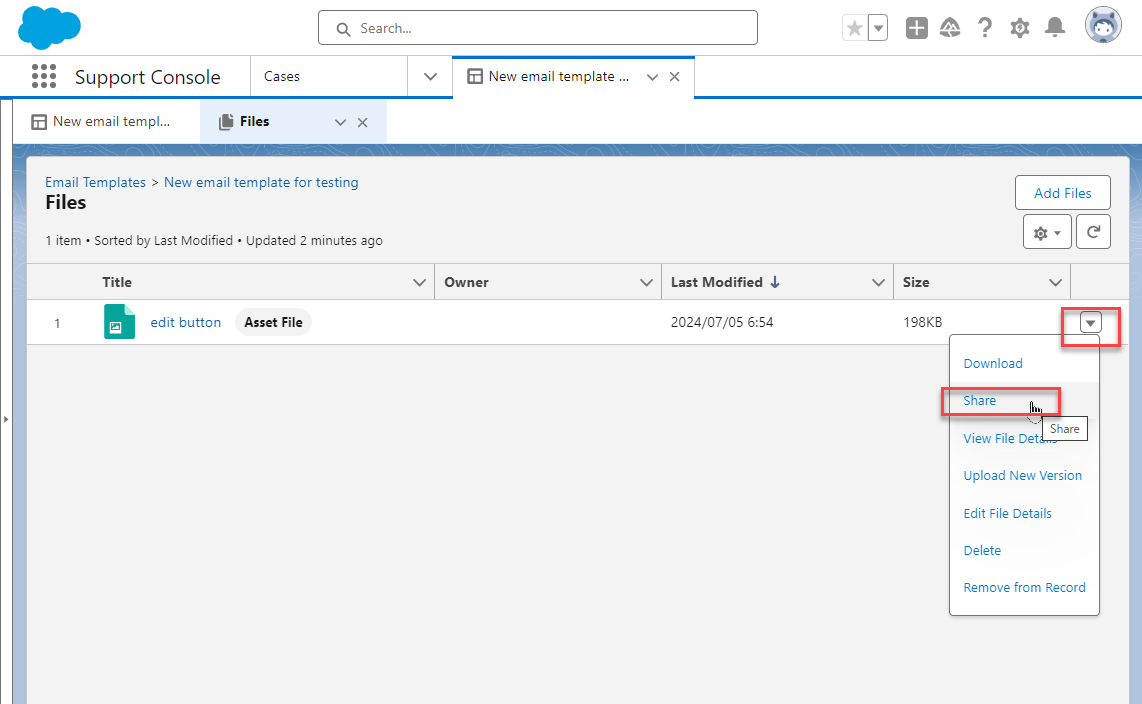
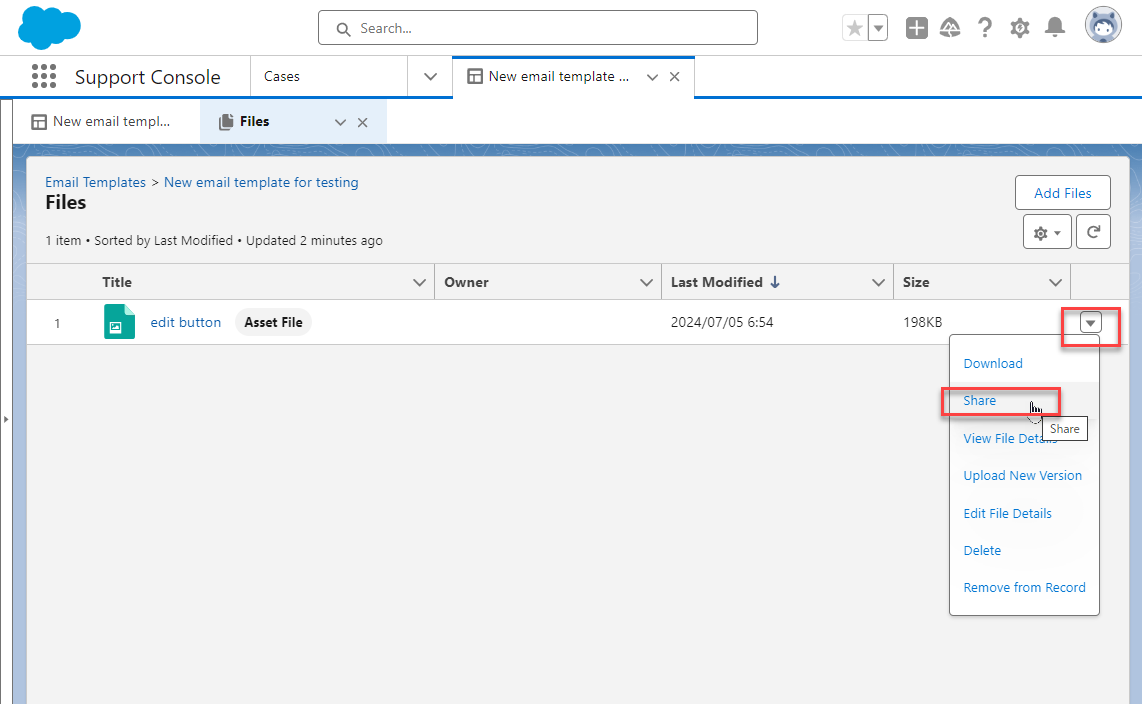
You can share the file attached to an email template with other people by using the Share menu on the file record.
Ytterligare resurser
You can share the attachment file used for the email template with other people from Share menu.
Knowledge-artikelnummer
000385326
Löste denna artikel ditt problem?
Berätta för oss vad vi kan förbättra!
