Velg en organisasjon
Include Date/Time Value for Last Modified Date or Created Date in Salesforce Reports
Publiseringsdato: Jun 24, 2026
Beskrivelse
In Salesforce Reports, the Last Modified Date and Created Date fields may display only the date portion despite being configured as date/time fields. This occurs because some reports display only the date value for these fields.
This article explains how to create a formula field of type Date/Time to expose the full date and time value in your Salesforce reports.
Løsning
The workaround is to create a formula field of type Date/Time on the field that is only displaying the date value.
Create a Date/Time Formula Field in Lightning
Follow these steps to create a new formula field in Salesforce Lightning:
- Navigate to Setup | Object Manager.
- Select the desired object (for example, the Opportunity object).
- Select Fields & Relationships and click New to create a new field.
- Select the Data Type Formula and click Next.
- Name your new field, select the Formula Return Type as Date/Time, and click Next.
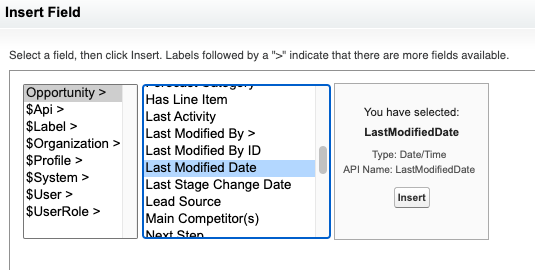
- In the formula editor, click Insert Field and locate the desired field such as Created Date or Last Modified Date, then click Insert. (Screenshot: The Insert Field dialog in the formula editor with Created Date selected.)
- Finish creating the field — add a Description and Help Text, then click Next.
- Assign the desired field-level security and click Next.
- Click Save.
- Create a new report or edit your existing report to add this new formula field.
- If necessary, add the new field to the layouts of any custom report types.
Flere ressurser
Knowledge-artikkelnummer
000385683
Hjalp denne artikkelen med å løse problemet ditt?
La oss få vite det slik at vi kan forbedre!
