組織を選択
Salesforce for Outlook - サイドパネルで「Salesforce に接続されていません」エラー
公開日: Aug 5, 2021
説明
1. 古いバージョンの SFO から、バージョン 3.0.0 へのアップデート - TLS 1.0 は無効であるため、TLS 1.1 以上が必要です。より詳細については、記事番号 000221207 - Salesforce による TLS 1.0 の無効化を参照してください。
2. Salesforce for Outlook のログインの問題
3. サイドパネルの検索の問題
4. デフォルトブラウザではなく、不正なブラウザを開いているサイドパネルのリンク
5. Salesforce for Outlook へログインする際に、スクリプトエラーのメッセージが表示される
6. Salesforce for Outlook の接続の問題
2. Salesforce for Outlook のログインの問題
3. サイドパネルの検索の問題
4. デフォルトブラウザではなく、不正なブラウザを開いているサイドパネルのリンク
5. Salesforce for Outlook へログインする際に、スクリプトエラーのメッセージが表示される
6. Salesforce for Outlook の接続の問題
次の点にも注意してください:
Salesforce for Outlook のサイドパネルでレコードが正常にブラウズされた後、使用していたセッションの有効期限が切れた時に「接続されていません」エラーが表示されることがあります。これは時々見られるセキュリティ機能です。 Outlook で他のレコードをクリックしてセッションがリフレッシュされるのを待つと、サイドパネルはリフレッシュされ、再び接続が切れることなく、サイドパネルでレコードを検索できるようになります。このリフレッシュには最長で 45 秒ほどかかる可能性があります。通常の使用状況では、セッションのリフレッシュは、日常的に起こるようなものではありません。
Outlook でレコード検索時にエラーが発生し、上記のように解決しない場合は、次の 2 つの操作を試してみてください。
1. Outlook と Salesforce for Outlook の両方を閉じて再度起動します。
または
2.Salesforce for Outlook の Oauth セッションを無効にして、再確立します。
以下の手順に従ってください。
- Salesforce にログインします。
- [私の設定] | [個人用] | [高度なユーザの詳細] にアクセスします。
- [OAuth 接続アプリケーション] セクションで、すべての Salesforce Outlook アイテムの横にある [取り消し] リンクをクリックします。
SFO で再認証する方法
システムトレイの Salesforce for Outlook アイコンを右クリックし、[設定] を選択してログインし、設定ウィザードを再度実行します。
注意:
1- 私のドメインを使用している場合は、[URL の変更] ボタンをクリックし、私のドメイン URL を入力するか、コピーして貼り付けてください。
2-シングルサインオンを使用して Salesforce に接続する場合は、代理認証権限を有効にするためにサポートに連絡する必要がある場合があります。このオプションを有効にすると、プロファイルレベルで [シングルサインオンの有効] という新しい権限が追加されます。次にシステム管理者は、この新しい権限を標準プロファイルやシステム管理者以外のプロファイルで有効にします。ユーザに SFO で再認証するよう依頼し、正常に接続できるかどうかを確認してテストします。
解決策
 設定を開始する前に - Salesforce for Outlook バージョン 3.0 以降がインストールされている場合、弊社の Salesforce for Outlook と TLS の記事を必ず参照してください。あなたが使用している Salesforce for Outlook のバージョンを把握するために支援が必要な場合は、同様に役に立つ記事を用意しています。Salesforce for Outlook - インストールされている Salesforce for Outlook (SFO) のバージョンを確認する
1. Internet Explorer のすべてのウィンドウを閉じ、および、実行中のすべてのアプリケーションを終了します。
- SFO を終了するためには、システムトレイの SFO のグレーまたは赤色のアイコンを右クリックし、[終了] をクリックします。

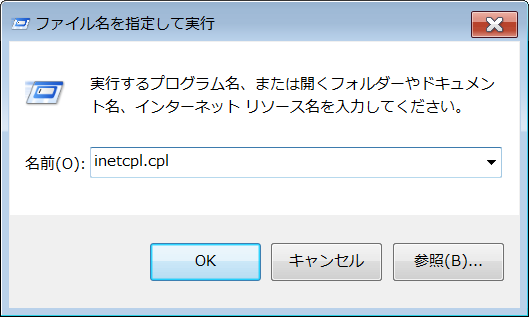
2. キーボードの Windows キー、および、R キーの組み合わせを使用して、[ファイル名を指定して実行] ボックスを開きます。inetcpl.cpl と入力し、[OK] をクリックします。
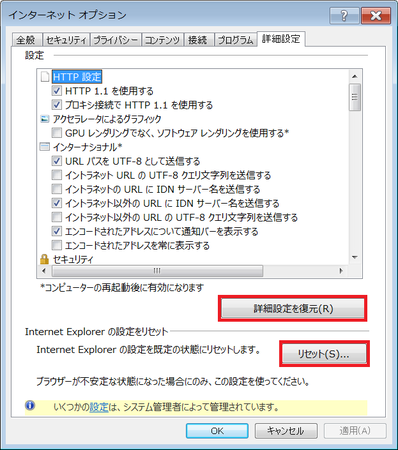
3. 最初に、Internet Explorer の設定をリセット、および、初期化する必要があります。[詳細設定] タブを開き、[詳細設定を復元] をクリックし、そして次に [リセット] をクリックします。
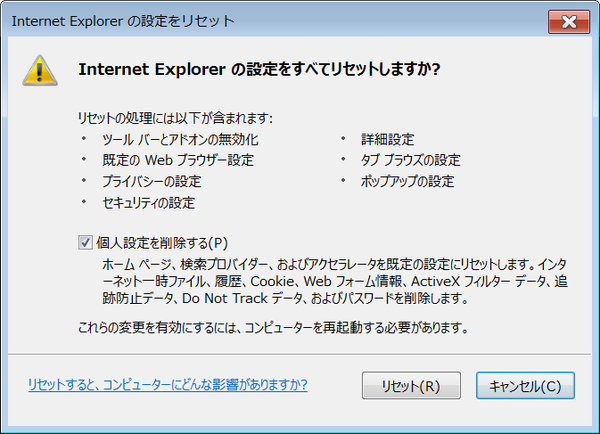
4. [Internet Explorer の設定をリセット] ウィンドウが開きます。[個人設定を削除する] チェックボックスにチェックを入れ、[リセット] ボタンをクリックします。
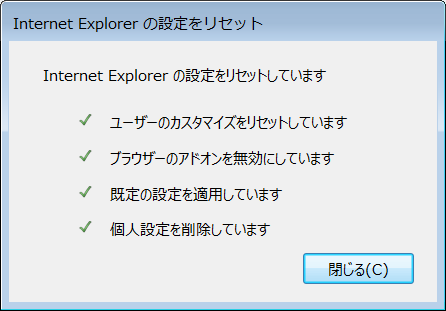
5. 次に、[閉じる] ボタンをクリックする必要があります。
6. この操作により、[インターネット オプション] ウィンドウが閉じます。キーボードの Windows キー、および、R キーの組み合わせを使用して、[ファイル名を指定して実行] ボックスを再び開く必要があります。inetcpl.cpl と入力し、[OK] をクリックします。
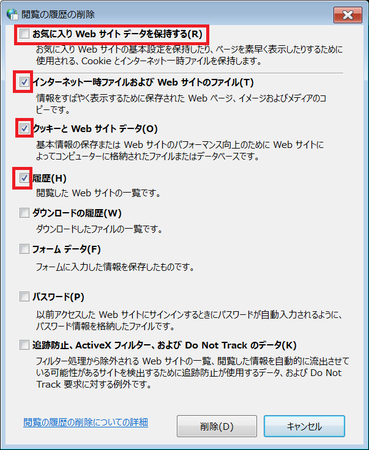
7. [全般] タブで、[削除] ボタンをクリックします。そして、最初のチェックボックス([お気に入り Web サイトデータを保持する]) のチェックを必ず外し、[インターネット一時ファイル および Web サイトのファイル]、[クッキーと Web サイト データ]、および、[履歴] のチェックを入れたまま、[削除] ボタンをクリックします。
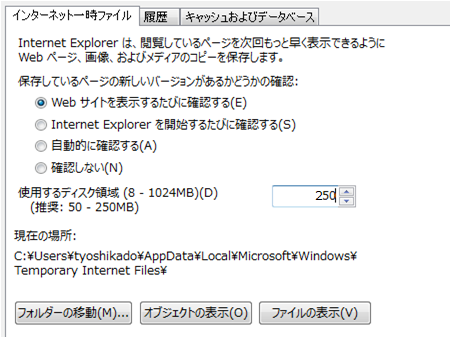
8.[インターネット一時ファイル] タブで、[Web サイトを表示するたびに確認する] ラジオボタンを選択し、[使用するディスク領域] を 250 に設定します。
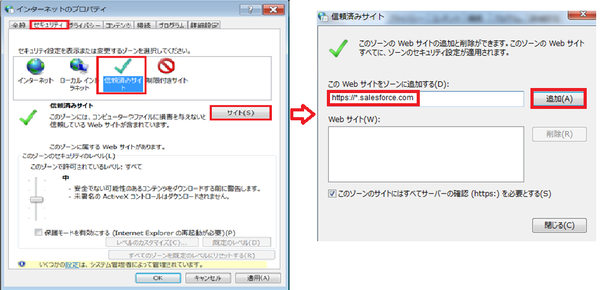
9. [セキュリティ] タブで、[信頼済みサイト] をクリックし、[サイト] ボタンをクリックします。
[信頼済みサイト] ウィンドウで、 [この Web サイトをゾーンに追加する] 項目に https://*.salesforce.com と入力します。そして、[追加] 、[閉じる] を順にクリックします。
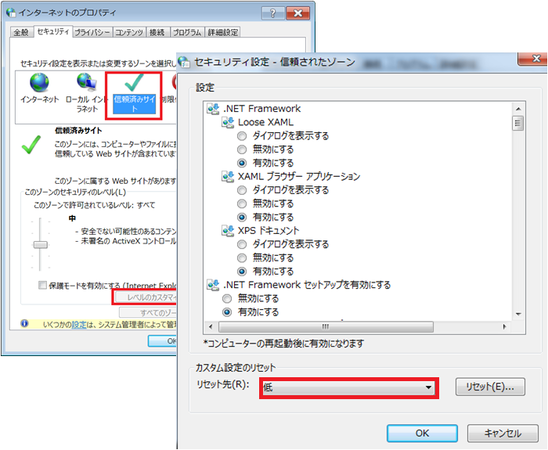
10. [セキュリティ] タブで、[信頼済みサイト] を再度クリックします。そして、[レベルのカスタマイズ] をクリックします。[セキュリティ設定 - 信頼されたゾーン] ウィンドウで、[リセット先] ドロップダウン項目をクリックし、[低] を選択して、[リセット] をクリックします。警告ポップアップウィンドウが表示されたら、[はい] をクリックします。
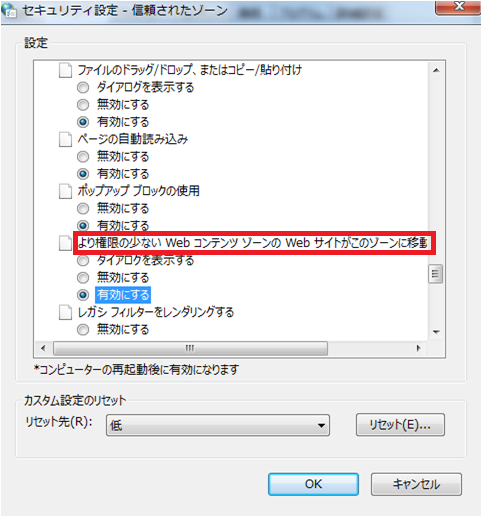
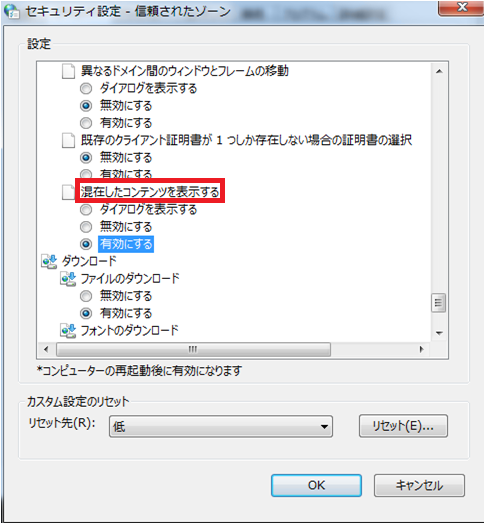
11. [セキュリティ設定 - 信頼されたゾーン] ウィンドウの [設定] ボックスで、[より権限の少ない Web コンテンツ ゾーンの Web サイトがこのゾーンに移動できる] が表示されるまで下へスクロールし、[有効にする] をクリックします。また、[混在したコンテンツを表示する] を [有効にする] に設定し、[OK] をクリックします。
警告メッセージが表示されたら、[はい] をクリックします。
12. [スクリプトを実行しても安全だとマークされていない ActiveX コントロールの初期化とスクリプトの実行] を見つけ、[有効にする] ラジオボタンが選択されていることを確認します。[無効にする] に設定されている場合、Outlook のサイドパネルで砂時計が表示され続けます。 サイドパネルのメインウィンドウが問題なくロードされることもありますが、新規メール作成時にサイドパネルウィンドウがロードされ、「接続されていません」というメッセージが表示されます。
注意:コンピュータを再起動し、変更を確認してください。時々元に戻っていることをがあります。 Internet Explorer の設定を変更できない場合は、システム管理者に問い合わせてください。
[信頼済みサイト] で [カスタムレベル] を [低] に設定すると、値は自動的に [有効にする] に設定されますが、常に確認をしてください。
このセクションに関する追加情報については、 Microsoft の記事を確認してください (英語)。
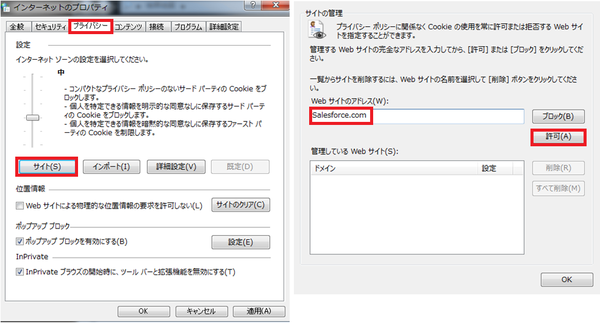
13. [プライバシー] タブをクリックし、[サイト] ボタンをクリックします。そして、ドメイン “Salesforce.com” をボックスに追加し、[許可] をクリックします。
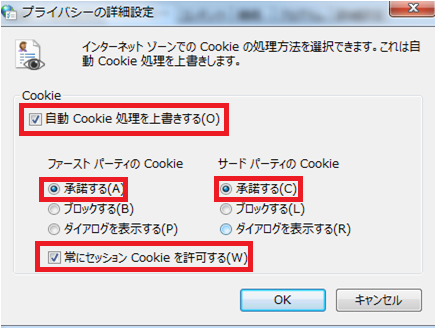
14. 次に、[プライバシー] タブの [詳細設定] ボタンをクリックし、[自動 Cookie 処理を上書きする] および [常にセッション Cookie を許可する] のチェックボックスのチェックを入れ、[OK] ボタンをクリックします。
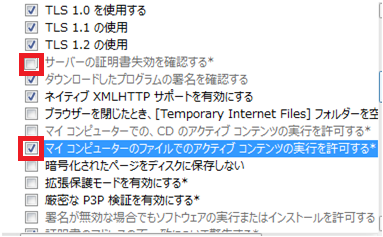
15. 次に、[詳細設定] タブをクリックします。必ず、[マイコンピュータのファイルでのアクティブ コンテンツの実行を許可する] にチェックを入れ、[サーバーの証明書失効を確認する] のチェックを外してください。
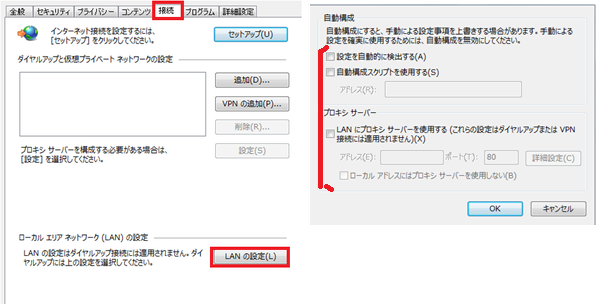
16. [接続] タブをクリックし、[LAN の設定] をクリックします。貴社のネットワークでプロキシサーバを使用していない限り、いずれのチェックボックスにも、チェックが入っていないことを確認してください(この設定のより詳細については、貴社の IT ヘルプデスクへ問い合わせる必要があるでしょう)。デフォルトでは、[設定を自動的に検出する] にチェックが入っているはずです。貴社のネットワークでプロキシサーバが使用されていない場合、そのチェックボックスのチェックを外し、[OK] をクリックしてください。
17. [インターネット オプション] を閉じ、Internet Explorer を再度、起動します。
18. Outlook を起動します。
19. SFO がシステムトレイで実行中でない場合は、SFO を起動します。そして、システムトレイのアイコンを右クリックし、[設定] をクリックします。SFO の画面上で [ユーザの変更] をクリックし、同期データベースをリセットするために再度ログインします。
注意: 3 つのオブジェクト(取引先責任者、行動、ToDo)の同期がオフになっていない限り、ユーザフォルダ "%appdata%\salesforce.com\Salesforce for Outlook\DB " にある Sync.db ファイルを削除したり、リネームしたりしないでください。
20. ウィザードで資格情報を入力し、完了します。そして、問題の再現を試みます。
- SFO を終了するためには、システムトレイの SFO のグレーまたは赤色のアイコンを右クリックし、[終了] をクリックします。
2. キーボードの Windows キー、および、R キーの組み合わせを使用して、[ファイル名を指定して実行] ボックスを開きます。inetcpl.cpl と入力し、[OK] をクリックします。
3. 最初に、Internet Explorer の設定をリセット、および、初期化する必要があります。[詳細設定] タブを開き、[詳細設定を復元] をクリックし、そして次に [リセット] をクリックします。
4. [Internet Explorer の設定をリセット] ウィンドウが開きます。[個人設定を削除する] チェックボックスにチェックを入れ、[リセット] ボタンをクリックします。
5. 次に、[閉じる] ボタンをクリックする必要があります。
6. この操作により、[インターネット オプション] ウィンドウが閉じます。キーボードの Windows キー、および、R キーの組み合わせを使用して、[ファイル名を指定して実行] ボックスを再び開く必要があります。inetcpl.cpl と入力し、[OK] をクリックします。
7. [全般] タブで、[削除] ボタンをクリックします。そして、最初のチェックボックス([お気に入り Web サイトデータを保持する]) のチェックを必ず外し、[インターネット一時ファイル および Web サイトのファイル]、[クッキーと Web サイト データ]、および、[履歴] のチェックを入れたまま、[削除] ボタンをクリックします。
8.[インターネット一時ファイル] タブで、[Web サイトを表示するたびに確認する] ラジオボタンを選択し、[使用するディスク領域] を 250 に設定します。
9. [セキュリティ] タブで、[信頼済みサイト] をクリックし、[サイト] ボタンをクリックします。
[信頼済みサイト] ウィンドウで、 [この Web サイトをゾーンに追加する] 項目に https://*.salesforce.com と入力します。そして、[追加] 、[閉じる] を順にクリックします。
10. [セキュリティ] タブで、[信頼済みサイト] を再度クリックします。そして、[レベルのカスタマイズ] をクリックします。[セキュリティ設定 - 信頼されたゾーン] ウィンドウで、[リセット先] ドロップダウン項目をクリックし、[低] を選択して、[リセット] をクリックします。警告ポップアップウィンドウが表示されたら、[はい] をクリックします。
11. [セキュリティ設定 - 信頼されたゾーン] ウィンドウの [設定] ボックスで、[より権限の少ない Web コンテンツ ゾーンの Web サイトがこのゾーンに移動できる] が表示されるまで下へスクロールし、[有効にする] をクリックします。また、[混在したコンテンツを表示する] を [有効にする] に設定し、[OK] をクリックします。
警告メッセージが表示されたら、[はい] をクリックします。
12. [スクリプトを実行しても安全だとマークされていない ActiveX コントロールの初期化とスクリプトの実行] を見つけ、[有効にする] ラジオボタンが選択されていることを確認します。[無効にする] に設定されている場合、Outlook のサイドパネルで砂時計が表示され続けます。 サイドパネルのメインウィンドウが問題なくロードされることもありますが、新規メール作成時にサイドパネルウィンドウがロードされ、「接続されていません」というメッセージが表示されます。
注意:コンピュータを再起動し、変更を確認してください。時々元に戻っていることをがあります。 Internet Explorer の設定を変更できない場合は、システム管理者に問い合わせてください。
[信頼済みサイト] で [カスタムレベル] を [低] に設定すると、値は自動的に [有効にする] に設定されますが、常に確認をしてください。
このセクションに関する追加情報については、 Microsoft の記事を確認してください (英語)。
13. [プライバシー] タブをクリックし、[サイト] ボタンをクリックします。そして、ドメイン “Salesforce.com” をボックスに追加し、[許可] をクリックします。
14. 次に、[プライバシー] タブの [詳細設定] ボタンをクリックし、[自動 Cookie 処理を上書きする] および [常にセッション Cookie を許可する] のチェックボックスのチェックを入れ、[OK] ボタンをクリックします。
15. 次に、[詳細設定] タブをクリックします。必ず、[マイコンピュータのファイルでのアクティブ コンテンツの実行を許可する] にチェックを入れ、[サーバーの証明書失効を確認する] のチェックを外してください。
16. [接続] タブをクリックし、[LAN の設定] をクリックします。貴社のネットワークでプロキシサーバを使用していない限り、いずれのチェックボックスにも、チェックが入っていないことを確認してください(この設定のより詳細については、貴社の IT ヘルプデスクへ問い合わせる必要があるでしょう)。デフォルトでは、[設定を自動的に検出する] にチェックが入っているはずです。貴社のネットワークでプロキシサーバが使用されていない場合、そのチェックボックスのチェックを外し、[OK] をクリックしてください。
17. [インターネット オプション] を閉じ、Internet Explorer を再度、起動します。
18. Outlook を起動します。
19. SFO がシステムトレイで実行中でない場合は、SFO を起動します。そして、システムトレイのアイコンを右クリックし、[設定] をクリックします。SFO の画面上で [ユーザの変更] をクリックし、同期データベースをリセットするために再度ログインします。
注意: 3 つのオブジェクト(取引先責任者、行動、ToDo)の同期がオフになっていない限り、ユーザフォルダ "%appdata%\salesforce.com\Salesforce for Outlook\DB " にある Sync.db ファイルを削除したり、リネームしたりしないでください。
20. ウィザードで資格情報を入力し、完了します。そして、問題の再現を試みます。
21. 引き続き問題が発生する場合は、貴社の IT 担当者に下記を試すよう依頼してください。
- Windows ファイアウォールで Sfdcmsol.exe プロセスをプライベートドメインとパブリックドメインで許可するルールを作成します (これは Salesforce for Outlook アプリケーションファイルで、%localappdata%\Programs\salesforce.com\ または C:\Program Files\salesforce.com\ フォルダのどちらかにあります)。その後、コンピュータを再起動し、再試行して下さい。
- UAC を [通知しない] に設定してコンピュータを再起動し、再試行してください。 詳細については、Windows Vista/Windows 7 および Windows 8 の UAC(ユーザーアカウント制御)を無効にする方法のナレッジ記事を参照してください。
ナレッジ記事番号
000385912
この記事で問題は解決されましたか?
ご意見をお待ちしております。
