Välj en organisation
Troubleshoot Multi-Factor Authentication Issues with Salesforce
Publiceringsdatum: Jun 17, 2026
Beskrivning
Find information on troubleshooting Multi-Factor Authentication and view helpful resources below.
 Important:
- Android users have to install the barcode scanner by "ZXing Team."
- Keep in mind that the mobile device time must always match the computer time and the official time, www.time.gov , otherwise, an invalid token error will be generated.
- After 10 invalid login attempts ( using 5 times the correct username & password but invalid time-based token) the user will get locked out for 1 hour.
- To let users who aren’t Salesforce admins provide support for two-factor authentication in your org, assign Help Desk staff members the “Manage Multi factor Authentication in User Interface” permission so that they can generate codes and support end users with other two-factor authentication tasks. See Delegate Two-Factor Authentication Management Tasks for more information. For example, suppose you want your company’s Help Desk staff to generate temporary verification codes for users who lost or forgot the device they usually use for two-factor authentication.
- We can only connect to one authenticator app, per user login, at a time. If you want to connect to a different device, disconnect your account from the present device.
- When you can’t access the device you usually use for two-factor authentication, ask your Salesforce admin to give you a temporary identity verification code. The code is valid for 1 to 24 hours. Your admin sets the expiration time, but you can expire the code early if you no longer need it. Instructions can be found here: Verify Your Identity with a Temporary Code / Generate a Temporary Identity Verification Code.
- Video on How to Use Salesforce Authenticator for MFA logins
- Three-minute Salesforce Support video tutorial Set Up a Two-Factor Authentication Requirement
Lösning
Please Note: Salesforce system allows for the connection to other authentication apps like Google and Microsoft. However, support is not provided as these are third-party apps, although they are compatible.
Below are some troubleshooting steps that a system administrator can conduct if their users are facing Two-Factor Authentication issues:
- From the Salesforce Classic UI, select Setup | Manage Users | Users, then click on the username.
- From the Lightning UI, click on top right Gear and select Setup | Users | Users, then click on the username.
- Locate the field App Registration One-Time Password Generator (Time-Based Token) field on the affected user record.
- Click on the Remove option next to App Registration One-Time Password Generator (Time-Based Token). By removing it, the system will generate a new QR code to be scanned by the user upon login.
- The user has to download the Salesforce Authenticator app on their mobile device and confirm that they have a QR code scanner.
- After the user logs in with their Salesforce username and password, the QR code needs to be scanned to generate a token.
- The user has to use the Salesforce Authenticator app already installed on their mobile device to scan the QR code to create a time-based token code.
- As soon as the QR code is scanned, have the affected user type in the code generated from the Authenticator app in the box displayed under the QR code.
- Click on the verify and login button. Once the code is entered, the user will be logged in.
Note: If you're getting an error on the mobile device when attempting to replace an old time-based token, please swipe left to remove the time token.
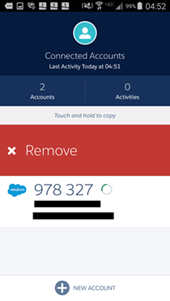
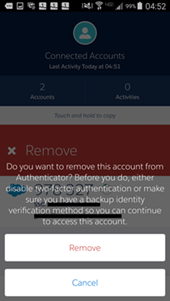
How to enable Trusted Locations and how to use Push Notifications
- You need to enable "Location" from their mobile device Settings.
- When you log in from a new device or browser, the Salesforce Authenticator app will send a notification. Please see below:
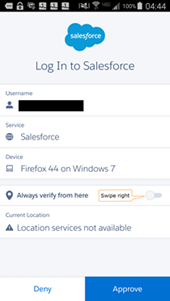
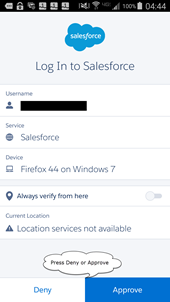
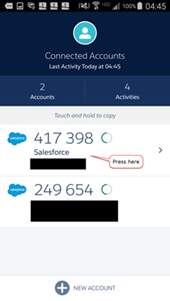
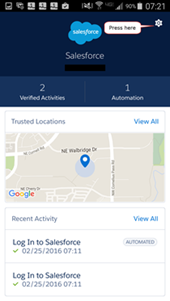
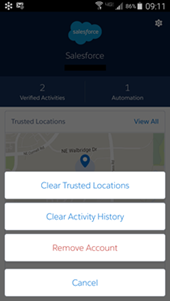
See Trusted Locations and how to clear Trusted Locations
1. Open the Salesforce Authenticator app
2. Tap the account you want to see the Trusted Locations for.
3. Tap the Gear icon in the top right.
4. Tap the button for the action you'd like to take.
2. Tap the account you want to see the Trusted Locations for.
3. Tap the Gear icon in the top right.
4. Tap the button for the action you'd like to take.
Additional Troubleshooting
When a user is not receiving push notifications from the Salesforce authenticator app or during instances where the user does not have any mobile data or unable to connect to the internet (for the authenticator app), perform the following:
1. From the Salesforce Authenticator request page, click "Having Trouble?"
2. Select "Use a Different Verification Method"
3. Select "Use a code from an authenticator app"
4. Type in the code from the Salesforce Authenticator App
Ytterligare resurser
Salesforce Help - Salesforce Authenticator troubleshooting
Salesforce Help - Resolve MFA Access Issues for Your Users
Instructions to setup the Salesforce Authenticator app with user accounts can be found here.
Salesforce Multi-Factor Authentication FAQ
Trailblazer Community - Problem using Microsoft Authenticator for Salesforce MFA
Trailblazer Community - Traveling to another country - will Salesforce Authenticator still work?
Trailblazer Community Group - MFA - Getting Started
Knowledge-artikelnummer
000386089
Löste denna artikel ditt problem?
Berätta för oss vad vi kan förbättra!
