Velg en organisasjon
Add, Remove, or Create Buttons For Salesforce List View
Publiseringsdato: Jun 16, 2026
Beskrivelse
Salesforce offers many standard buttons for list views, including many For example, on a "Leads" list view, the "Change Owner" and "Change Status" buttons are available.
You can also create your own and add them to list views when your button uses the "List Button" display type.
Løsning
The List View Button Layout in Salesforce Setup controls which action buttons users see on all list views for a given object. Use the steps below to add, remove, or create custom buttons.
To Add or Remove List View Buttons (Standard or Custom Objects)
1. In Setup, select Object Manager and the standard or custom object for the list view to update. For example, select Account.
2. Select the List View Button Layout. If the List View Button Layout is missing from your Custom Object, make sure to enable "Allow Search" on the Custom Object.
3. Click on the down-arrow to the far right of the List View and select Edit.
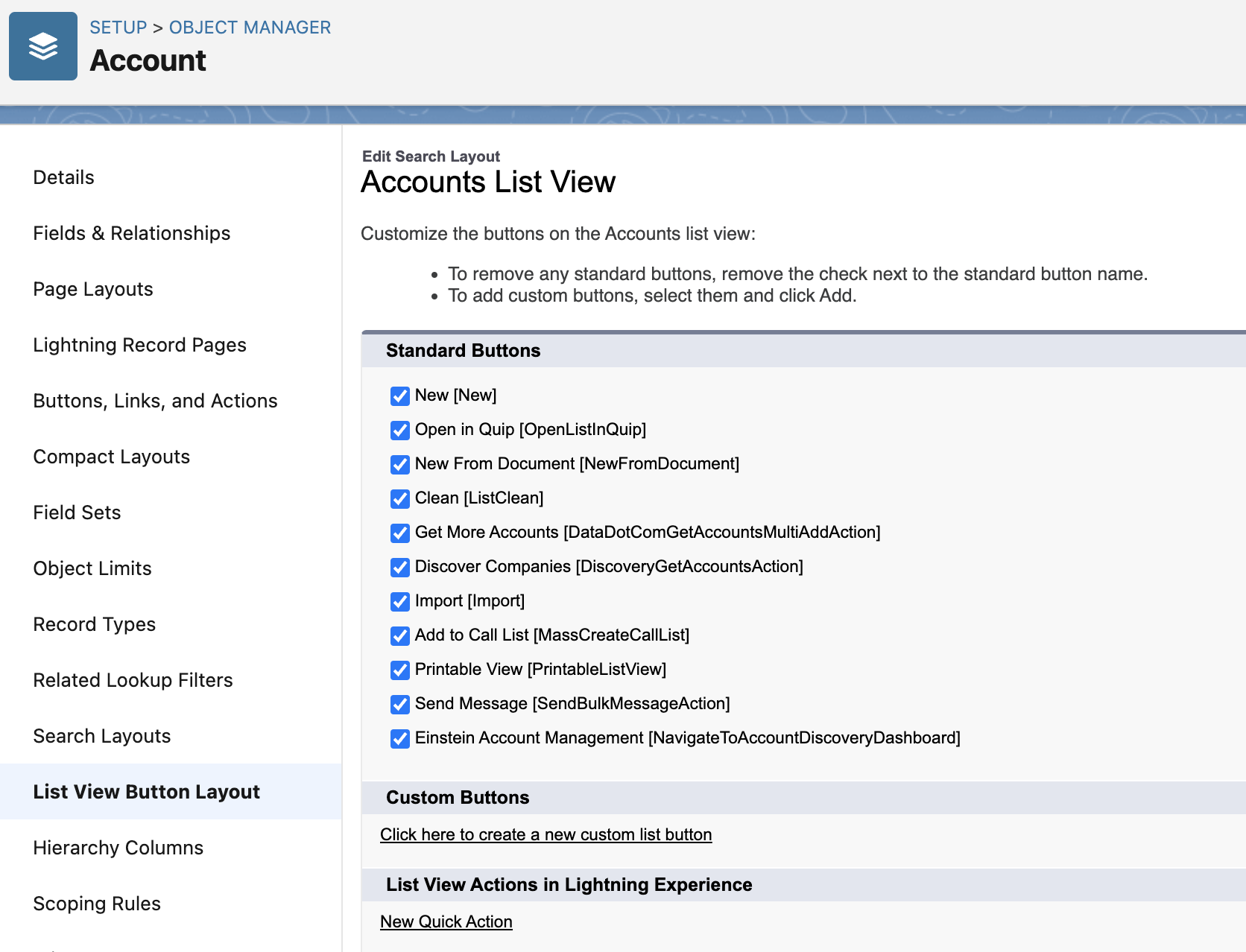
4. The list of Standard buttons will display for the Object list view (see screenshot below). To remove any standard buttons, uncheck the standard button that you wish to remove. To add custom buttons, select the Click here to create a new custom list button.
5. Click Save when you have completed the updates for the Object's List View.
Screenshot showing the List View Button Layout editor in Salesforce Setup with standard buttons listed and an option to create a custom list button
For more information, see Additional Layout Configurations in Customize Search Layouts.
Note:
- The buttons on standard 'Recently Viewed' list views can't be customized.
- Selecting the "New Quick Action" does not automatically add the action to the list view layout. The link is only present if there are no custom actions for the object. When it is selected, you are directed to the setup page to create a new action for the object. After it is created, you will need to go back to the "List View Button Layout" setup section and move it from Available to Selected. This is also the same for "Click here to create a new custom list button".
- Ideas cannot have custom buttons at this time.
Knowledge-artikkelnummer
000386168
Hjalp denne artikkelen med å løse problemet ditt?
La oss få vite det slik at vi kan forbedre!
