Seleccionar una organización
Change Dashboard Object Width
Fecha de publicación: Jun 28, 2026
Descripción
In Salesforce, dashboard components (also called dashboard objects) can be resized to better display data. In Salesforce Classic, component width is set using Narrow, Medium, or Wide size options applied per column. In Lightning Experience, dashboard components can be resized freely by dragging the component borders within the dashboard grid. This article explains how to resize dashboard components in both Salesforce Classic and Lightning Experience.
Solución
To change a dashboard component's width, use the following steps based on your Salesforce experience:
Salesforce Classic
- Open the Dashboard in which you would like to change size of the object.
- Click Edit.
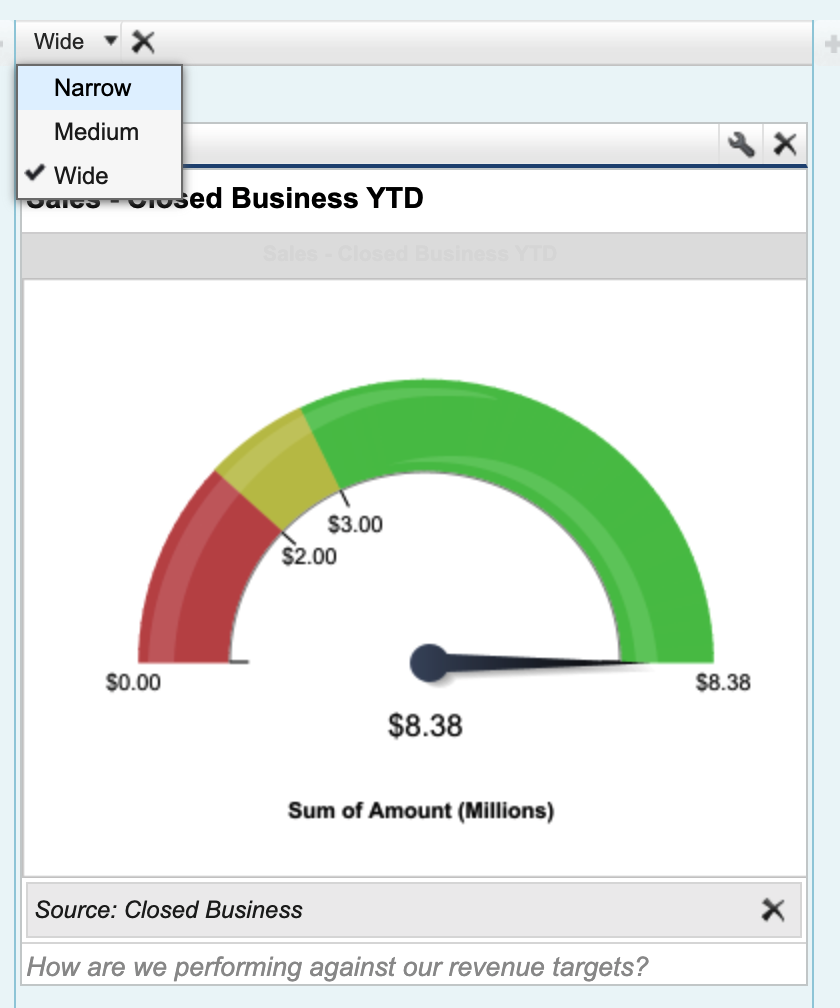
- Each dashboard object will have a drop down on the top left, to resize the column.
- Set the desired size: Narrow, Medium, or Wide. The three columns of the dashboard have their own independent sizes which is preset.
- After selecting the size of the columns, click Save.
The screenshot below shows the Classic dashboard editor with the component size dropdown visible in the upper-left of each component, offering Narrow, Medium, and Wide options.
Lightning Experience
- Open the dashboard in which you would like to change the object width.
- Click Edit.
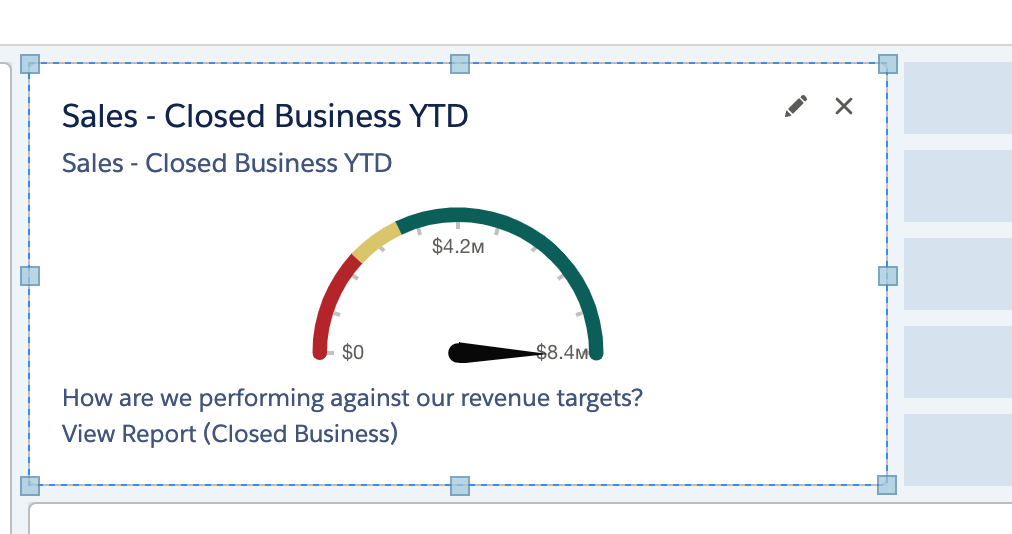
- Click on the individual component you would like to resize.
- You will see border lines on that particular component.
- Using the border lines as guides, drag a side or corner of the particular component to the desired size.
Note: This component can be only re-sized as per the tiles in background.
The screenshot below shows the Lightning dashboard editor with a selected component displaying resizable border handles that can be dragged to adjust the component's width and height.
For information on switching between a 12 or 9-column dashboard layout, please see the Salesforce Online Help .
For information on resizing a column within a dashboard, see the Salesforce Online Help on Working with Dashboards.
Recursos adicionales
Switch Between a 12- or 9-Column Dashboard Layout
Número del artículo de conocimiento
000387588
¿Resolvió este artículo su problema?
¡Háganos saber cómo podemos mejorar!
