Velg en organisasjon
Export Contacts and their Details through Report
Publiseringsdato: Aug 18, 2026
Beskrivelse
Since there isn't a standard report type for Contacts, you can create a custom report to display your organization's Contacts and then save it using an export.
Løsning
Create a Custom Report Type
Since there isn't a standard report type for Contacts, you can create a custom report to display your organization's Contacts and then save it using an export. To get started, create a new Custom Report Type with "Contacts" as your primary object. If you're new to the process, learn the steps in Create a Custom Report Type.
Run and Export the Report
When your new Custom Report Type for "Contacts" is created, follow these steps to create the report and export the details:
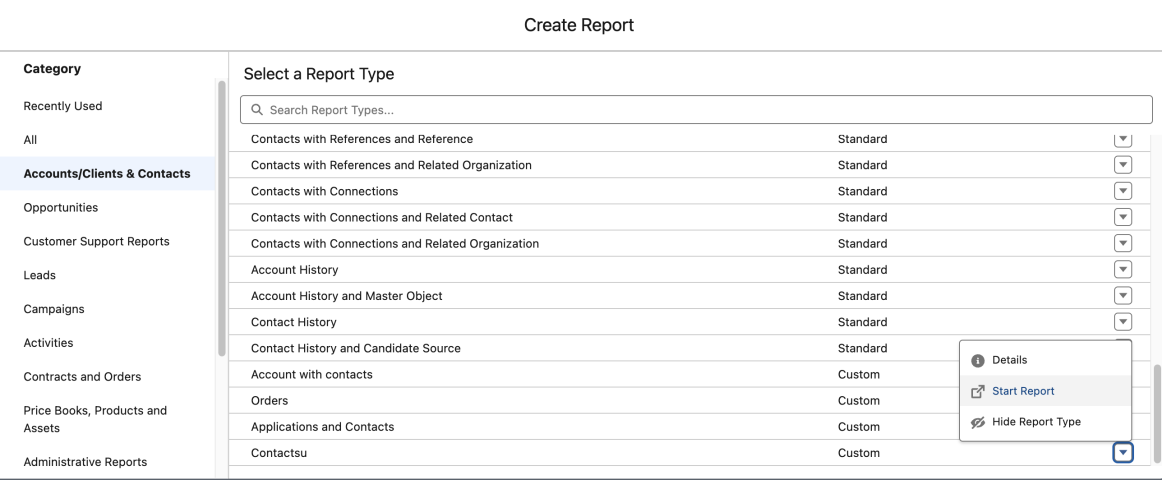
- Click the Reports tab, then click New Report.
- Select the folder where you saved your new report type, then select your new report type.
- Click Start Report.
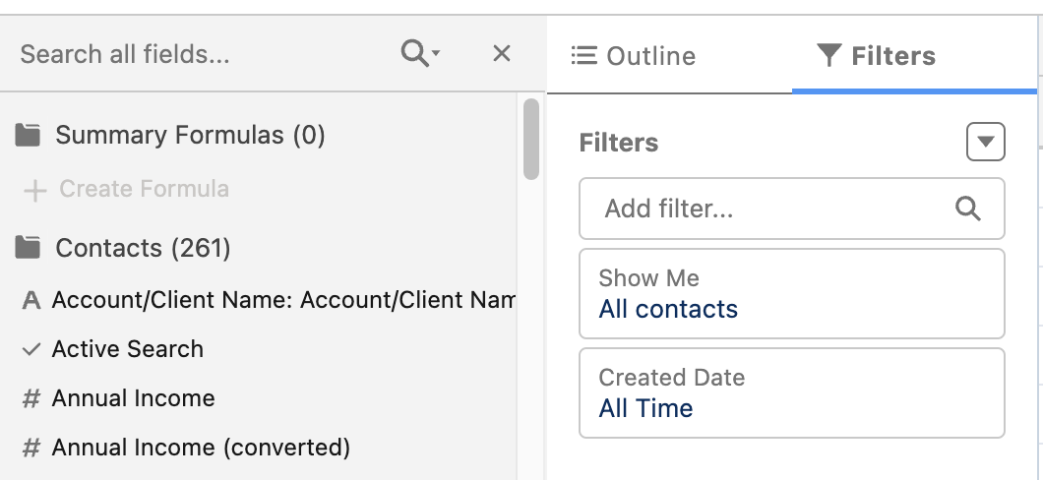
- In the "Show" field, select All Contacts.
- Drag and drop any fields you'd like to include from the "Fields" section (like First Name, Last Name, Email, and so on).
- Click Run Report.
- Click Export Details.
- Select your export format, then click Export.
Contact Limit
Note: This report will only display up to 2,000 Contacts. [⚠️ FLAGGED FOR REVIEW: as originally written, "If there are more than 2,000 Contact records, they will appear in the exported document" appears to contradict the first sentence — please confirm the intended wording before publishing, e.g. whether records beyond 2,000 will NOT appear, or whether a different export method is needed.] You'll also need the "View All Data" permission to view all contacts.
Knowledge-artikkelnummer
000387892
Hjalp denne artikkelen med å løse problemet ditt?
La oss få vite det slik at vi kan forbedre!
