Velg en organisasjon
Automatically Assign Salesforce Leads to Campaigns as Campaign Members on Lead Create or Update
Publiseringsdato: Mar 25, 2026
Beskrivelse
When a Lead is created or updated, you can assign it automatically to a Campaign as a Campaign Member.
Løsning
Create a Flow that adds the Lead you’re creating or modifying to a Campaign
1. Open Flow Builder:
Salesforce Classic: Setup | Create | Workflows & Approvals | Flows
Lightning Experience: Gear icon | Setup | Process Automation | Flows
2. Click New Flow | Record Triggered Flow | Enter Flow Name. Then click Save.
3. Click Add Object. Select Lead.
4. Select Configure Trigger: A record is created or updated.
5. Click Save.
6. Set Entry Conditions: As per the requirement
7. Add Create Records Element:
-
-
- Enter Label.
- Select the Create a Record of This Object: Campaign Member.
- Configure the Create Record Element as per the below configuration.
-
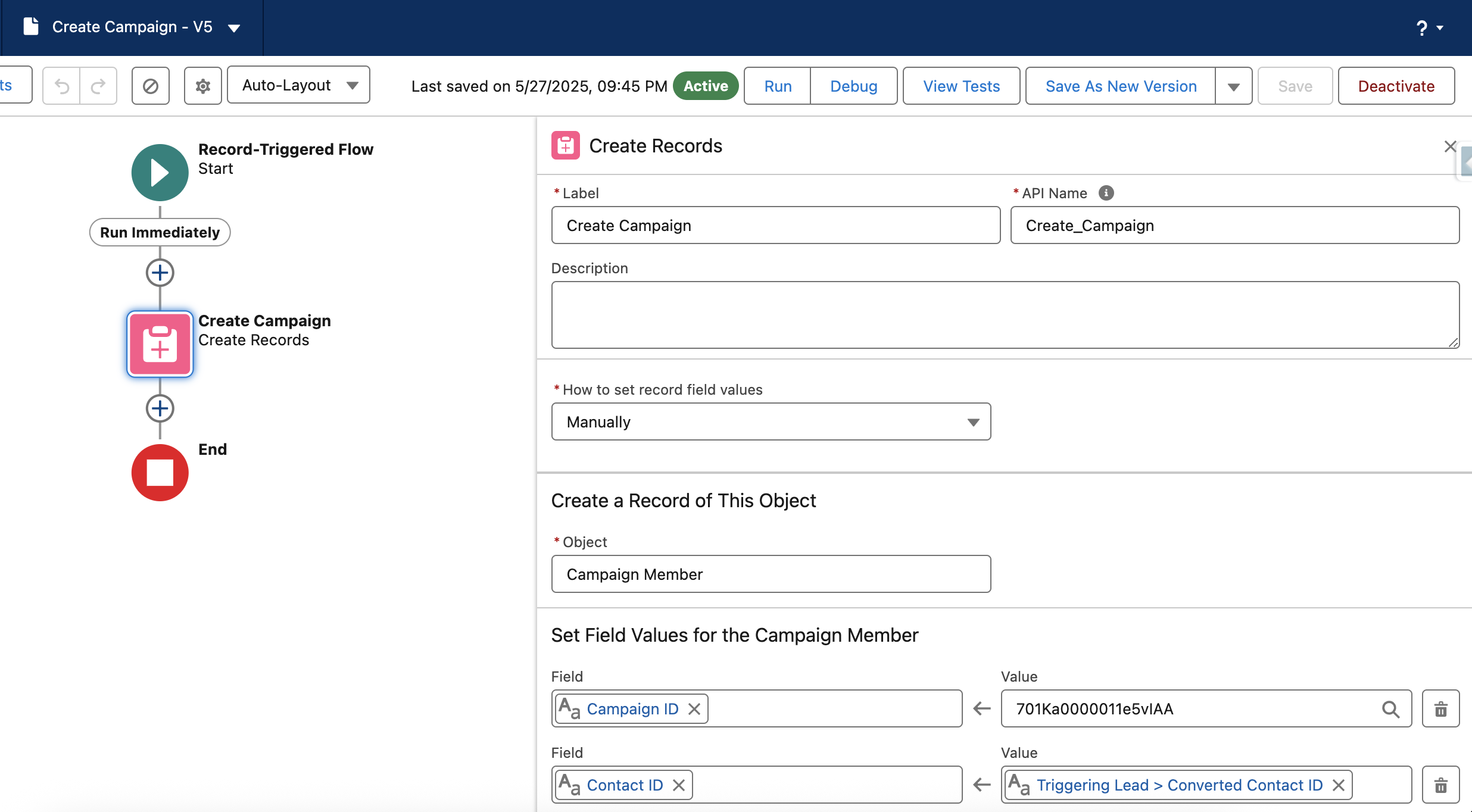
Note: Configure the Set Field Values for the Campaign Member as per the requirement.
8. Save and activate the flow.
Once you complete the steps above, the Campaign will appear in the Campaign History related section of the Lead records.

Knowledge-artikkelnummer
000388103
Hjalp denne artikkelen med å løse problemet ditt?
La oss få vite det slik at vi kan forbedre!
