Valitse organisaatio
Add Filters to a Related List
Julkaisupäivä: Jun 29, 2026
Kuvaus
How to add or update the fields available on the Related List Quick Filter." to: "In Salesforce, Related Lists on record pages support Quick Filters that help users narrow down related records. The available filter options are determined by the columns configured on the Related List. This article explains how to add or modify columns on a Related List so they appear as filter options when a user clicks the Filter icon on a Related List.
Ratkaisu
The available filters present on the Related List are from the columns of a Related List.
To add columns to a Related List to be used as quick filter options later, perform the following:
1) Open the Page Layout of the source object's record in Object Manager and select Related Lists. For example: if you want to update the filter options on the Contacts member's related list that has been opened from the Account member record, open the page layout of the Account object's record.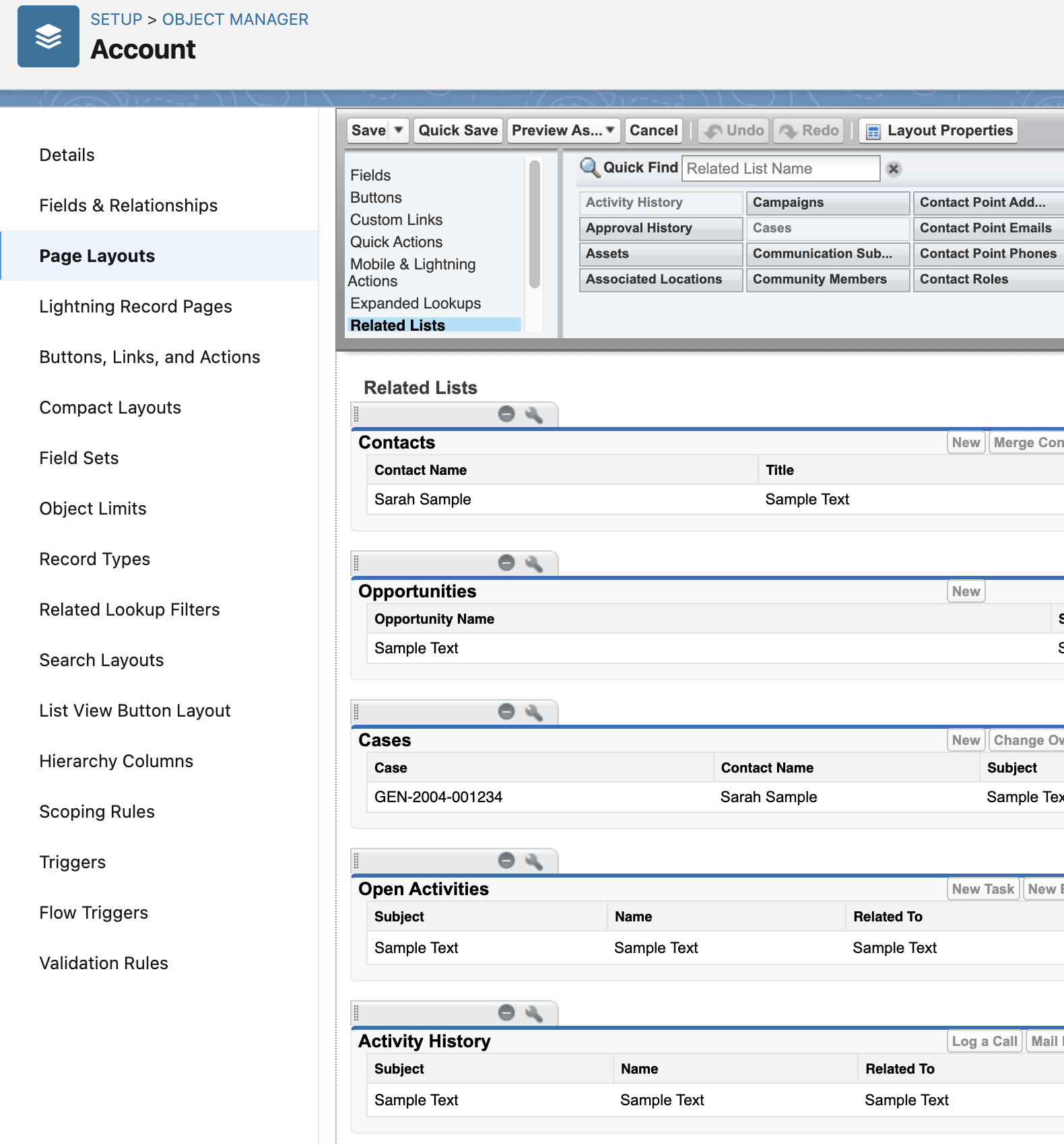
2) Choose a related list on which you want to add or modify filters and click on the wrench icon to open the Related List Properties menu.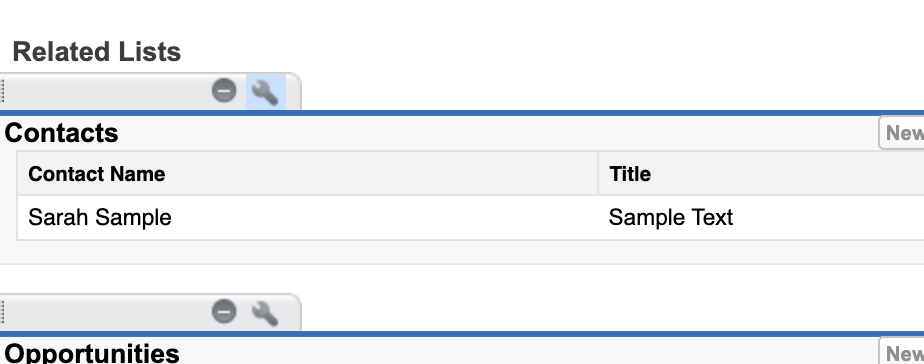
3) Select any fields to be added or removed in the Related List Properties menu. The fields display on the related list and be available as a quick filter.
4) Click ok and select Save, to save your page layout.
5) Now when you open the Related List and click on the Filter icon, the Filters section shows all the columns just added as options available to filter. The filter is a Quick Filter option when viewing a Related List for the current session.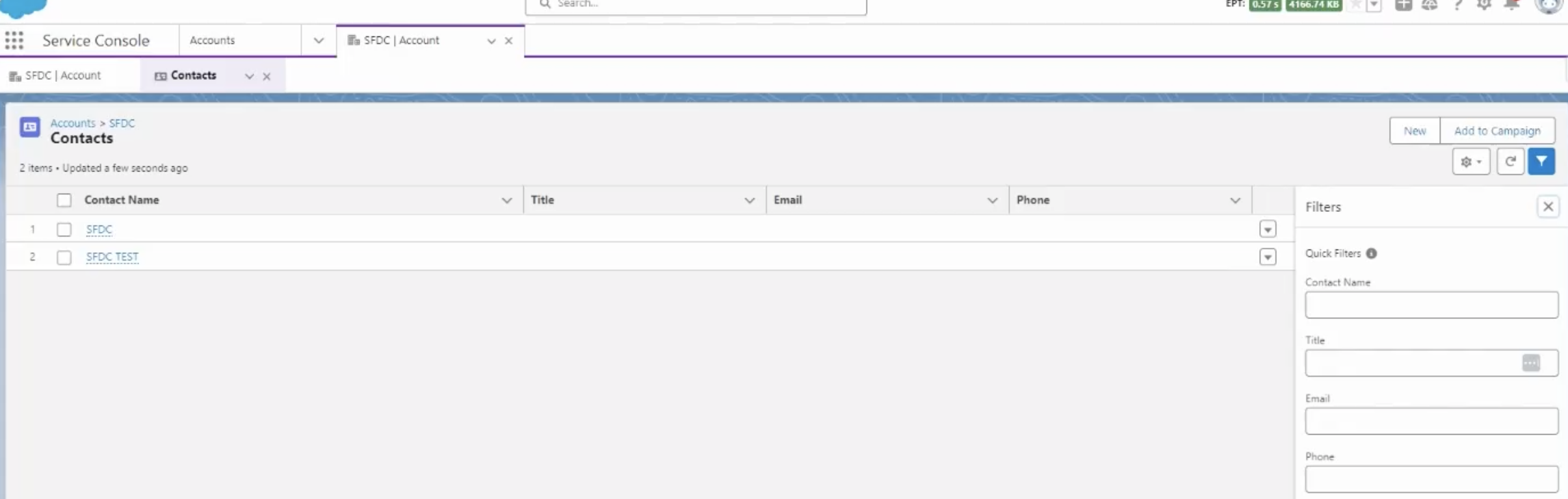
Note: We cannot apply formula fields as filters on a related list. Vote on the IdeaExchange here.
Lisäresurssit
Work with Related Lists on Records in Lightning Experience
Work with Related Lists on Records in Salesforce Classic
Summer 22 Release Notes: Customize and Filter Related List in the Lightning App Builder
Knowledge-artikkelin numero
000388876
Ratkaisiko tämä artikkeli ongelmasi?
Anna palautetta, jotta voimme kehittyä!
