Velg en organisasjon
Salesforce Seller Home: "Can't Show Data" Error in Plan My Account, Grow Relationships, and Build Pipeline Sections
Publiseringsdato: Jul 17, 2026
Beskrivelse
Notifications in Salesforce Quip are simple, swift, and automatic — every notification represents communication that didn't need to become an email. This article covers everything there is to know about Quip notifications: where they appear, what triggers them, how to manage them, and how to use date @mention reminders.
Løsning
Let's hear it for the humble notification. Every ding of your phone and dot on your app icon represents an email that didn't have to get sent, and isn't cluttering up your inbox. Notifications are simple, swift, automatic, and essential to getting work done as a team. Here's everything there is to know about notifications.
Contents
- Where do notifications happen?
- What do I get notified about?
- What do notifications link to?
- Read and unread notifications
- How can I change what I get notified about?
- What's in the Updates tab?
- How do @date notifications work?
Where notifications happen
There are 5 different places you can get updates about what's going on in your account:
- Your desktop
- Your phone
- Notification bell
- Updates feed
- Your email, too, just in case...
As you get to know your way around, you'll notice that different kinds of notifications go to different places—we wouldn't want you to be overwhelmed by too much information in too many places, after all. Keep reading to learn what goes where, and how you can tweak the system to your liking.
What you get notified about
These are the most common ways you'll be getting notifications, and by default, you'll get them when someone does any of these things:
- @Mentions your name in a document or chat
- @Mentions “@everyone” in a document or chat that you're part of
- Adds you to a document, folder, or chat
- Adds a document to a shared folder that you're part of
- Responds to one of your comments in a doc
- Comments on an edit you've made
- Likes one of your comments or chats
- Likes a comment or chat you're mentioned in
- Opens a document you've shared with them
- Requests for access to a document that you're part of
- Reminders for dates you've @mentioned (This is a very cool, slightly hidden feature, and it benefits from further explanation. See below.)
Keep in mind that other people will get notified when you do any of these things, too. If you @mention somebody or respond to one of their comments in a doc you're both part of, they'll get notified about it. If you mention @everyone in a doc or a chat room, then everyone in that doc or chat room is going to get your message.
A note about direct message notifications
When you get direct messages from your teammates, you'll notice that notifications show up on your phone and your desktop, but not in the notification bell. Why?
Basically, we didn't want the bell to be constantly ringing if you were actively chatting with someone. Also, the conversation gets highlighted and badged in the sidebar itself, so you basically just get notified down there, instead of up in the signal bell.
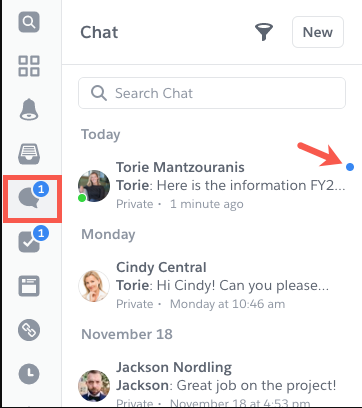
So, in terms of chatting, the bell only goes off for
- New conversations
- @Mentions in existing conversations
Every other direct message goes right into the sidebar.
One last thing: Any new direct messages—whether they include a mention or not—are included as part of the badge count (you know, that little red dot) on the mobile and desktop app icons. So the number you see there may not match the number on the bell if you have unread chat messages.
Notifications for large teams, aka “The Magic Number”
For the sake of larger teams, notifications won't be sent about certain types of activity once more than 7 people are involved. Specifically:
- Someone opens a document you created
- Someone adds a document to a shared folder you're a part of
Email notifications
You only get emails about a handful of activities.
- @Mentions of your name in a document or chat
- @Mentions of “@everyone” in a document or chat that you're part of
- Responses to your comments in a doc
- Comments on an edit you've made
And that's it. Like we said above, we don't want fill up your inbox—you've got enough people, apps, and brands doing that already. Staying in your account is more productive and more fun, anyway, so it just makes sense to put most of your notifications right here where you're already working.
Notifications are links!
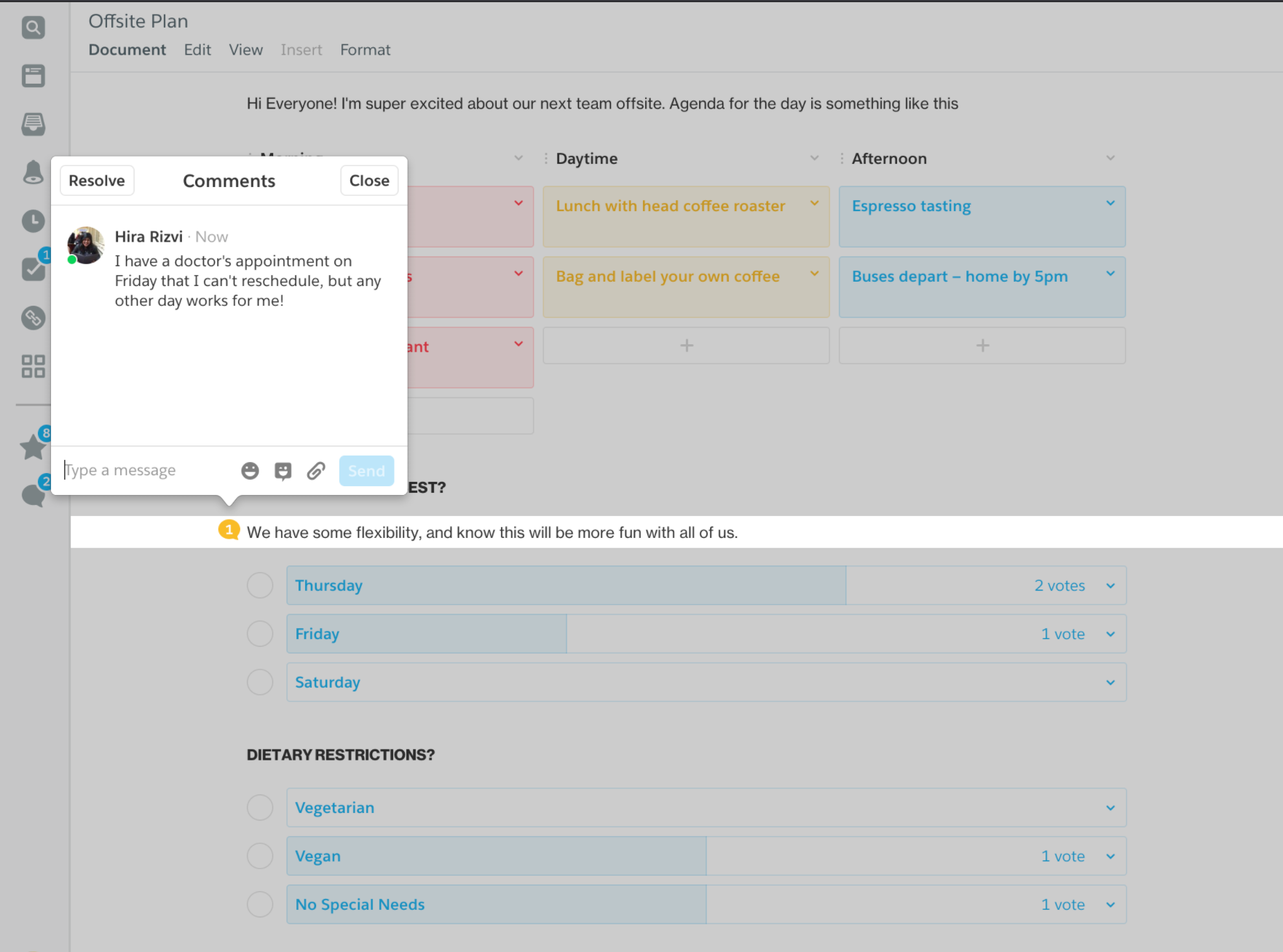
Of course, notifications don't just alert you to updates that are happening across your docs and chats—they link to them, too. And if the notification came from a comment or an @mention, the relevant portion of the document will be highlighted when you land on it.
Read and unread notifications
When looking at your list of notifications, you'll notice that they feature a few different visual treatments:
- Notifications you haven't seen before have a light blue background.
- Notifications you haven't clicked through on have a blue dot.
On the web and desktop app versions, you can mark individual unread notifications as read by clicking their blue dot (which will then disappear, as if by magic). Conversely, you can mark read notifications as unread by hovering over them and clicking on the gray circle that appears. It'll turn into that familiar blue dot, just like you want it to. It's all very handy for keeping track of what you need to respond to, and what you've already dealt with.
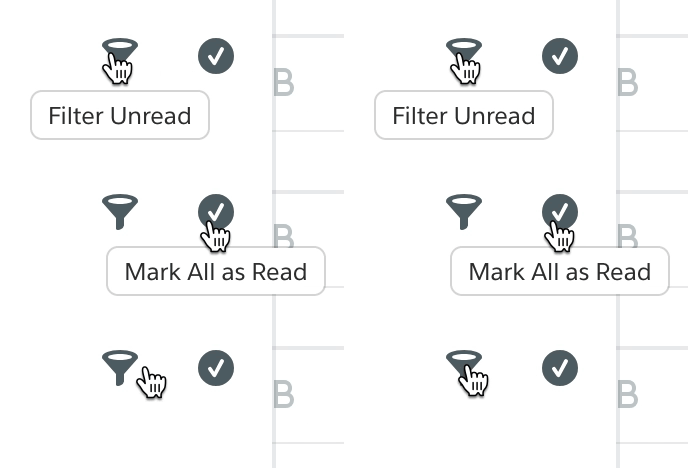
Tip: If you want to mark all your notifications as read, click the ✔️button at the top notifications panel.
Filtering by read status: Wanna see only the notifications you haven't read, and hide the ones you've already dealt with? Click the little funnel at the top of the notification drawer.
Stuff you're not notified about (unless you want to be)
There are a few notable actions that you won't be notified about, by default :
- Edits to a document you're a part of
- Chat messages, in conversations that you're a part of, that don't mention them by name
- Comment threads on content you haven't created, or that don't @mention you
However, if you do want to get notifications about that stuff, you can. You just need to adjust your notification settings, which are addressed in the very next section of this help doc...
Adjusting your notification settings
If you feel like you're getting too many notifications—or if you want to get notifications about every little thing that happens in your account—pop into your Notification Settings to control that flow. You'll find the main settings panel in your account menu (that's the dropdown under your avatar, over in the sidebar).
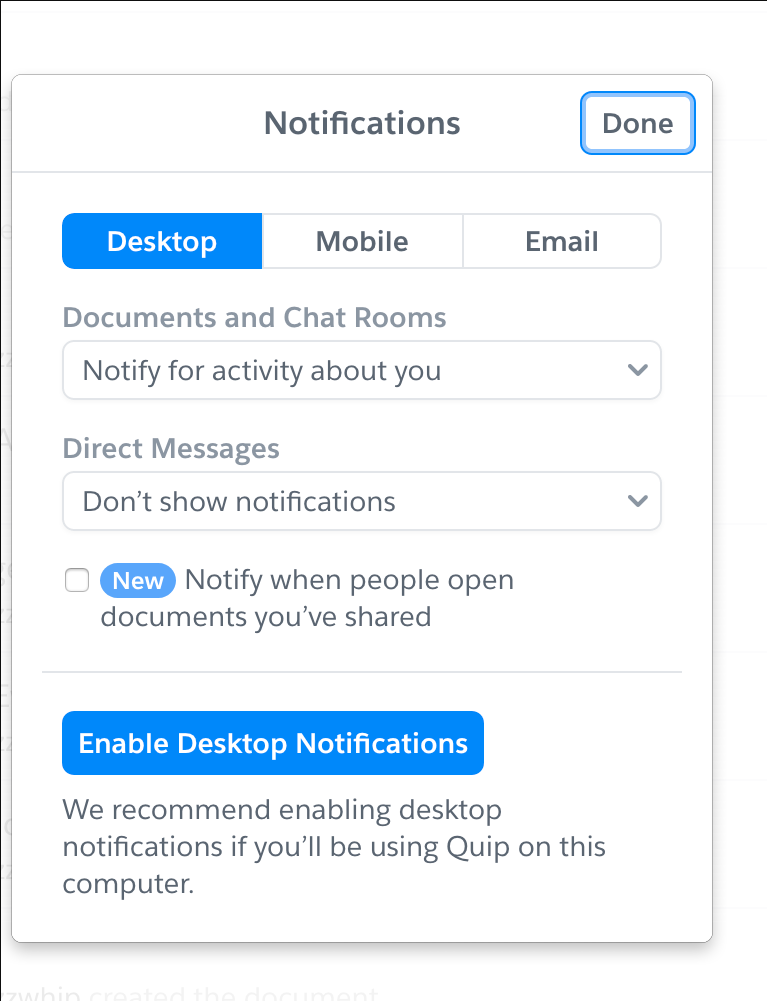
There are separate settings for notifications that come through your computer's desktop, your mobile phone, and your email. The tabs across the top of the panel let you control which notifications get sent to which channels. You can also select whether or not people are notified when someone opens a document you shared with them.
Desktop and mobile notifications
For notifications about documents and chat rooms, you have three options:
- “Notify for activity about you” is the default option, here. And it means what it says: you'll get notifications about the activity that's directly relevant to you:
- @Mentions of your name in a document or chat
- @Mentions of “@everyone” in a document or chat that you're part of
- Someone adding you to a document, folder, or chat
- Someone adding a document to a shared folder that you're part of
- Responses to one of your comments in a doc
- Comments on an edit you've made
- Likes of your comments or chats
- Likes of comments or chats you're mentioned in
- Someone opening a document you've shared with them
- Requests for access to a document that you're part of
- Reminders for dates you've @mentioned (This is a very handy feature, and it benefits from further explanation. See below.)
- “Notify for all new activity” is for people who want a birds-eye view of everything happening in their docs and chats. Besides all the notifications listed above, you'll get updates about these activities:
- Edits to a document you're a part of
- Chat messages, in conversations that you're a part of, that don't mention them by name
- Comment threads on content you haven't created, or that don't @mention you
- “Don't show notifications” is pretty self-explanatory. If you don't want notifications, this is the setting for you.
For notifications regarding direct messages, you have two options:
- "Notify for all new messages" is the default. You'll be notified about every direct message that's sent to you.
- "Don't show notifications" means you won't get any notifications about direct messages that are sent your way.
You also can check or uncheck the box to chose whether you Notify when people open documents you've shared.
Email notifications
Quip is meant to unbury you from your pile of emails, not add to the heap. You'll notice that there's no option for getting emails about “all activity.” In fact, the only types of activity we email you about are:
- @Mentions of your name in a document or chat
- @Mentions of “@everyone” in a document or chat that you're part of
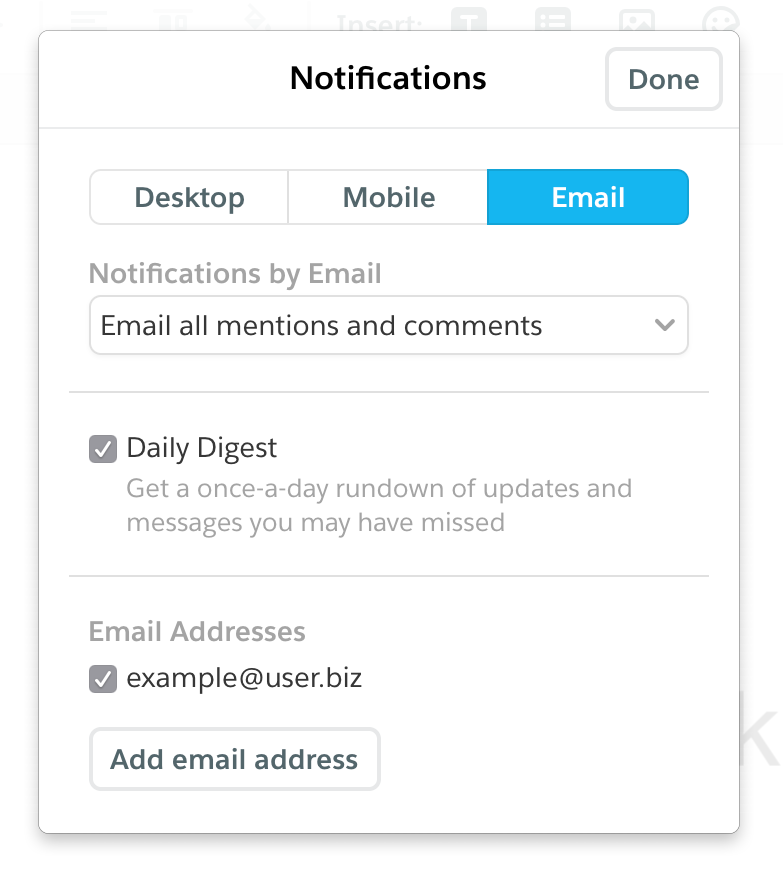
- The “Daily Digest” is a once-a-day email summary of updates you might have missed on Quip. It's a low-key way to get a sense of what all is happening at your company, and a helpful way to double-check that you haven't missed anything important.
- The “Email Addresses” section lets you specify which email addresses you want to get emails at, naturally.
Notification settings for individual documents (and chats)
Just in case you want to keep totally on top of (or totally ignore) any particular document, conversation, or chat room, you can apply custom notification settings to them. You'll find them in the Document (or Spreadsheet, or Slides, or Chat) menu, under Advanced. As with your general notification settings, you can choose where you want to get notifications (desktop and/or mobile), and how many notifications you want to get in each place (all of them, most of them, or none of them).
Notification settings for documents are, naturally, very similar to the notification settings for your account.
If you haven't touched the settings on any particular item, these settings will match your account-level notification settings—turn them all the way up on your account, and they'll be turned all the way up for each of your documents, too.
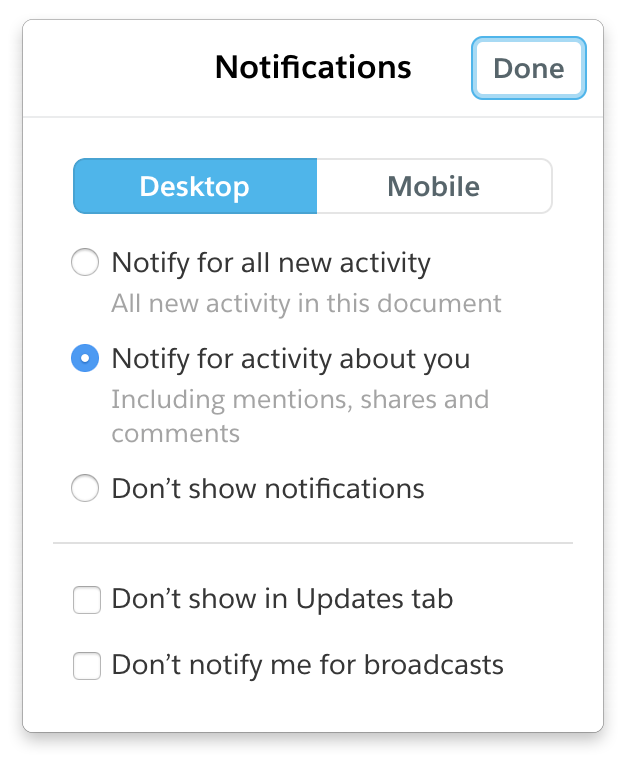
Once you change the settings on a particular document (or conversation, or chat room), they'll stay that way—even if you change your account-level notification settings afterward.
HOT TIP: You can apply custom notification settings to every item in a folder by going to the notification settings for that folder.
And, in case you've forgotten what these settings mean (or in case you skipped down to this section without reading everything else first), here's a quick refresher:
- “Notify for activity about you” is the default option, here. You'll just get the updates that are directly relevant to you.
- “Notify for all new activity” is for people who want a birds-eye view of everything happening in their docs and chats. In addition to notifications about you, you'll also get notifications about changes to any document or chat you're a part of, including chat messages that don't necessarily mention you by name, and comment threads you haven't necessarily participated in.
- “Don't show notifications” is pretty self-explanatory. If you don't want notifications, this is the setting for you.
You'll also notice two checkboxes in the document notifications panel that isn't in the general notifications panel...
- “Don't show in Updates tab” hides a document from the Updates tab. You might want to use this feature if a particular document is making that tab too noisy with its constant updates.
- “Don't notify me for broadcasts” prevents you from being notified when someone mentions @everyone in an edit, or in the conversation pane.
When you mention @everyone in a document where some members have opted out of broadcasts, you'll the option to notify them regardless.
Please reserve this for truly important messages, and try to respect the preferences of those you work with.
The Updates Tab
Want to see what's happening in all the documents and chats you're a part of—all the edits, all the comments, all the new messages—all in real-time? We build the Updates tab for unstoppable dynamos like you.
Really, though, it's a great place to see what's going on across your whole company, and you can tailor it a bit to your own needs by applying a filter:
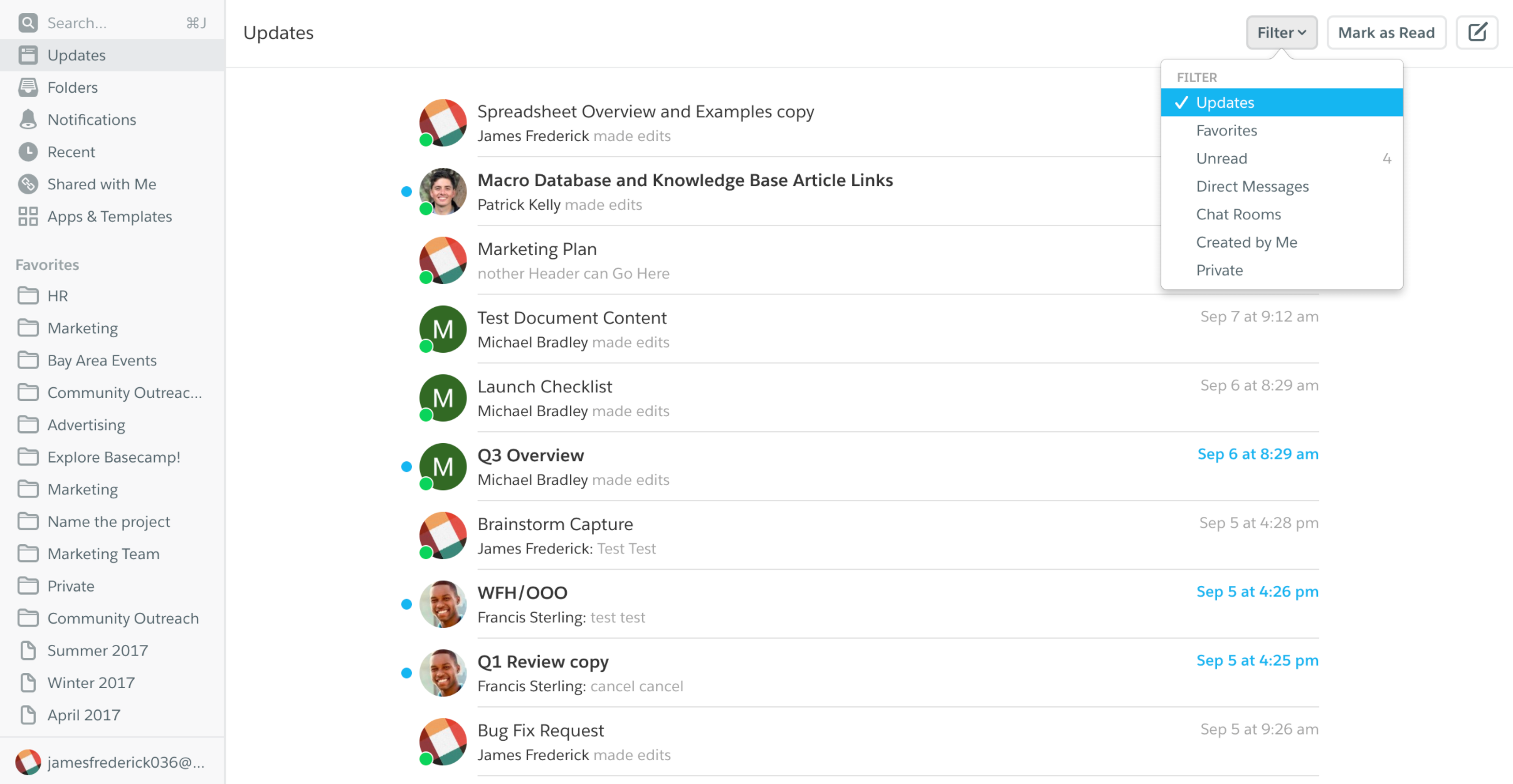
- Favorites: Chats and documents that you've starred, or that live in a folder you starred
- Unread: Chats and documents whose updates you haven't viewed yet
- Direct Messages: All of your active 1:1 and group chats. Bonus: The number next to this item in the drop-down menu is the number of unread direct messages you have waiting for you, by the way.
- Chat Rooms: Chat rooms that you're a part of.
- Created by Me: Documents you've created, regardless of whether they're shared or unshared.
- Private: Documents you've created but haven't shared with anyone yet
You can further groom your Updates feed by selectively muting certain documents and chats on it. Right-click on any of them to do so:
Notifications from date mentions
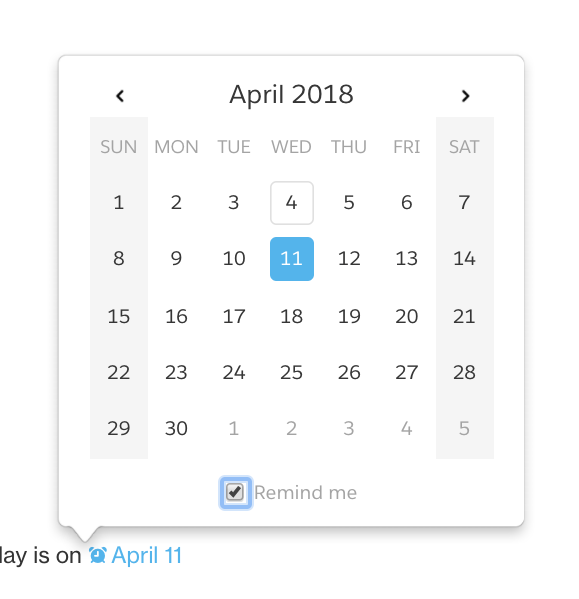
Did you know you can @mention dates? Well, you can, and what's more, you can use those dates to create reminders—for you, for someone else, and even for everyone in a document. Just type “@” and a date (in any format you like, including informal formats like “tomorrow”).
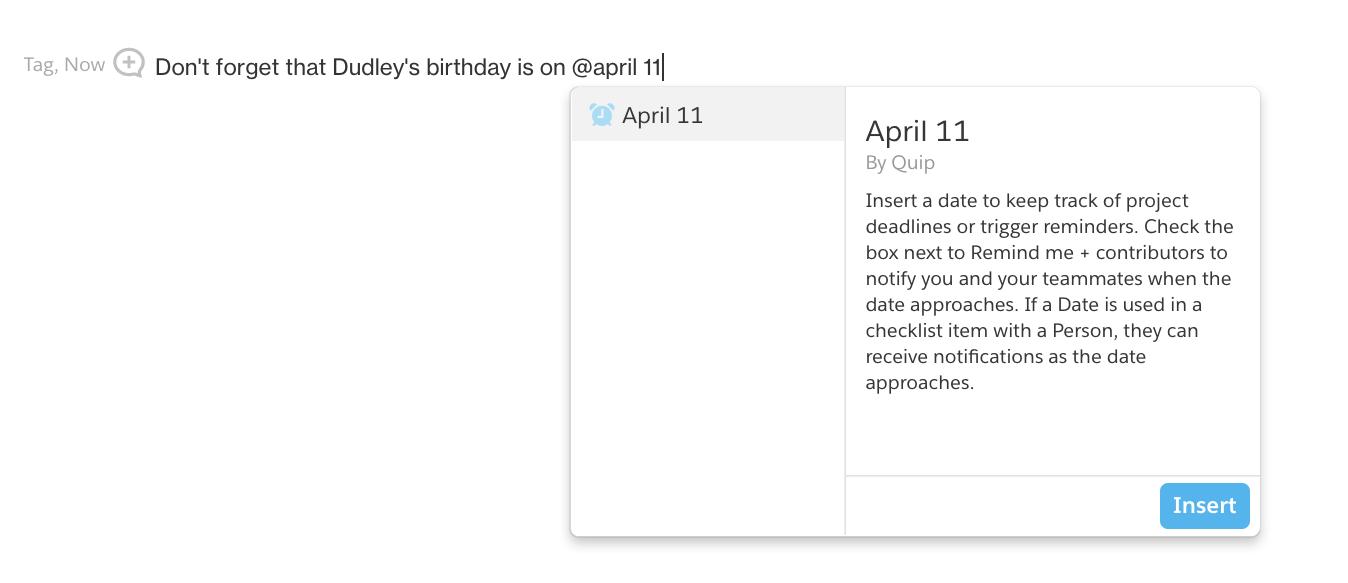
To turn that date into a reminder, click on it, then check off the box at the bottom of the calendar that pops up.
Who gets sent a reminder?
- The person who created the date @mention
- Anyone who's @mentioned in the section of the document the date @mention is in
- Anyone who's commented on that section
- The person who originally wrote the section (if they're different from the person who added the @mention, that is)
Note that if “@Everyone” is mentioned in the section, then everyone on the document will be notified.
When do the reminders get sent?
For most date @mentions, we send out notifications at the following times:
- 1 day before the date mentioned
- The day of the date mentioned
For date @mentions that are in a checklist, we treat things a little differently. Assuming the checklist item is unchecked, recipients will get notifications at the following intervals:
- 7 days before the date mentioned
- 1 day before the date mentioned
- The day of the date mentioned
- 1 day after the date mentioned
- 7 days after the date mentioned
If the list item is checked off, of course, these notifications won't be sent out. No need to bug you about something you've already done.
All of these notifications are sent out between 8:00 a.m. and 9:00 a.m., in each of the recipients' respective time zones.
Flere ressurser
Knowledge-artikkelnummer
000389285
Hjalp denne artikkelen med å løse problemet ditt?
La oss få vite det slik at vi kan forbedre!
