조직 선택
Share a document with someone who does not have a Quip account
게시 일자: Jan 24, 2024
상세 설명
If you are working with someone who does not have a Quip account, you can still share documents with them via a link.
To do so, click on Share then choose get shareable link.
Click on the Link Setting & Select "Allow access outside of your Quip Org"
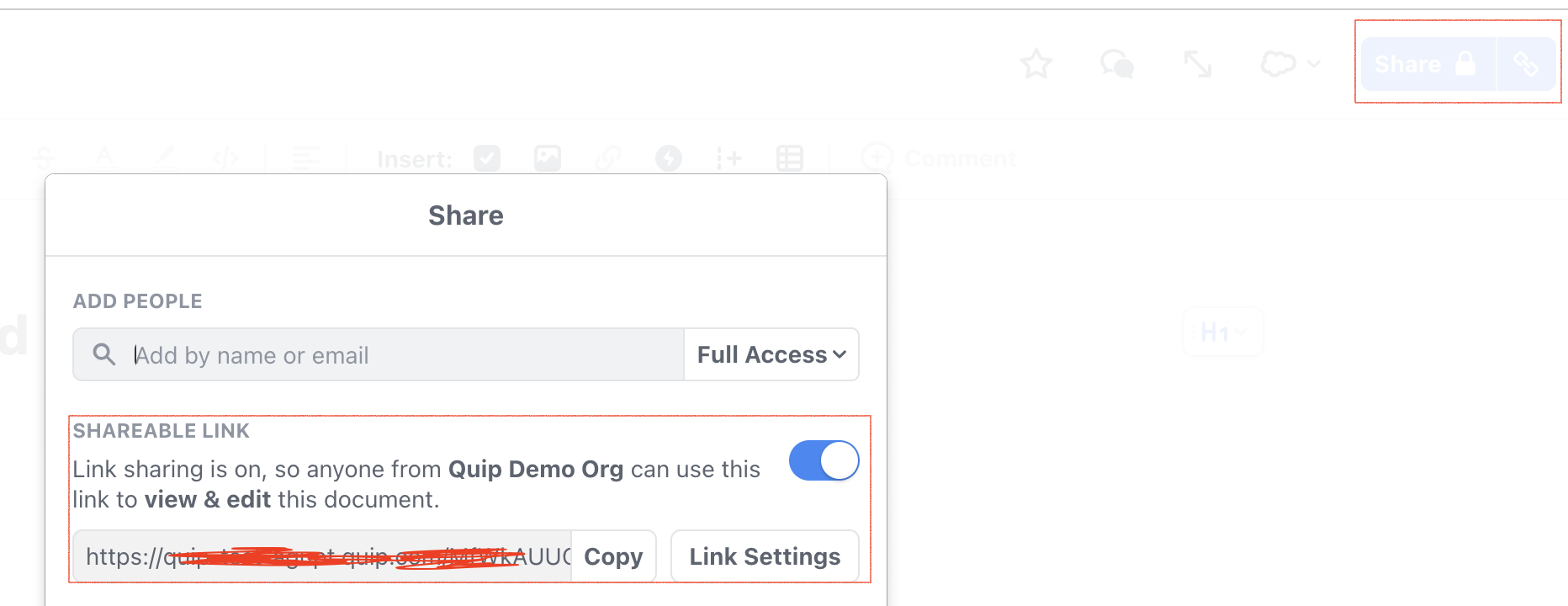
The default will be that anyone within your organization can view and edit the document.
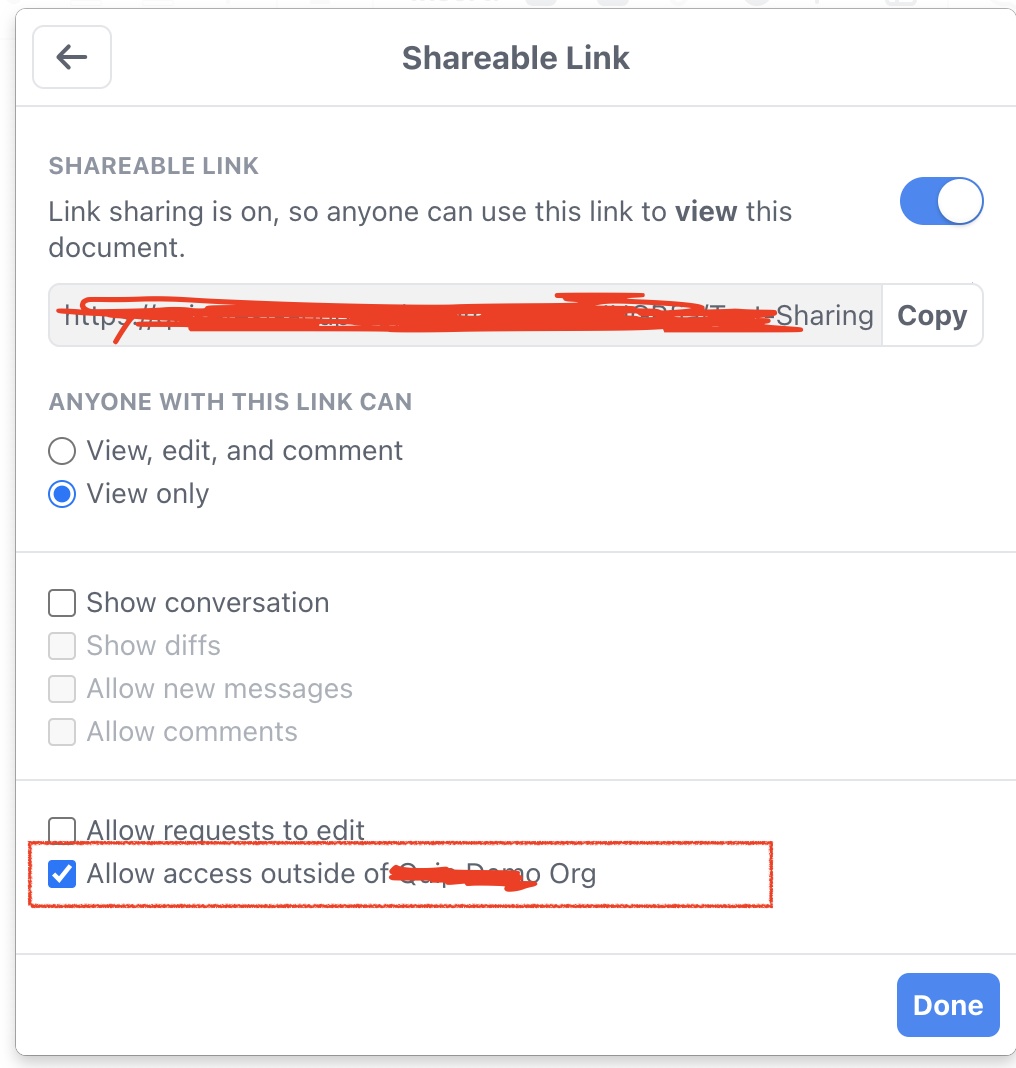
If you can change the permissions settings to the following:
- Full Access
- Can Edit
- Can Comment
- Can View
What a non Quip user sees:
View & Edit Document
If the document is “View & Edit,” the recipient of the link does not need to sign in to see the entire document and conversation. Here is what they would see:
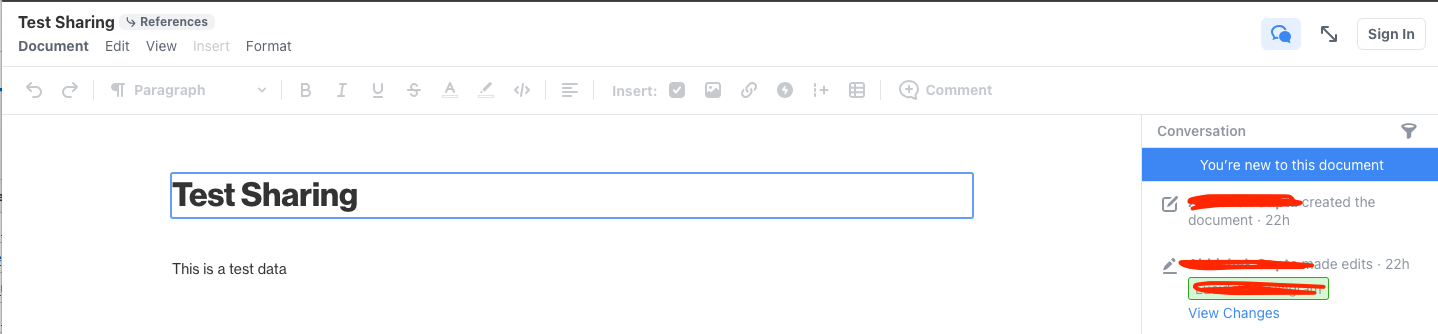
When the recipient tries to write a message or edit the document, they will be prompted to sign in to do so.
View-Only Document
If the document is “Can View” the recipient of the link will not be able to see the conversation or edits. We hide the entire left hand side of the page and minimize all branding so that your document is as clean as a standalone document you would make in a traditional word processor:
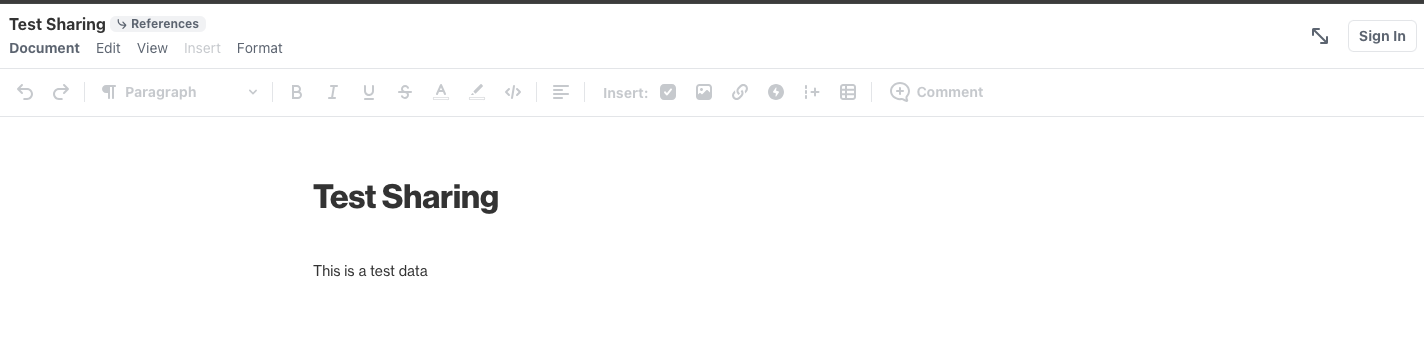
The recipient can print or download document by clicking the logo. They can also sign into the service from that menu.
Knowledge 기사 번호
000389289
이 기사를 통해 문제를 해결했습니까?
개선을 위한 의견을 보내주세요.
