Выбрать организацию
Filtering Quip Spreadsheet Data
Дата публикации: Aug 11, 2026
Описание
Got a spreadsheet with a lot of data? Wanna hide some of the clutter so you can help make sense of it? Filters are what you're looking for.
- How to use/enable a filter
- How do each of the filters work?
- Removing filters
- Who sees your filters?
- Using Filter Views
How to use a filter
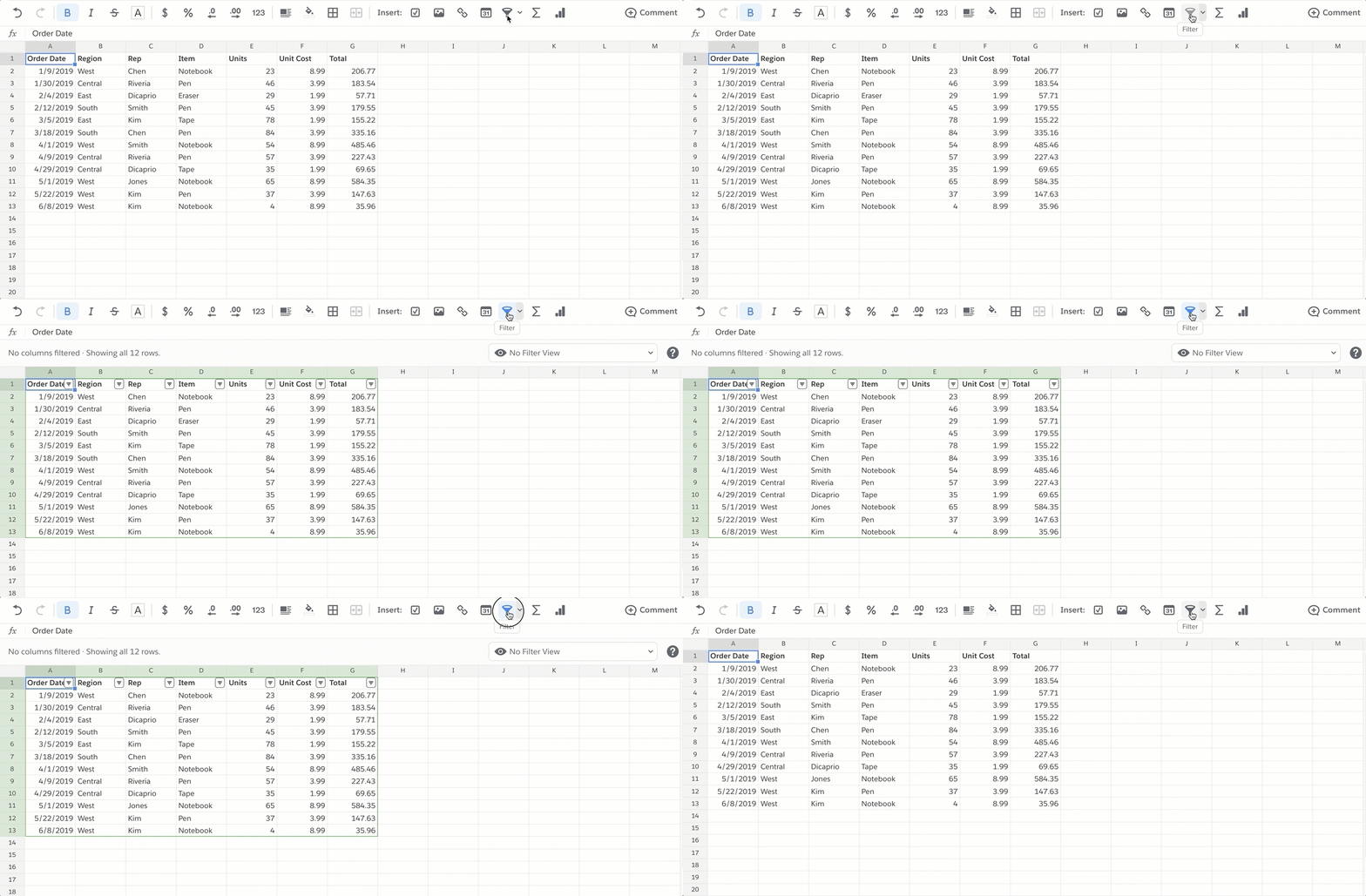
To turn on filtering for an entire spreadsheet, just click the filter icon (it looks like a funnel) above the sheet. A light gray header bar will appear over the sheet, indicating that you have filtering turned on and it's visible to everyone.
To create a filter follow the steps described in the article below.
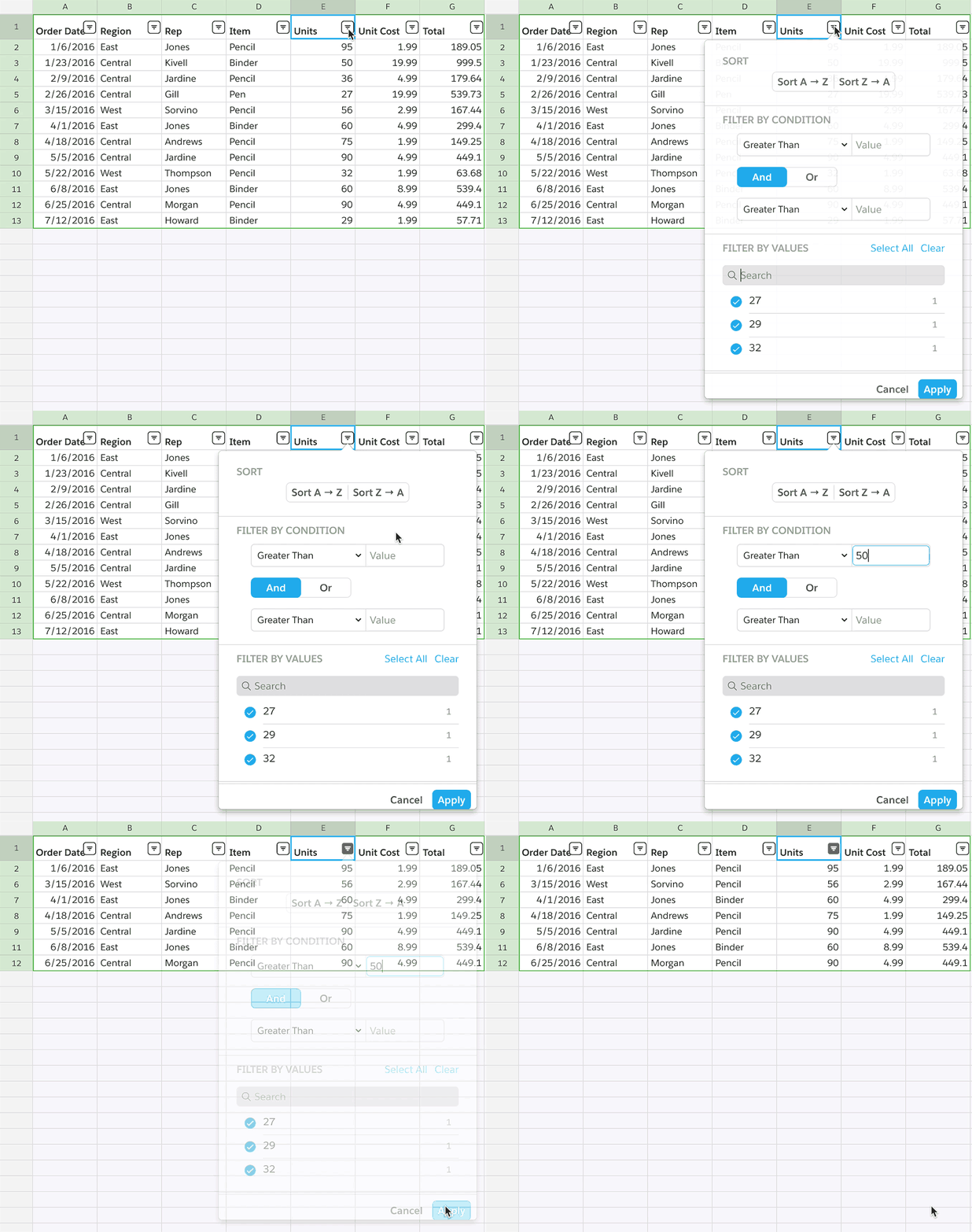
Next, open the filter menu at the top of any particular column. From there, you can control which rows of data are hidden, and which ones are shown. (In the example below, only rows with a value greater than 50 in “Units” column will be shown.)
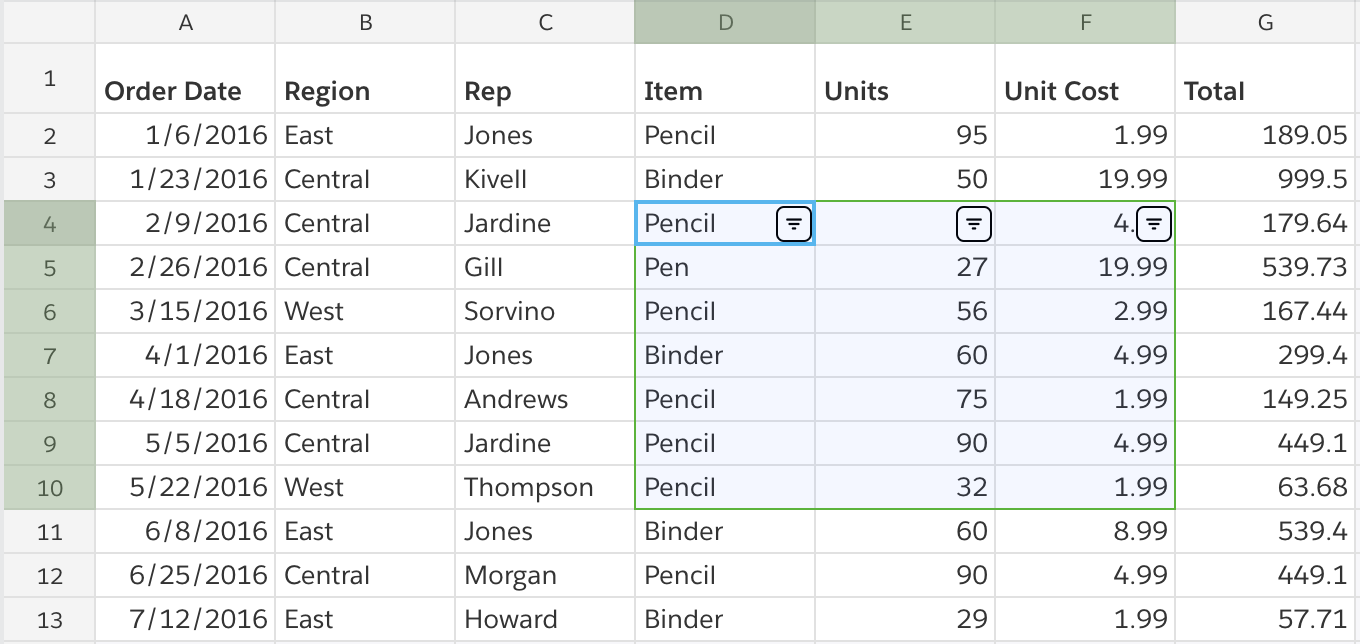
When setting up your filter, you can select a single column, multiple columns, or a custom range within and/or across columns. In any case, a filter menu will be placed at the top of each column within the range.
How do each of the filters work?
Filtering by condition
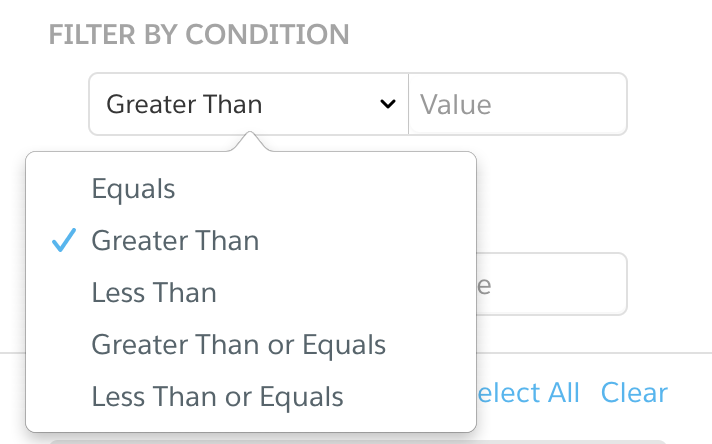
There are five conditions you can apply to your selected data:
- Equals shows only rows that match the requested value
- Greater than shows only rows that exceed the requested value
- Less than shows only rows that fall below the requested value
- Greater than or equals shows rows that exceed or match the requested value
- Less than or equals shows rows that fall below or match the requested value
Alphabetical filtering: These filters are relatively straightforward for numerical data, but how do they apply to words and letters and other non-numerical things? In those cases:
- “Equals” shows only exact matches for the letters/word you put in the value field
- “Greater Than” and “Less Than” show rows that are alphabetically before or after the letters/word you put in the value field.
Filtering by multiple conditions: There are two value fields in the conditional filtering section of the filter menu. If you need to filter a column based on more than one condition, you can use both of them to accomplish that.
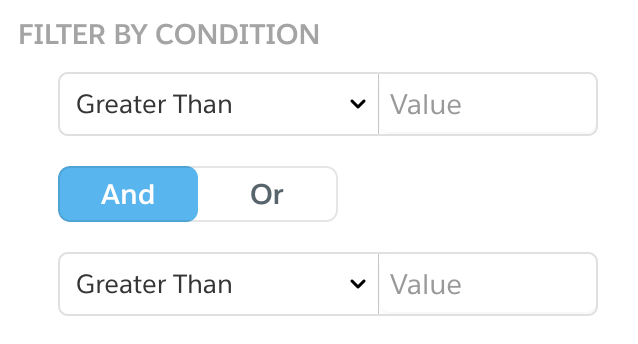
(If you don't need more than one condition, just leave the second field blank.)
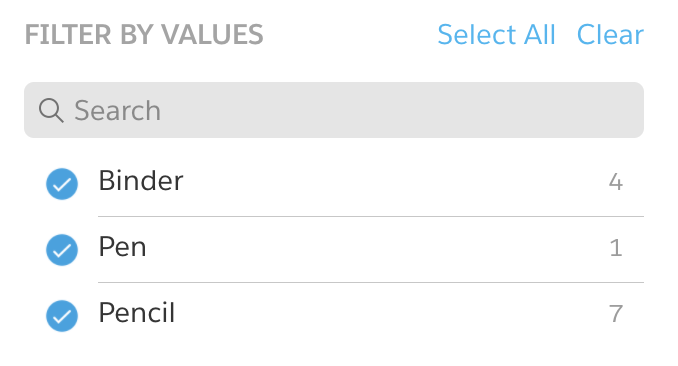
In the values section of the filtering menu, you'll see a list of each of the discrete values that occur within your selection, as well as the number of times it occurs. Click the checkmark to include/exclude these rows from your filter.
For particularly long lists of values, you may find it useful to search for the ones you're looking to include/exclude. You can use the gray search field to do exactly that.
Quip also supports Greater Than or Equals and Less Than or Equals for inclusive comparisons. For text columns, Greater Than and Less Than sort alphabetically — Greater Than shows rows that come after the specified text. You can apply up to two conditions at once using both value fields in the filter dialog.
Filtering Multiple Columns
When filtering is enabled, you can apply filter conditions to as many columns as needed at the same time. All column filters are applied together — a row must match every active column filter to be shown.
Removing filters
- To remove individual filters you've applied to your data, open the filter menu for the column you want to stop filtering, then click “Remove Filter.”
- To remove all your filters, click the filter button (the one that looks like a funnel) above your spreadsheet. It'll change from blue to black, and poof, your filters will disappear.
Who sees your filters?
When you turn on filtering, it's turned on for everyone who's a member of the spreadsheet. Everyone looking at the sheet sees the same filtered data. This is great when you want your collaborators to have the same view. Users with only Can View or Can Comment access can also create temporary filter views that last for their current session, but these are not saved permanently.
If you want to set filters but not affect everyone else's view, you can create a filter view.
Using filter views
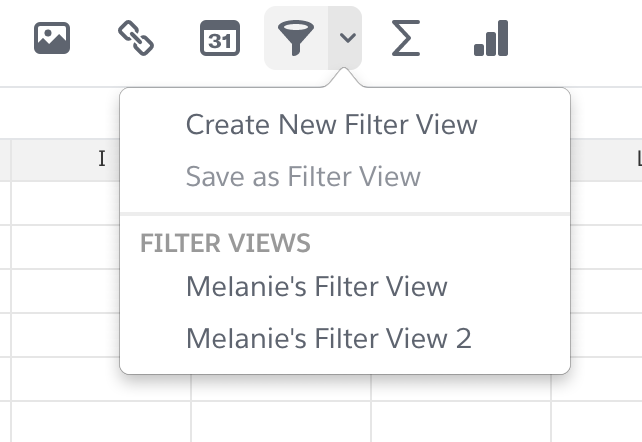
Filter views allow you to filter and sort data without affecting everyone else’s view of the data. Filter views are saved, allowing you to quickly come back to them without having to waste time reapplying filters each time.
To create a filter view from scratch...
- Go to the Data menu, then the Filter Views submenu, then select Create New Filter View
- Now you're in the filter view, and you can set up whatever filters you want
- If you want to rename the filter view, click on the settings cog next to the filter view menu at the top of the spreadsheet.
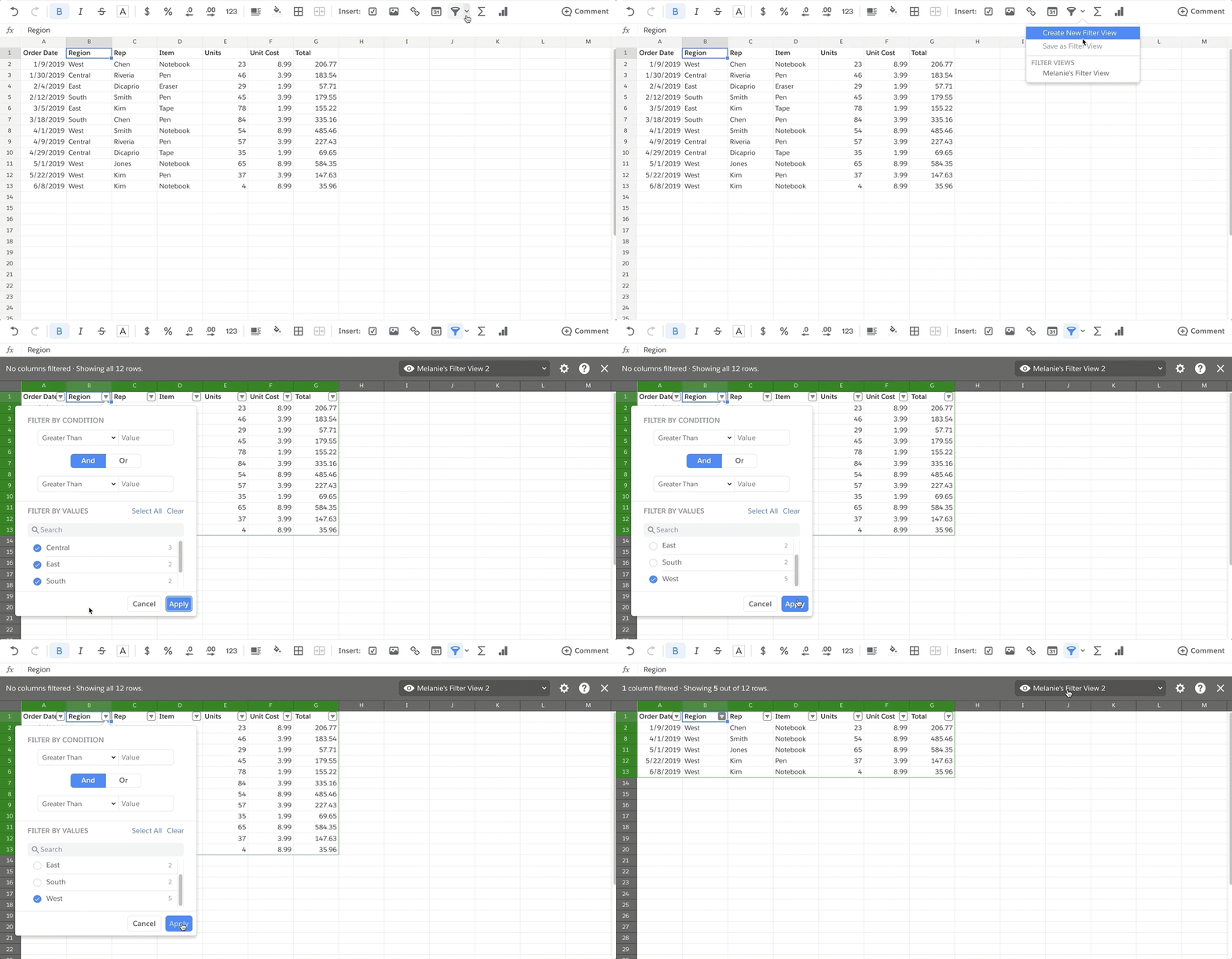
To save your current filtering setup as a filter view:
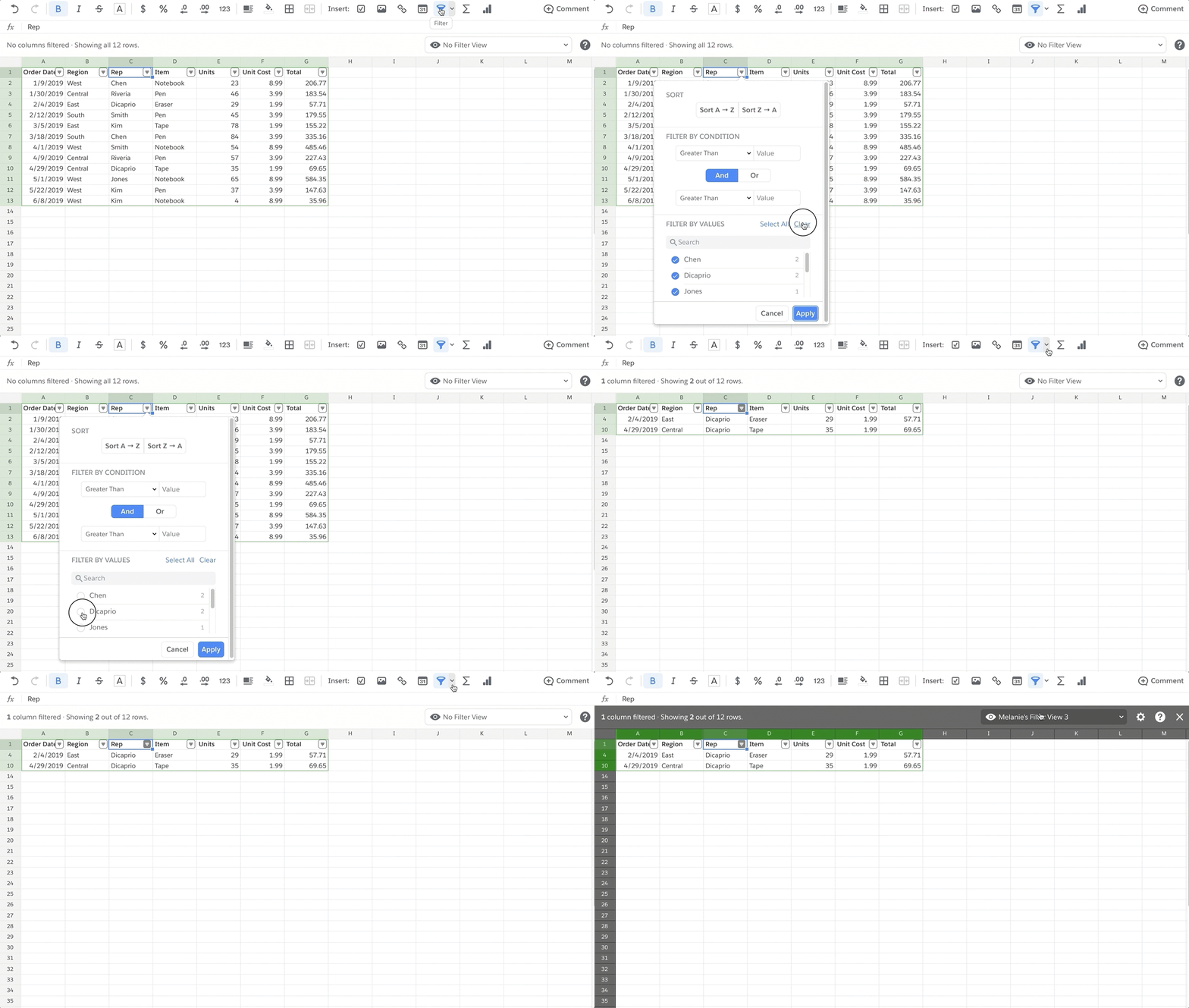
- Click on “No Filter View” at the top of the filtered spreadsheet”
- Choose “Save as Filter View”
When you're done with your filter view, click the x in the gray header bar to exit.
Any filter views you save can be used and edited by any member of the spreadsheet, but unlike regular filtering, turning on a filter view only changes the viewer's view of the spreadsheet—it doesn't change anyone else's.
Temporary Filter Views for View or Comment-Only Users
Users without edit access to spreadsheet data are also able to create their own temporary filter views to quickly filter, sort, and view the data as they wish without impacting the view for other users.
Multiple temporary filter views can be created and are available to only the user who created them - for the duration of their session in the spreadsheet.
Решение
To filter data in a Quip spreadsheet, click the filter icon above the sheet to turn on filtering, then use each column's filter menu to set conditions or select specific values. Use a Filter View to filter privately without changing what other collaborators see. See the Description above for full details and screenshots.
Дополнительные ресурсы
Номер статьи базы знаний
000389442
Эта статья решила вашу проблему?
Оставьте свой отзыв, чтобы мы могли стать лучше!
