Valitse organisaatio
Manage Global Search Settings in Salesforce Maps
Julkaisupäivä: May 21, 2026
Kuvaus
Salesforce Maps contains a Search bar that allows users to search for points of interest and plot them on the map alongside marker layers. Salesforce Maps's Search function retrieves and displays point of interest results from three sources: Point of interest search, records in marker layers, and records in Salesforce. Administrators may configure Salesforce Maps to remove any of these sources from view.
Note: Users must be assigned the "Maps Admin" Permission Set to manage these settings.
Ratkaisu
Managing Salesforce Maps Global Search Settings
- Open the Salesforce Setup menu, and type "Installed Packages" in the Quick Find search bar.
- Select Installed Packages, find Salesforce Maps, and click Configure.
- Select Advanced from the Navigation menu, and click the POI (GLOBAL) SEARCH tab to open the Search Settings menu.
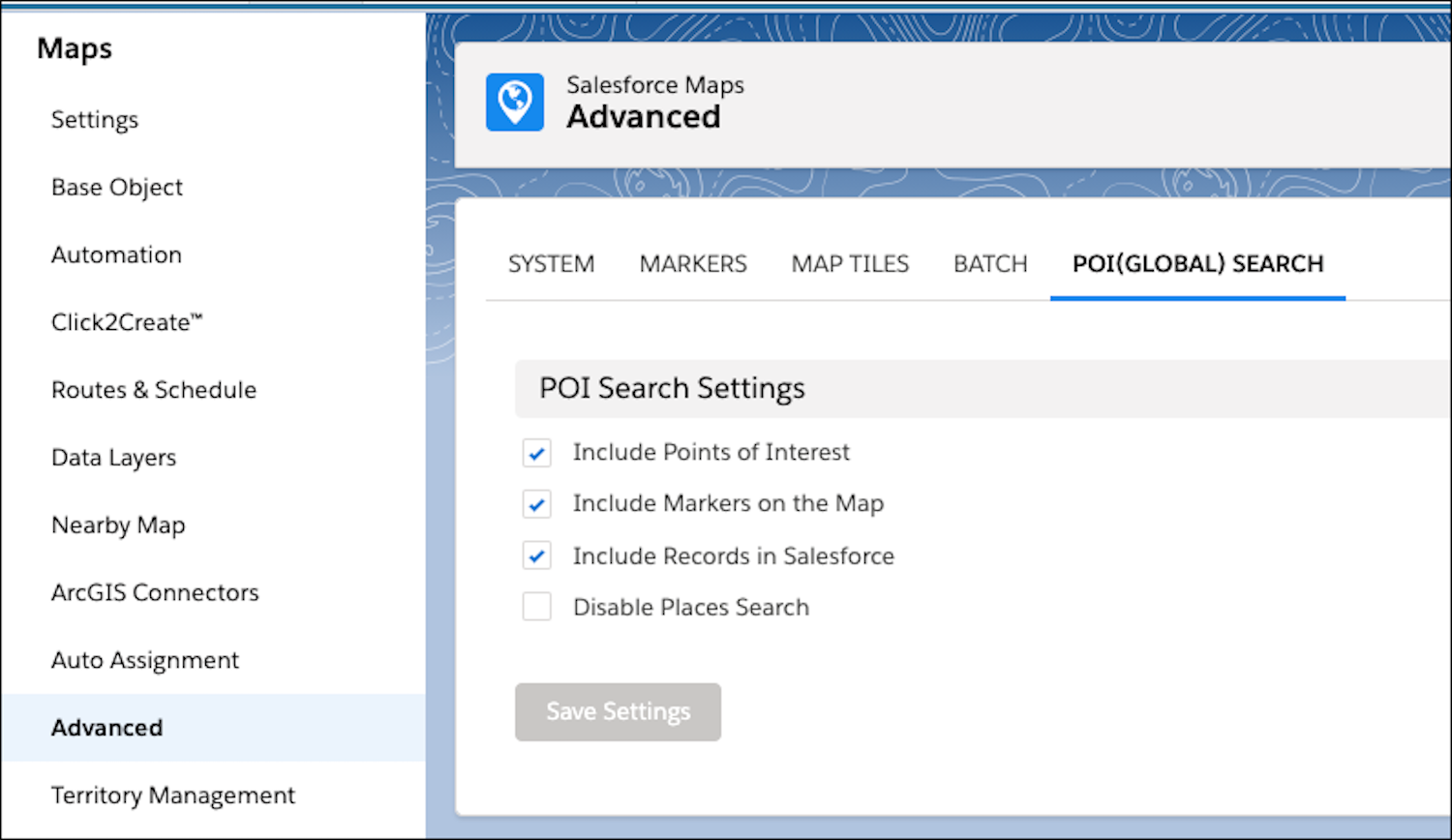
- Select the Global Search settings you want to enable. To reduce search result load times, Salesforce Maps searches each results category independently. Therefore, Administrators may remove from view any search results they do not want to include.
When activated, the settings in this menu will control the following actions:
- Include Points of Interest: A point of interest (POI) is a place that's notable or interesting to someone.
- Include Markers on the Map: Marker names from marker layers plotted on the map appear in Global Search results.
- Include Records in Salesforce: Record names from geocoded Salesforce records appear in Global Search results, even if the record is not part of a marker layer plotted on the map.
- Disable Places Search: Restricts users from searching in Salesforce Maps. Note that all other settings must be unchecked for this setting to lock Search Bar access.
Lisäresurssit
Knowledge-artikkelin numero
000389811
Ratkaisiko tämä artikkeli ongelmasi?
Anna palautetta, jotta voimme kehittyä!
