Seleccionar una organización
Create a Nearby Map with Global Records in Salesforce Maps
Fecha de publicación: Sep 18, 2025
Solución
Creating a Nearby Map with Global Records
- From Setup - Installed Packages - Click on configure for Salesforce Maps
- Click on Nearby Map tab and select Create New. (Alternatively, you can select Create a new Nearby map).
- Select Global (filtered) and enter information for these fields:
- Nearby Map Name: Enter a name for this Nearby map.
- Layer Label: Enter a label for this layer.
- Object: Select the object you want to plot.
- Marker: Select and style the Markers.

- Also enter information in these fields:
- Plot By: Select whether to plot by a location field (such as a Billing Address) or a to read directly from latitude/longitude fields.
- Location Field: If you plot by location field, use the pick list to choose the field (such as a Billing or Shipping Address).
- Map Center Latitude: Set the latitude for where the Nearby map should be centered.
- Map Center Longitude: Set the longitude for where the Nearby map should be centered.
- Map Zoom Level: Set the zoom level for the Nearby map.
- # of Markers: Set the maximum number of nearby Markers to show, max is 50.
- Sort Results Field: Select a field to use for sorting results.
- Order By: Select the ordering for the field above.
- Info Window: Select the up to 3 tooltip fields.
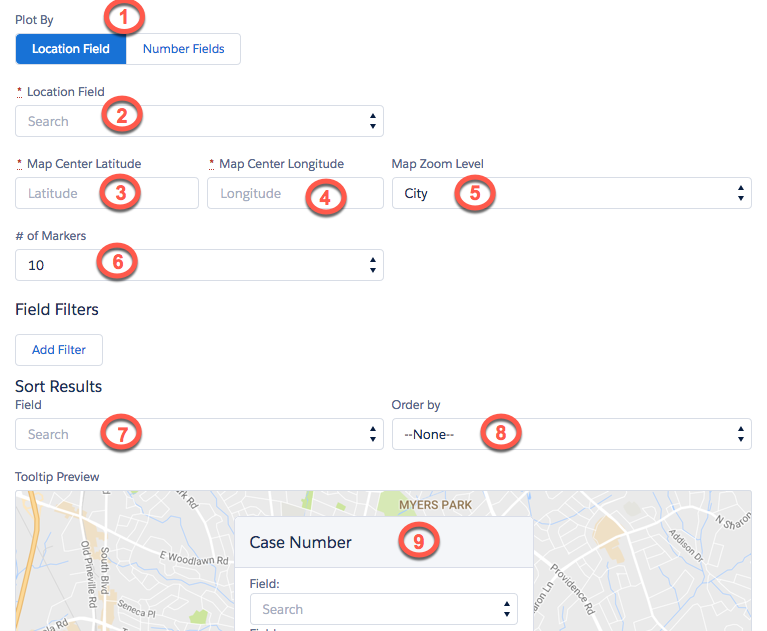
- Select Save.
See also:
Adding a Nearby Map to a Lightning Page
Número del artículo de conocimiento
000389829
¿Resolvió este artículo su problema?
¡Háganos saber cómo podemos mejorar!
