組織を選択
Configure POIs to Save to Schedule in Salesforce Maps
公開日: Aug 26, 2026
説明
Salesforce Maps supports saving Points Of Interest (POI) to Schedule. Before using this feature, you must add coordinate fields to the appropriate Salesforce Activity object, create a Salesforce Maps Base Object to support POI Events, and adjust your Schedule Event Object Configuration, then add the Add to Schedule button to the POI Layout of any applicable Button Sets. The instructions below apply to Salesforce Events, but this functionality is also available for custom activity objects used with Schedule in Salesforce Maps.
解決策
This article explains how to configure Salesforce Maps so users can save Points Of Interest (POI) search results directly to Schedule as Events.
Preparing Salesforce Events for POI
Adding coordinate fields to the Salesforce Event object allows Salesforce Maps to save the latitude and longitude of each POI-based event onto the Event record created by Salesforce Maps Schedule.
- Open the Salesforce Setup menu, and select the Object Manager tab.
- Select the Activity object and then select Fields & Relationships.
- Add two new fields called Location Latitude and Location Longitude. Each field should have the following settings:
- Data Type: Number
- Length: 3
- Decimal Places: 15
Note: The instructions above are for Salesforce Lightning. To complete these steps in Salesforce Classic, search for "Activity Custom Fields" in the Salesforce Setup Quick Find bar. Follow the same steps to create the Location Latitude and Location Longitude fields.
Creating a POI Event Base Object
Creating a Base Object for POI Events is required to save Events to Schedule based on POI search results and their locations. This base object references the Event object, the Event object's Location field, and the Location Latitude and Location Longitude fields you created in the previous step.
- Return to the Salesforce Setup menu, and type "Installed Packages" in the Quick Find search bar. Select Installed Packages.
- Find the Salesforce Maps package, and click Configure.
- Select Base Objects, and select the Create New tab.
- Select Event from the Base Object dropdown menu.
- Give your new Base Object a unique name like "POI Schedule Events", and map the address fields based on the following guidelines:
- Address Location: This Object
- Address Fields:
- Street: Location (This field is the only required Address Field)
- Coordinate Fields:
- Latitude: Location Latitude
- Longitude: Location Longitude
Schedule Event Object Configuration
Updating the Routes and Schedule settings allows Salesforce Maps to create new Events from POI search results, save the events to a user's Salesforce Calendar, and navigate between POI Schedule Events just like they can for Events tied to Salesforce records.
- Return to the Salesforce Maps Configuration menu (Setup | Installed Packages | Salesforce Maps | Configure).
- Select Routes & Schedule, and select Event to update the Schedule configuration for Standard Salesforce Events.
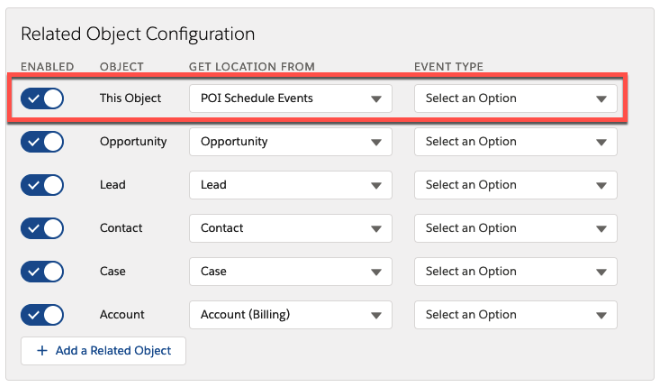
- Modify the Related Object Configuration for This Object based on the guidelines below:
- Get Location From: POI Schedule Events; i.e. the Base Object you configured in the previous step
- Enabled: True; Toggle the switch icon on for This Object
- Optional - Event Type: Select a record type for this object, if applicable. All POI Events created via Schedule will share this record type.
- Click Save to save the updated Event Object Configuration settings.
- Finally, remember to add the Add to Schedule button to any applicable user Button Sets to make this functionality available to all appropriate Salesforce Maps users.
その他のリソース
ナレッジ記事番号
000389848
この記事で問題は解決されましたか?
ご意見をお待ちしております。
