Velg en organisasjon
Clearing Coordinates for Multiple Accounts in Salesforce Maps
Publiseringsdato: May 4, 2026
Beskrivelse
If you are experiencing an issue with multiple addresses showing up in the wrong location, you may want to clear the coordinates on multiple records at once versus each individual record. This can be done via mass actions on the map or through batch automation.
Løsning
Using Mass Actions
Utilizing mass actions would be ideal if you plot a layer and return a fair amount of addresses that are appearing in the wrong location.
- With a single marker layer plotted right-click on the map (be sure not to click on a marker)
- Hover over Mass Actions and then select clear coordinates.
- You will then receive a pop-up asking if you want to clear coordinates with or without verified coordinates.
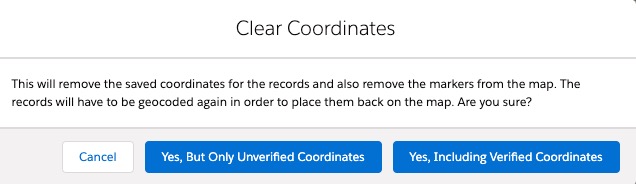
Note: If you have used the Set Verified Location feature, only clear unverified coordinates to avoid clearing manually set locations. Otherwise, you may clear all coordinates. Once the batch is completed, refresh your layer and all the records within that layer will be geocoded.
Using Batch Automation to Clear Coordinates
If you uncover the Salesforce Maps remote site is inactive and has thousands of records that have been geocoded, you may want to consider running a batch to clear the coordinates on configured base objects. Below are the steps to set this up:
- In Salesforce, navigate to Setup, then enter installed packages into the quick find, and then select Configure next to Salesforce Maps.
- Then select Automation, Run Manual Batch, choose the base object you're wanting to clear, and then Start Lat/Long Removal Batch.
- You can then view the progress of the job in the Apex Jobs list. Once the job is complete, you can repeat the above steps to start a new geocode batch.
Knowledge-artikkelnummer
000389860
Hjalp denne artikkelen med å løse problemet ditt?
La oss få vite det slik at vi kan forbedre!
