Vælg en organisation
Quip Live Apps: Overview, Types, and Usage Tips
Udgivelsesdato: Aug 18, 2026
Beskrivelse
Quip Live Apps are interactive components that can be embedded directly in Quip documents to provide functionality beyond text and spreadsheets — including calendars, Kanban boards, project trackers, and live Salesforce data. This article provides an overview of available Live Apps, how to insert them, usage best practices, and important limits that affect performance when multiple Live Apps are used in a single document.
Løsning
This article explains what Quip Live Apps are and covers each one available: Live App basics and usage considerations, the default live apps that don't tie to Salesforce data, the default live apps that do tie to Salesforce data, and third-party live apps.
Live App Basics (How to Use)
To insert a Live App in a document, type @ and begin typing the name of the app. You can also scroll to discover the live apps available to you. For example, typing @ project tracker and selecting Insert auto-populates the Calendar Live App into your document.
Considerations
- It is best practice to limit the number of Live Apps in a Document to 5 or fewer Live Apps. When you exceed 10 Live Apps in one Document, you will see reduced performance and syncing issues.
- Documents with more than 5 Live Apps may fail to export or only export part of a Document.
- Calendar or Kanban Live Apps will fail to render if they are too large. You can restore back to the last version that rendered through the Document History option in Quip. Then you will need to deprecate that Live App and pivot to using a new one.
Default Live Apps (Quip)
The following Live Apps do not tie back to Salesforce Data: Calendar, Countdown (retired), Kanban Board, Poll (retired), Process Bar, Project Tracker.
Calendar
To insert a calendar into your document, type @calendar > Insert.
Calendar Tips:
- You can @mention people, dates, and other documents in a calendar event. It's a handy way to coordinate projects. Note: @ mentioning people in live app text fields is not supported. If @ mentioned, the user name will display but the user will not be notified of the mention.
- To change an event's date, click, drag and drop the event created.
- To change the length of an event, click and drag from the bottom right-hand corner of the event.
- If a Calendar gets too large or has too much content, it may fail to render. You will need to restore back to the last version that rendered, deprecate that calendar and pivot to using a new Calendar.
- Calendar Live App does not have built-in syncing with third-party calendars like Google or iCal. Build integrations of your own via Quip's API.
Countdown (Retired)
This live app is retired and can no longer be newly inserted into documents. To insert Countdown into your document, type @countdown > Insert. You can find more information about this retirement here.
Kanban Board
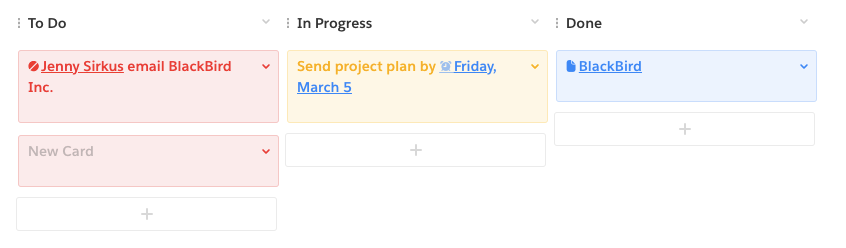
To insert a Kanban Board into your document, type @kanban board > Insert.
Kanban Board Tips:
- Kanban board is an intuitive system of cards and columns. Make a card for each task, and drag between columns as progress is made on each task.
- Click the plus sign at the bottom of each column to add a card.
- To add a column, click anywhere on the Kanban Board and select Add Column at the top left. Columns can be re-named too.
- Please note that Documents with Kanban Boards that exceed 50 cards may experience performance issues or become uneditable.
Poll (Retired)
This live app is retired and can no longer be newly inserted into documents. To insert a poll into your document, type @poll > Insert.
Poll tips:
- Poll is a quick easy voting system that can be set to single and multiple votes.
- To comment on the poll options, scroll in the option and select the chat bubble with the + symbol.
- You can find more information about this retirement here.
Process Bar
To insert a Process Bar into your document, type @process bar > Insert.
Process Bar tips:
- Define a step-by-step process and track your process through it.
- To comment on the processes outlined, scroll in the process and select the chat bubble with the + symbol.
Project Tracker
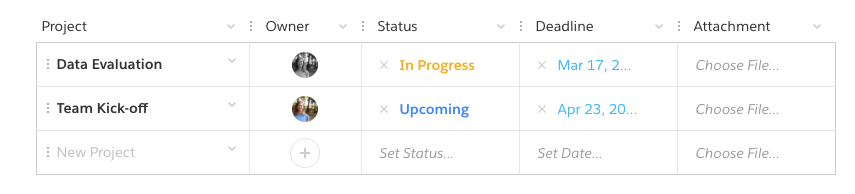
To insert a Project Tracker into your document, type @project tracker > Insert.
Project Tracker tips:
- Assign, oversee, and organize your projects. Set deadlines and attach files.
- Columns can be re-named and rearranged. They can house people (owner), dates, status, files, or plain text.
- To rearrange projects, click the three dots to the left of the project name and drag to new location.
- Considerations for exporting Project Trackers in Quip documents:
- Depending on the amount of cards and width of your Project Tracker, you may not be able to export the live app to HTML or PDF. We would recommend taking a screenshot of the live app.
- When exporting to Word, we recommend taking a screenshot of the Project Tracker live app to add into your Word document.
Default Live Apps (Salesforce + Quip)
The following Live Apps tie back to Salesforce Data and can be used by Quip Advanced customers: Einstein Analytics, Relationship Map, Salesforce List, Salesforce Record.
Note: Salesforce Standard Objects without a name field are not supported in the Salesforce Record app.
Read the full overview of Salesforce Live Apps and their supported fields here. Specific information on each individual Live App can be found in the Additional Resources section below.
More Live Apps (Third Party) (Retired)
These live apps are retired. There were various third party live apps available via the Salesforce AppExchange like Dropbox, Vidyard, and Lucidchart. More information can be found here.
Yderligere ressourcer
Vidensartikelnummer
000389891
Løste denne artikel dit problem?
Giv os besked, så vi kan forbedre os!
