Välj en organisation
The almighty @key in Quip
Publiceringsdatum: Jan 4, 2024
Beskrivning
One of the benefits of having all your teammates and all of your work in one place is access. Quip breaks down the barriers that typically divide your team and make your work hard to find – too many work tools, long email threads, and confusing file systems – by giving you instant access to your teammates and your work in a single keystroke. If there's one key to try in Quip, it's @.
What you'll learn...
- How to @mention teammates
- How to assign tasks
- How to link to work in Quip
- How to add a spreadsheet
- How to add a file or image
Just like Twitter and Facebook, you can @mention teammates to bring their attention to a document, spreadsheet, or conversation. What's great about this is that teammates can instantly drop into a document or spreadsheet and contribute in real-time. It's seriously fast.
@mention teammates in documents
There are a million different situations in which you'll want to @mention a teammate in a document, but one use case that we see from our customers all the time is listing attendees on a meeting agenda.
@mention someone in a document and they get an instant notification to come see the document. Once they visit your agenda, they can contribute materials, notes, and action items. Quip is great for collaborative note-taking since multiple people can edit the same document at the same time. No one has to be solely responsible for capturing the highlights of a lively discussion - and everyone can stay engaged.
@mention teammates in spreadsheets
Just like in documents, you can @mention teammates in spreadsheet cells. This is great for notifying the:
- Paid Social owner to complete their sections of a marketing budget spreadsheet
- Owner of a deliverable in a project plan spreadsheet
- Owner of a user story in a product requirements table
The notification pulls the owner straight into the spreadsheet where they can get all the context they need to contribute quickly.
@mention teammates in comments
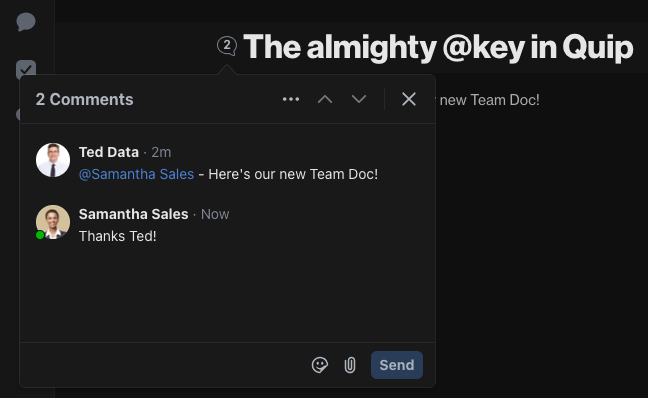
If you haven't noticed yet, @mentions can be used all over. That's especially handy when leaving comments in documents and spreadsheets. @mention a teammate to ask a question, request clarification, or share an important insight, and they'll get a notification about the comment, enabling structured real-time discussions. It's so easy for your teammates to jump into the conversation and you can get a response in seconds.
The instant notification brings your teammate directly into the comment thread where they can see the context and respond in real-time. These 'embedded conversations' are perfect for hashing out details and getting answers fast. When your discussions have context, your team shares more and work gets done faster.
@mention teammates in sidebar messages
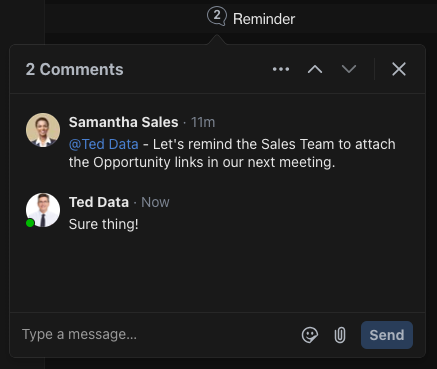
Every document and spreadsheet has a sidebar where the entire history of your work is tracked – every edit, comment, and message. The magic is combining communication and content in one simple experience. It's easy to discuss, revise, and reach a final decision on a work item in one place – no more mind-numbing email chains that waste your time.
The sidebar is great for getting a teammates' attention at an overall document level. Whether sharing a document, asking a question, or voicing an opinion, you've got grounds to discuss and share with your team.
Assign Tasks to your teammates
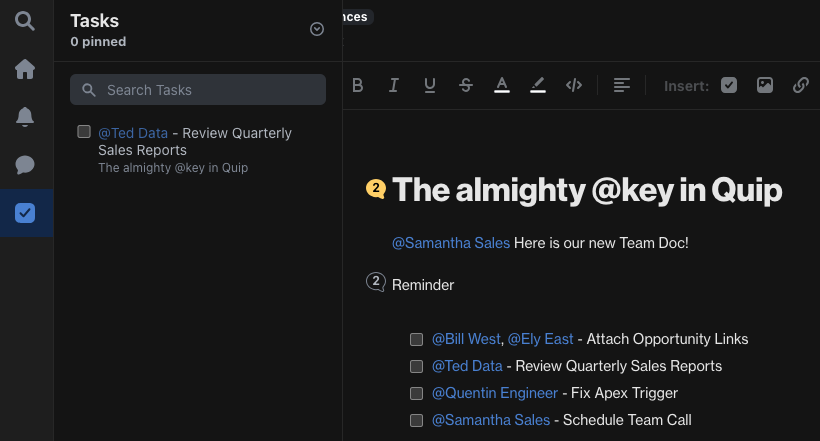
Quip is built to make your team more productive. A great place to start is to create a collaborative task list to track your team's work. Create a task checklist with @Checklist. Assign tasks to teammates by @mentioning them on the task. Your team will be up and running in no time. You can more easily track deliverables as a group and ship projects on time.
Link to docs, spreadsheets and folders
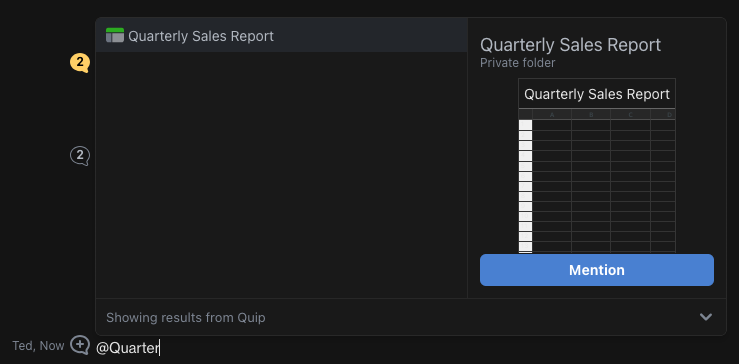
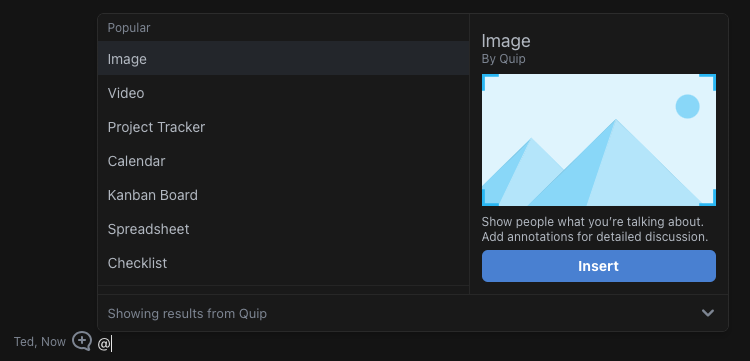
@mentions also make it easy to link to your work. What's great about having all your work in Quip is that you can unite relevant work so that everyone can stay in the know. Type@ and start searching for your spreadsheet, document, or folder title to insert a link to it. This works across Quip – not just in paragraphs, but also in spreadsheet cells, sidebar conversations and 1:1 messages.
Pro-tip: Showcase your data with cell references
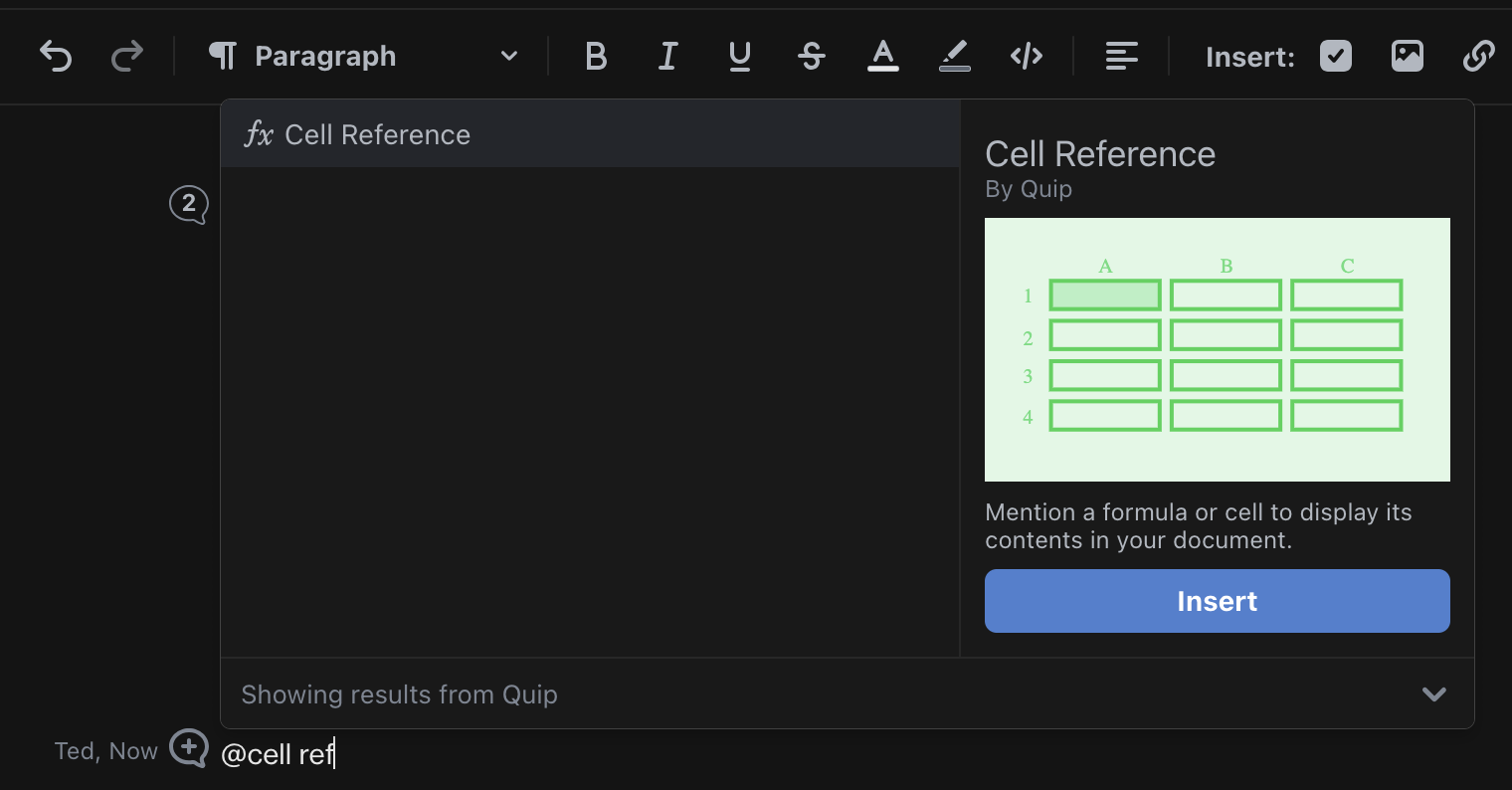
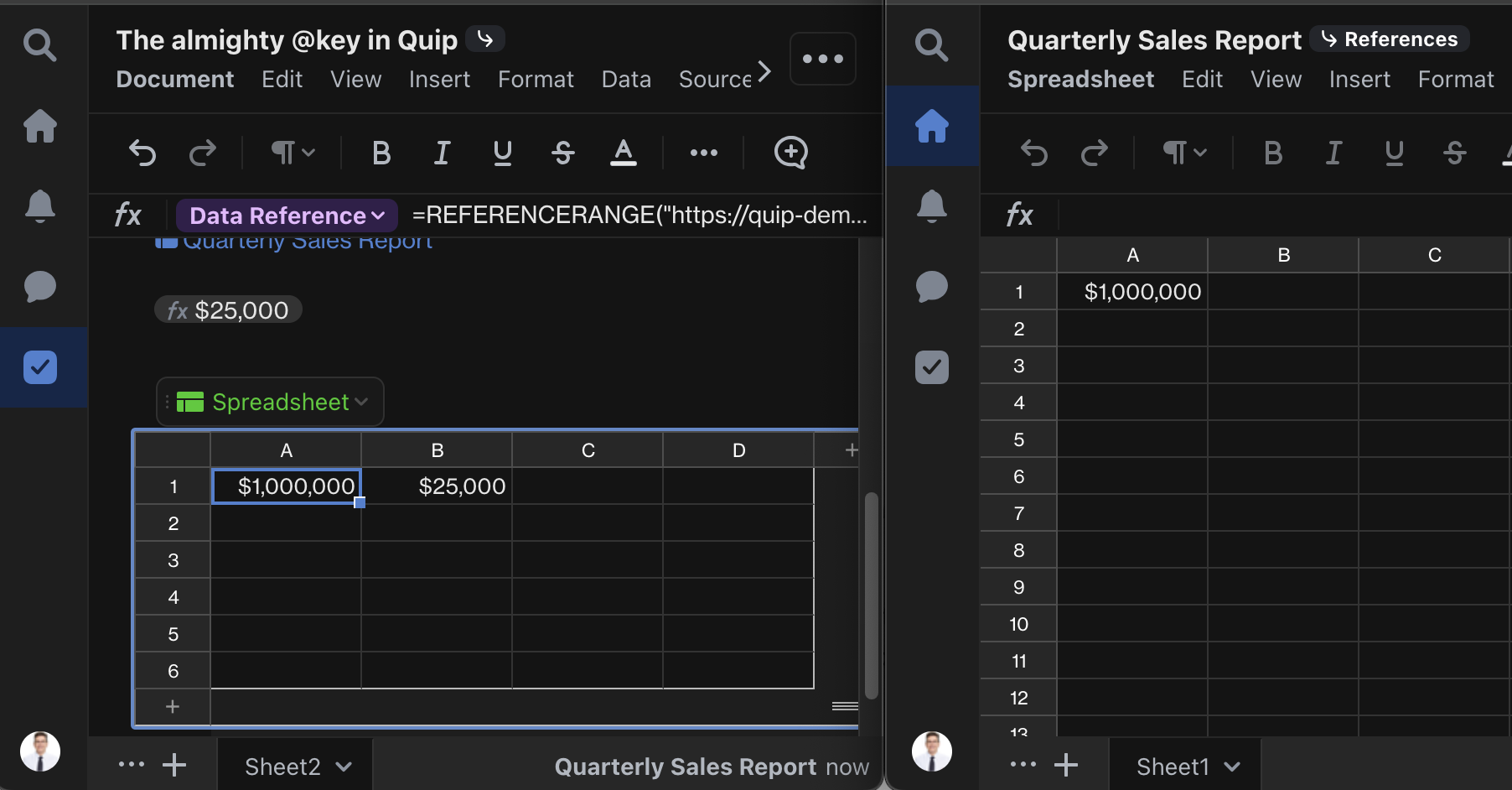
By integrating spreadsheets directly into your documents, your data isn't trapped in separate files. You can refer to data in your spreadsheets in the text of your documents by typing @Cell Reference. It’s a really powerful way to create an executive summary, showcase the important data in larger spreadsheets, or focus the attention of a meeting.
Quip is about living documents: real-time, dynamic documents that make it easy to create, share, and discuss work as a team. Sometimes, though, you have to work with non-Quip files – images, PDFs, and more. Next time you're thinking about writing an email and adding some attachments, try creating a doc and attaching files with @ instead. In Quip, all of those files can be accessed, shared, and discussed with your team.
Knowledge-artikelnummer
000389892
Löste denna artikel ditt problem?
Berätta för oss vad vi kan förbättra!
