Select An Org
Using Favorites and Collections in Quip
Publish Date: Feb 5, 2024
Description
Resolution
Organizing your work can be tricky sometimes, and we're here to help! Whether it’s a product roadmap that you’d like to have quick access to, or a new project document that you’ll regularly come back to, having documents quickly accessible can be really handy.
Enter Favorites and Collections. Now you can “favorite” particular documents and keep them in specific "collections" to better organize them.
Let’s break it down a bit by reading the information below and/or watching this video.
Favorites
Just like it sounds, “Favorites” are the documents (whether you’re currently working on them, or they’re an important document for a particular reason) that are kept in a drawer for quick access.
To “favorite” a document:
- Click the ‘Favorite’ (⭐) icon. The icon will be filled in yellow, and in the Favorites menu you’ll see “Added to Favorites” at the top.
- To access your newly favorited document, navigate to the sidebar on the left, and click the Favorites (⭐) icon to expand the Favorites drawer.
- Any newly favorited document will automatically be listed at the top of your Favorites drawer.

Tip: Don’t favorite too many documents, otherwise you’ll have too many and lose the goal of Favorites. Curating your list of favorited documents will be important, so you can keep them organized.
If you’d like to remove a document from your Favorites drawer:
- On the document, click the Favorites (⭐) icon and select Remove from Favorites at the bottom
- OR, right click the document in the Favorites drawer and select Remove from Favorites
Collections
Collections allow you to organize your favorite documents. Collections and Favorites go hand-in-hand, and can help you add another level of organization to your work. Think of them as folders for specific types of documents you’re working on or need to be aware of. You may want a Collection for all documents related to a team, or a project, for example.
Create a new Collection
To create a brand new Collection:
- Open your Favorites drawer from the sidebar.
- Click the '+' in the upper right corner, and your new Collection will be created.
- Give the Collection an appropriate name for the documents it will contain.
OR
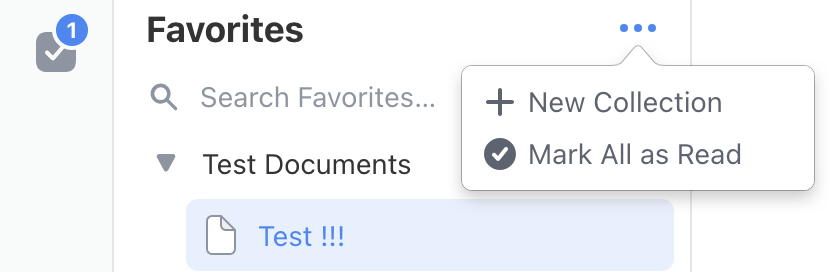
- Click the Favorites (⭐) icon, and select New Collection... at the bottom of the list.
- Give the Collection an appropriate name for the documents it will contain.
- Click Create.
Add a document to a Collection
To add a document to a Collection:
- Click the star icon (⭐) to open the Favorites menu.
- Select the Collection to add the document to.
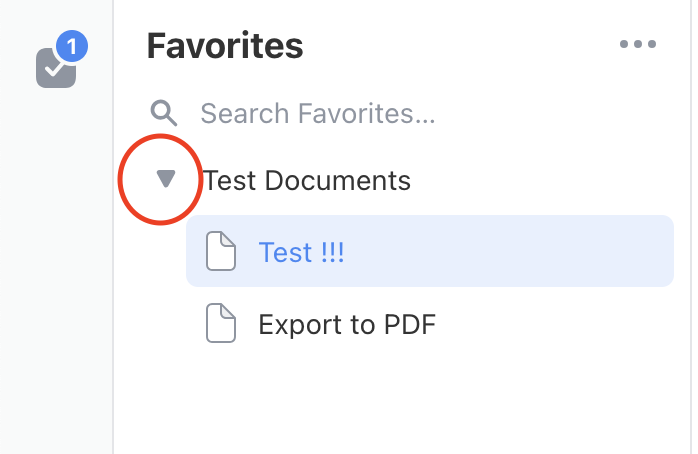
- To find your document, open the Favorites drawer on your sidebar and expand the Collection to find your document. Your Collection will stay expanded until you collapse it again.
Renaming and Deleting Collections
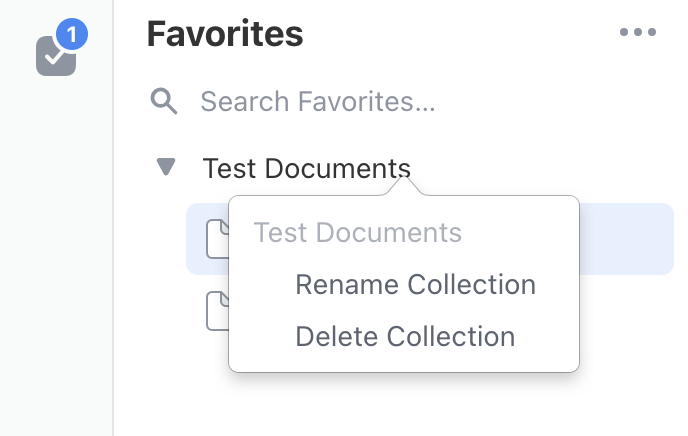
If you want to rename a Collection, right click on it and select Rename collection.
To delete a Collection, right click on it and select Delete collection.
Note: When you delete a Collection, all the documents inside will be un-favorited.
Favorites and Collections Notifications
When it comes to keeping up with what’s going on in your documents, we’ve got you covered.
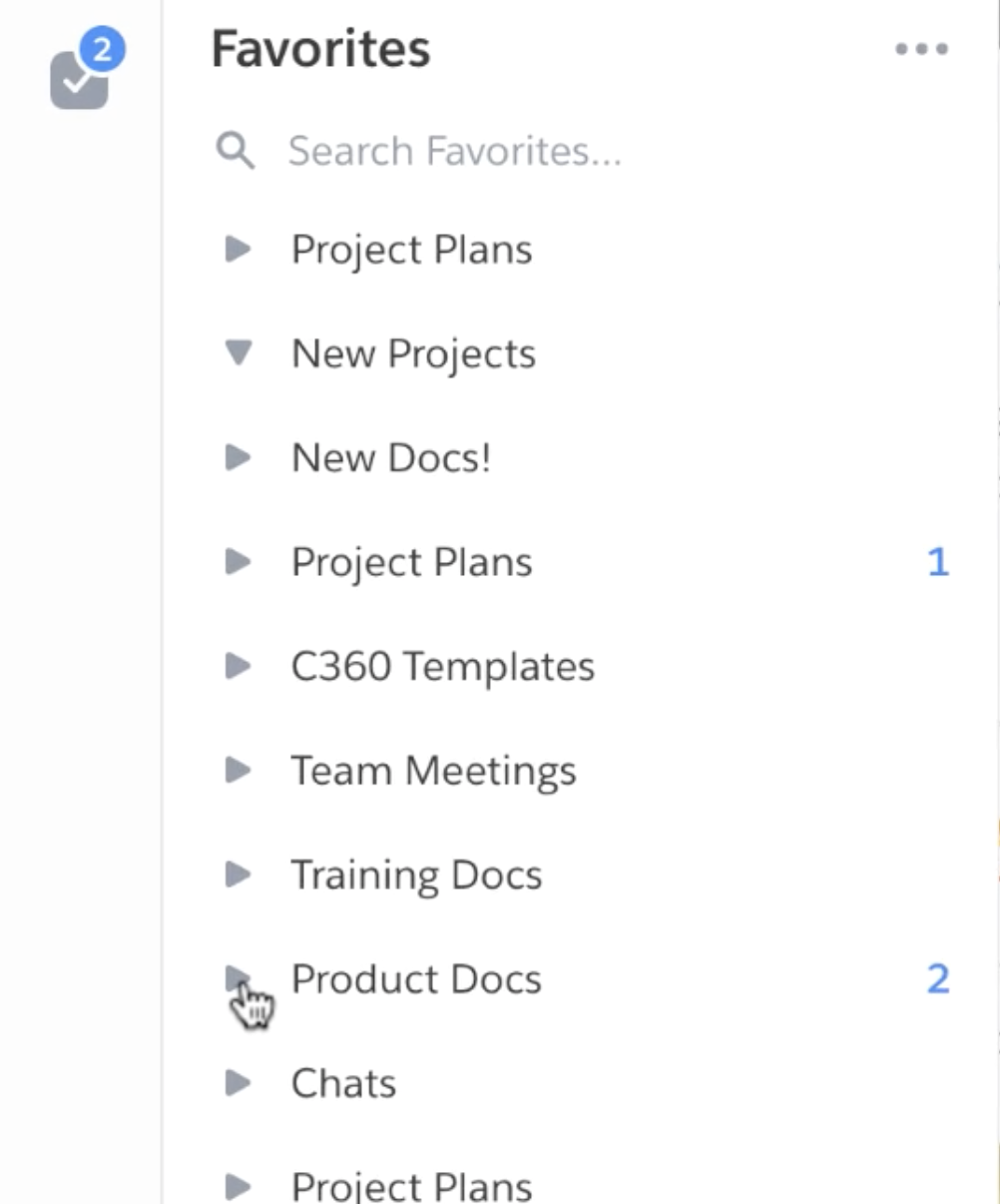
When you add documents into Collections, there will be a total number of notifications shown next to the name of the Collection. This is the total notifications of all documents inside of the Collection. When you expand the Collection, then you’ll be able to see which documents have notifications attached to them.
Favorites and Collections on Mobile
You can also favorite your documents through the mobile app.
To add a document as a favorite on mobile:
- Tap the Favorites menu (the ⭐ icon). Your document will then be added to your Favorites menu.
- To add your document to a Collection, tap on Favorites, and choose a Collection to place the document into.
Note: You can add a favorited document to a Collection, but you cannot create a brand new collection on mobile.
To remove a document from your Favorites menu, just swipe left and tap Remove.
Knowledge Article Number
000389921
Did this article solve your issue?
Let us know so we can improve!
