조직 선택
Comments and Conversations in Quip
게시 일자: Jan 4, 2024
상세 설명
솔루션
- Inline Comments
- Inline Comment Navigation
- Inline Comment Notifications
- Granular Inline Comments
- Conversation Pane
- The power of @mention (Shift + 2)
- Comment & Message Actions
- Emojis, GIFs, and Stickers
Every Quip document and spreadsheet has two channels for communication: Internal comments and the Conversation pane.
Inline Comments
Comments are designed for talking about specific sections of a document or spreadsheet. To comment, press the section of the document or spreadsheet you'd like to comment, select the comment bubble (image of comment bubble with plus sign inside), and type your message/hit send.
To insert an internal comment using the keyboard, move your cursor into the section of the document you'd like to comment on and enter:
Command + Shift + C (Mac)
Ctrl + Shift + C (PC)
To ensure someone specific sees the comment, @mention their name in the message. This ensures they receive a notification.
Inline Comment Navigation
Navigate between existing comment threads to catch up on conversation. (Available for desktop app and web only).
Select the up and down carets to navigate to the next or previous comment threads in the document. This navigation includes:
- Comments in documents
- Comments in embedded spreadsheets
- Comments on images
- Comments on Live Apps
Additionally, select Show Comment Source from the comment menu* to preview the section of the document the comment references.
*To open the comment menu, select the three horizontal dots at the top of the comment dialogue.
From the comment menu, the following options are also available:
- Copy Anchor Link
- Mark as Unread
- Archive
The following people will be notified when you leave a comment:
- The original author of the comment
- Anyone directly @mentioned in the comment
- Text: To comment on a particular word or phrase within a larger text block, highlight the word/phrase and insert comment
- Image: To comment on a specific area of an image, select the area of the image and leave a comment. A small yellow circle will result, and can be dragged and dropped anywhere on the image
- Spreadsheet: Comment on any cell, no matter the data the cell contains. It is not possible to comment on a full row, column, or range of cells.
Every document and spreadsheet that is shared with at least one other person has a conversation pane. The conversation pane demonstrates the following:
- A history of edits made to the document
- A history of comments made in the document
- A record of when people join (and leave) the document
To toggle show/display the conversation pane, click Show Conversaion (Ctrl + Alt + C on PC, or Command + Shift + C on Mac) icon on the top right.
The power of @mention (Shift + 2)
Whether leaving an in-line comment or chatting in the conversation pane, the @mention feature is key to the success of collaboration. Alongside @mentioning people, @mention individual documents or folders by simply typing the document or folder title.
Comment & Message Actions
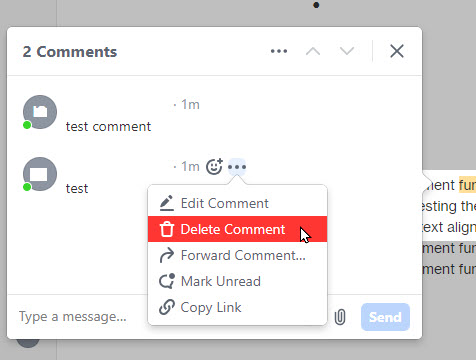
Hover over the in-line comment or message in the conversation pane and select on the 3 dots to the top right of the comment/message to do the following actions:
- Edit
- Delete (there's no Resolve option for the comment/message)
- Forward
- Link
Emojis, GIFs, and Stickers
Read how to insert Emojis, GIFs, and Stickers into your chats, comments, and conversations here.
Questions/Feedback?
Reach out to our support team and log a case. Learn how to do that here.
- Exporting with comments included is not equipped as a function from GUI. FYI - As an alternative, there is an API method for retrieving comments. Refer to Quip Developer FAQ for more details.
Import and Export, Salesforce Anywhere (Quip)
- Focus Mode (Ctrl + Shift + N) toggles hide/display the Conversation pane in the document but you cannot permanently hide the Conversation pane when sharing the document with others by design.
Knowledge 기사 번호
000389933
이 기사를 통해 문제를 해결했습니까?
개선을 위한 의견을 보내주세요.
