Seleccionar una organización
Search in Quip
Fecha de publicación: Feb 5, 2024
Descripción
Solución
Most of the time when you're searching for something, you shouldn't have to think too hard about it. You just start typing into the search field, and thanks to the miracle of autocomplete, you've already found what you're looking for.
Of course, sometimes you've got to dig deeper. Sometimes you're not just searching for a particular document, you're searching for a particular comment in that document. Maybe the only thing you remember about the document is that your boss shared it with you, and it has a checklist in it. That sounds important. Let's go find it.
Search for a document, chat, spreadsheet, or folder
This is probably how you'll use search most of the time—to find that document you were working on, or that really smart idea you came up with in...which chat was that?
To search for specific documents, chats, spreadsheets, and folders, just click in the search field at the top left corner of the screen and start typing. (Or, if you're a keyboard shortcut person, hit command-J.)
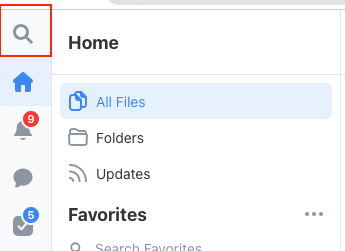
As you type, the search feature will suggest documents whose titles match what you're looking for.
To search deeper into the contents of your documents, click on the option for “ 🔍{your search term}”. You'll be taken to a search results page that includes matches from all the documents, spreadsheets, and chats you have access to.
Refining search results
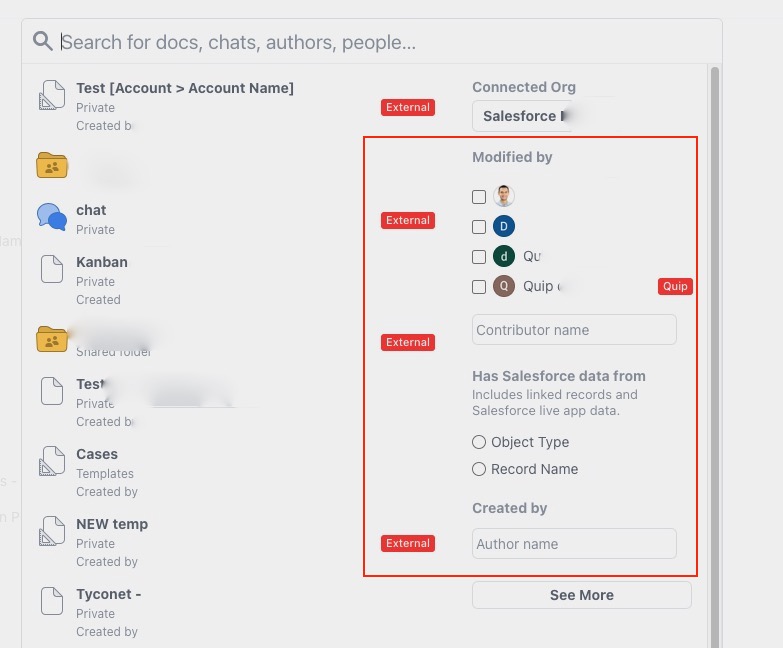
If you're looking for something particularly specific, or if you need help sorting through all your results, try adding a filter to your search.
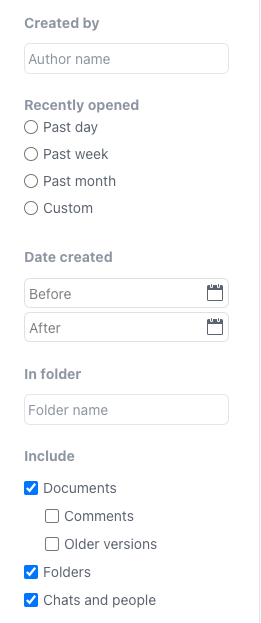
These should be fairly self-explanatory, but we're happy to explain them anyway.
- Modified by: Limits your results to content that's been edited or commented on by the person you choose.
- Created by: Limits your results to content that's been created by the person you choose.
- Opened by me: Limits your results to content that's been opened by you within the timeframe you choose.
- Date created: Limits your results to content that was created within the date range you specify.
- Include: Limits your results to content of the type you choose. Some of these options warrant further explanation:
- Older versions: Choose this and your search results will include content that's been previously deleted from documents.
- Comments: Choose this to search within the comments that have been left on a document. Not to be confused with chats, which are the conversations you have in chatrooms and through direct messages.
- Folders: Note that some search filters are inapplicable to folder searches, and this option might be grayed out depending on what else you've got going on in this panel.
Número del artículo de conocimiento
000389936
¿Resolvió este artículo su problema?
¡Háganos saber cómo podemos mejorar!
