Velg en organisasjon
Log A Call in Salesforce from Quip
Publiseringsdato: Sep 23, 2025
Løsning
Have you ever wished that you could log a call in Salesforce without leaving your Quip document? With Quip’s Log a Activity Button, you can log your important Salesforce calls from the convenience of a doc! Logged calls will sync to Salesforce and ensure that all records are up to date.
Before you can log a call, make sure Quip is connected to Salesforce. Click your profile icon in the lower left-hand corner of your screen. Select Manage Salesforce Orgs. From there, simply log into Salesforce to get started.
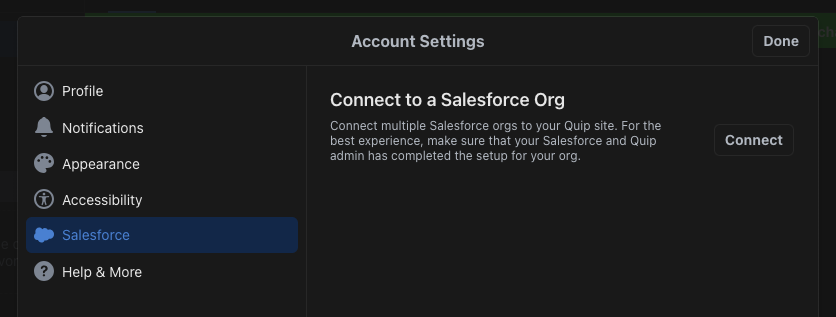
Try it out!
Accessing the Log a Activity button is incredibly easy! The button is conveniently located in the toolbar at the top of your document.
- Start by clicking the Blue Cloud icon to access the Log an Activity functionality!
- Select a record and Click Log a Call to continue.
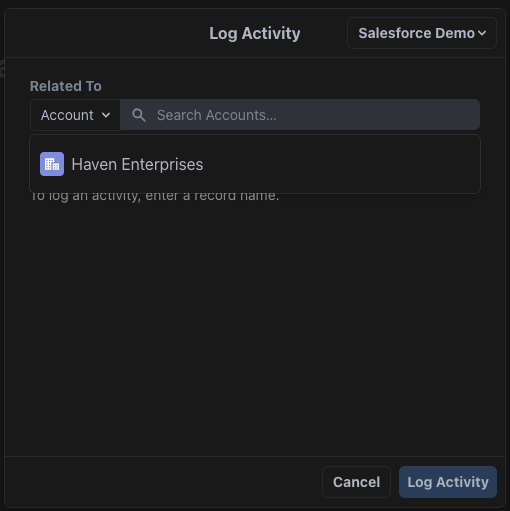
- After selecting the Account, you now have the opportunity to add in a Subject, Comments and identify the specific Contact or Lead.
- Under Subject, you have the ability to select from a few options or select Other to enter your own.
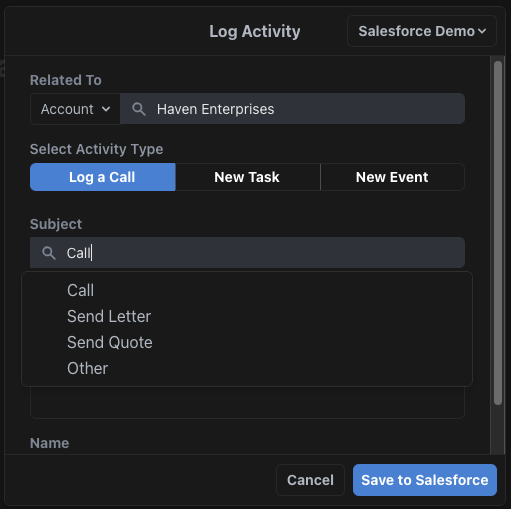
- Next, add in some comments. This is where you can include important call notes.
- Select the Contact that you called. This is to ensure that the call is logged on the Account record and the Contact record.
- When done, click Save to Salesforce.
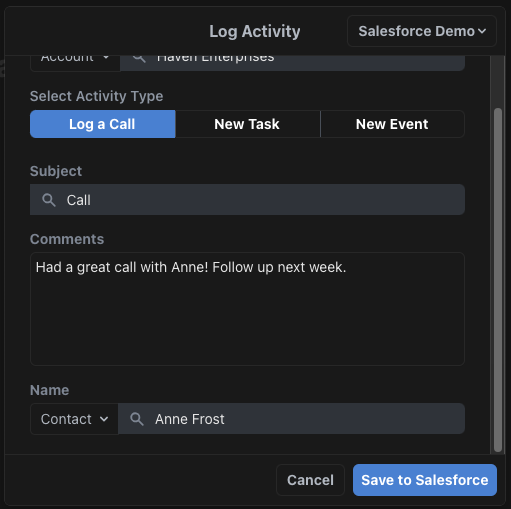
Congratulations! You’ve successfully logged a call in Salesforce from Quip!
Now let’s take a look at our activity in Salesforce to verify that this activity was successfully logged.
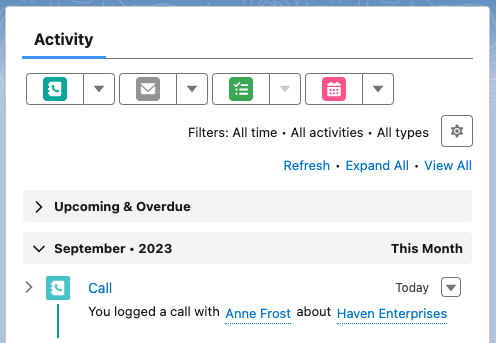
- Navigate to the Account record. As you can see below, the call is visible under the Activity section.
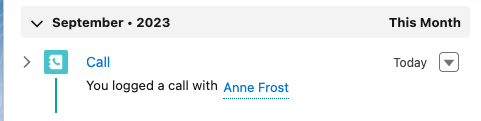
- Next, navigate to the Contact record. There you can see the logged call under Activity as well.
Knowledge-artikkelnummer
000389939
Hjalp denne artikkelen med å løse problemet ditt?
La oss få vite det slik at vi kan forbedre!
