Выбрать организацию
Setting Up Your Quip Notification Component in the Utility Bar
Дата публикации: Jan 26, 2024
Решение
This guide will help you to quickly and easily set up the Quip Notification Lightning Component in the Utility Bar in your Salesforce Org.
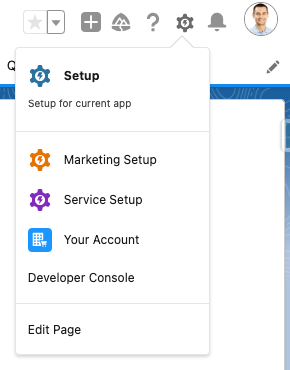
From anywhere in Salesforce:
- Click the grey gear symbol in the top right-hand corner
- Click Setup
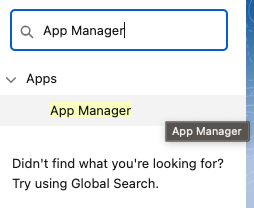
- Search App Manager from the search bar in the Setup Homepage
- Select App Manager
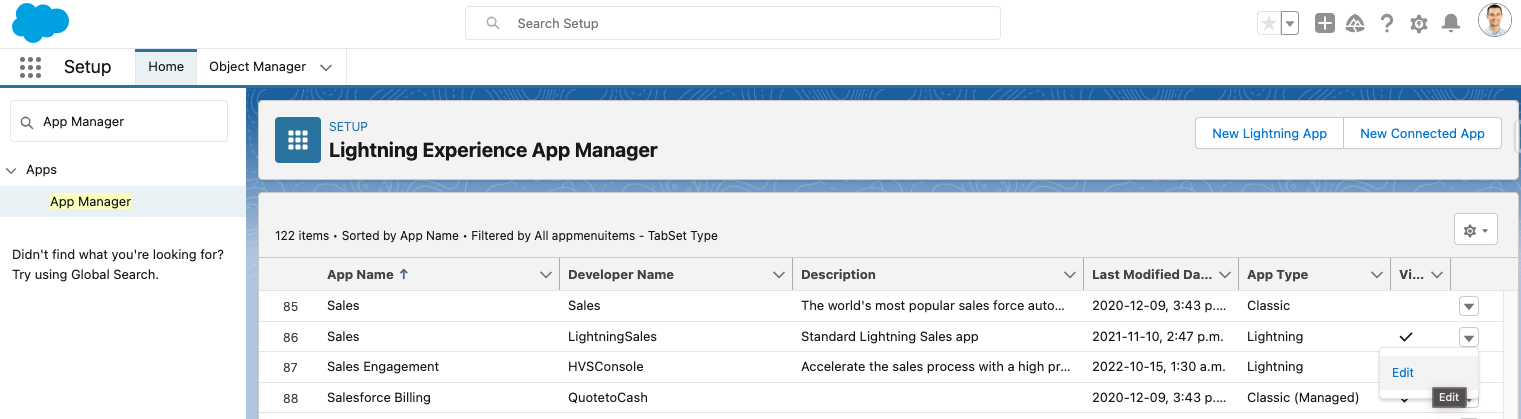
- From the Lightning Experience App Manager locate the line with App Name, Sales
- There will most likely be two - we are looking for the one with Developer Name, LightningSales because this functionality is supported with Lightning Experience
- Click the dropdown on the far right-hand side
- Click Edit
- Navigate to Utility Items (Desktop Only) and Click it
- In Utility Items (Desktop Only) click, Add Utility Item
- Search Quip Notifications
- Click Save
- Leave all values to their provided default
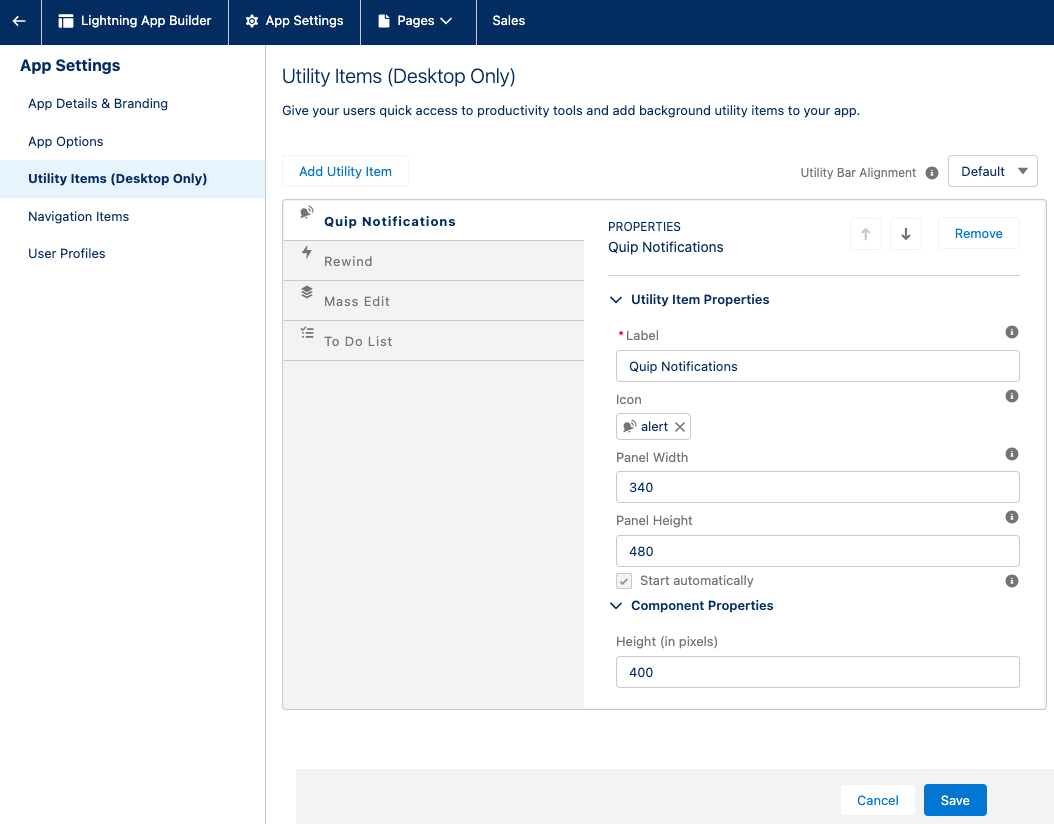
Now you can receive and manage your Quip notifications from Salesforce!
Номер статьи базы знаний
000389946
Эта статья решила вашу проблему?
Оставьте свой отзыв, чтобы мы могли стать лучше!
