Välj en organisation
Missing “Einstein Recommendations Available” Link in the Einstein Case Classification Component
Publiceringsdatum: Jun 22, 2026
Beskrivning
When using the Einstein Case Classification component in Salesforce Service Cloud, the "Einstein Recommendations Available" link may not appear in the Case Classification section of a case record. This issue typically occurs due to field-level security settings, page layout configuration, segment criteria mismatches, or insufficient training data. This article provides troubleshooting steps to identify and resolve the most common causes of this missing link.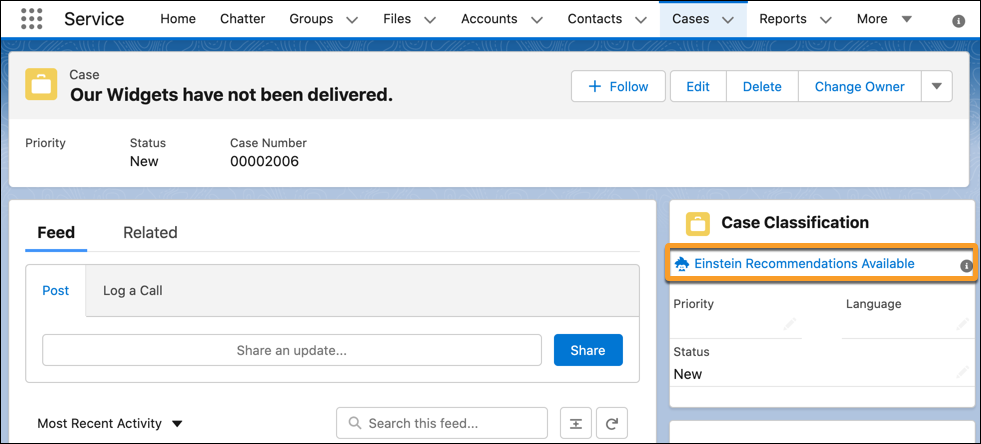
Lösning
Follow these troubleshooting steps to diagnose why the Einstein Recommendations Available link is not showing in the Einstein Case Classification component in Salesforce Service Cloud.
Troubleshooting Steps
- Check Field Level Security — Verify that your agents have Field Level Security (FLS) access for the fields selected in the Einstein Case Classification model.
- Check Page Layout Configuration — Confirm that the selected fields are added to the page layout in the recommendation component. For setup guidance, see Einstein Case Classification Setup on Salesforce Help.
- Verify "Automate Value" is Enabled — Check that the "Automate Value" setting is enabled in the Einstein Case Classification configuration.
Note: The recommendation is set on case insert, meaning the recommendation link does not appear after the case is already created. If the case was created before the configuration was complete, the link will not show retroactively. For more information, see Populating Einstein Case Classification Fields on Salesforce Help.
- Check Segment Criteria — If segments are defined for the model, the recommendation link only appears for cases that match the segment criteria. Review the segment configuration in your Einstein Case Classification model settings.
- Verify Sufficient Training Data — Confirm that you have at least 400 closed cases in the last 6 months that match the model's segment criteria. Insufficient training data prevents the model from generating recommendations.
- Check CRUD Access on AIRecordInsight — Verify the CRUD (Create, Read, Update, Delete) access on the AIRecordInsight entity, and confirm that agents have at least read access to this object.
If the issue persists after following all the above steps, contact Salesforce Support.
Knowledge-artikelnummer
000390084
Löste denna artikel ditt problem?
Berätta för oss vad vi kan förbättra!
