Välj en organisation
Roll-Up Summary field's filter based on picklist values which are more than 255 characters
Publiceringsdatum: Apr 2, 2026
Beskrivning
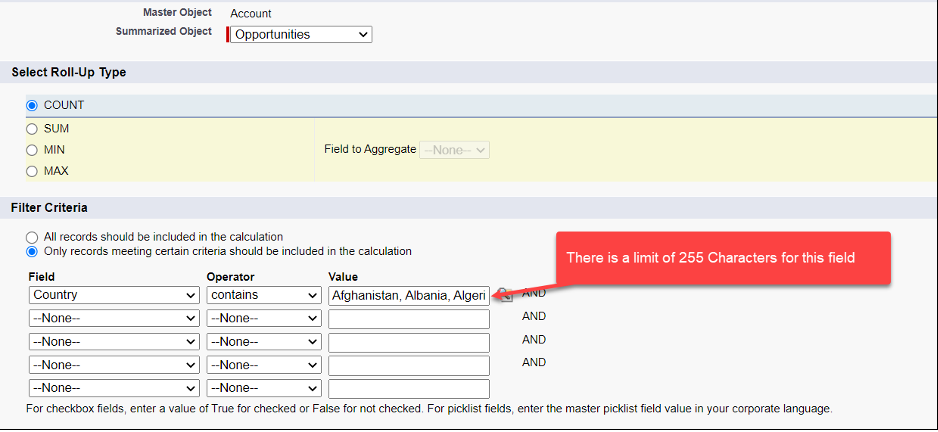
When you create a Roll-Up Summary field based on a picklist with multiple values in Filter criteria, you cannot use more than 255 characters.
For example:
You have a Country picklist field on the Opportunity object which has 196 values and want to create a Roll-Up Summary field on Account. if you apply a filter for 40 countries, you may exceed the 255 character limit to use in Filter Criteria. It is also risky to modify a filter value which uses so many commas-separated values, we may remove/override another value by mistake while modifying the same.
Lösning
To work around the 255-character filter limit, you can create a formula checkbox field on the child object that evaluates the picklist values using a CASE function, then use that checkbox field as the filter criterion in the Roll-Up Summary instead.
1. Create a checkbox (formula) field on a detailed child object and use the same in the Roll-up Summary filter criteria.
a) Go to the Fields & Relationships section and click on New Button.
b) Select Formula and click on Next Button.
c) Type a Field Label - In my case field label is Valid Countries.
d) Select the Checkbox option and click on Next Button.
e) Use CASE function on your picklist field as below - In my case, it is the Country picklist, and I am making the formula shorter. You can add values as many as you need to include in the formula.
b) Select Formula and click on Next Button.
c) Type a Field Label - In my case field label is Valid Countries.
d) Select the Checkbox option and click on Next Button.
e) Use CASE function on your picklist field as below - In my case, it is the Country picklist, and I am making the formula shorter. You can add values as many as you need to include in the formula.
CASE( Country__c, 'Afghanistan', 1, 'Albania', 1, 'Algeria', 1, 'Andorra', 1, 'Angola', 1, 'Antigua and Barbuda', 1, 'Argentina', 1,0 ) = 1
f) Click on Check Syntax button to validate the formula and click on the Next button.
g) Select the appropriate Profiles for field-level security and click on the Next button.
h) You can hide this field from the page layout by deselecting the checkboxes, otherwise click on the Save button.
2. Go to the Master/Parent Account Object and create a Roll-Up Summary field as below:
a) Go to the Fields & Relationships section and click on the New button.
b) Select Roll-Up Summary and click on the Next button.
c) Type a Field Label - In my case field label is Opportunities Count.
d) Select Opportunity from the Summarized Object dropdown.
e) Select Roll-Up Type.
f) Click on Only records meeting certain criteria should be included in the calculation under the Filter Criteria section.
g) Select the Valid Countries (Step 1c) from the Field dropdown.
h) Select Operator as Equals.
i) Select True as Value and click on the Next button.
j) Select the appropriate Profiles for field-level security and click on the Next button.
k) Finally, click on the Save button.
Ytterligare resurser
https://help.salesforce.com/s/articleView?id=platform.customize_formulas.htm&language=en_US&type=5
Knowledge-artikelnummer
000390345
Löste denna artikel ditt problem?
Berätta för oss vad vi kan förbättra!
